20
3.6 Setting
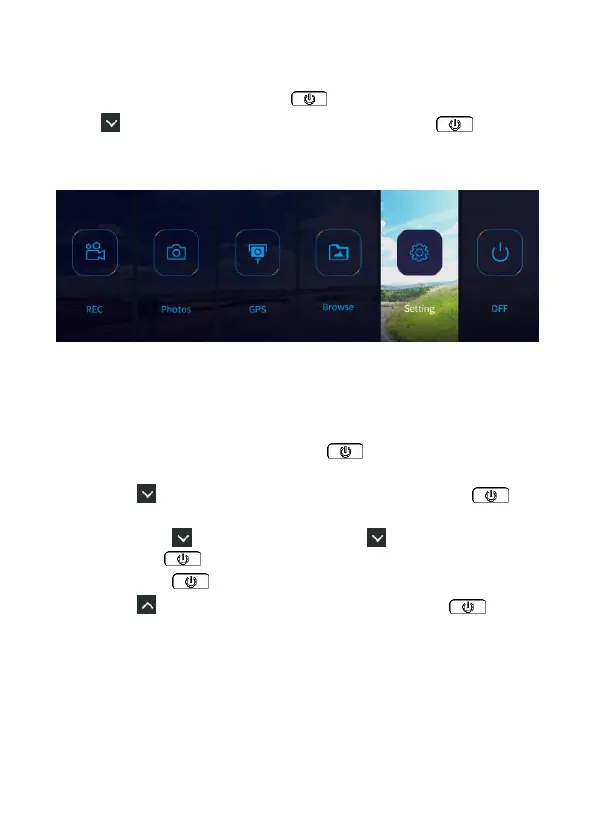
In the recording screen, long press button to enter the OSD menu.
Press a few times to select [Setting] card, and press to enter.
You can select “Video”, “Security” or “System” option to set up the
camcorder. Please refer to 4. Adjust the Setting for details.
3.7 Parking Mode
To monitor the vehicle when it is parked, you can activate Parking Mode.
Follow the steps below to change the settings for Parking Mode:
1. In the recording screen, long press button to enter the OSD
menu.
2. Press a few times to select [Setting] card, and press to
enter.
3. Long press to Security option, press to Parking Setting,
and press once to turn it on.
4. Long press to return to Menu.
5. Press a few times to select [REC] card, and press to
enter recording preview image.
6. When car’s engine is turned off, the camcorder will power off and
enter Parking Mode automatically.
7. When collision is detected, the camcorder will automatically trigger
the emergency recording. The emergency recording lasts 30
seconds per file and will not be overwritten by the normal loop


 To Next Page