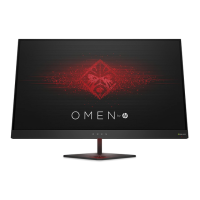
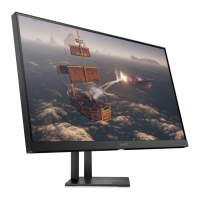
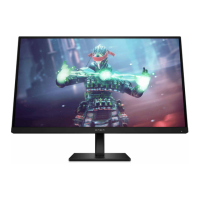
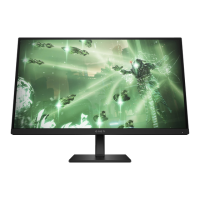
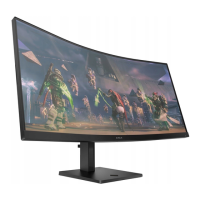
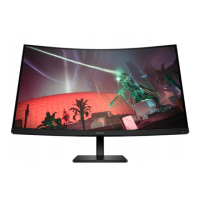
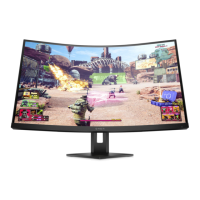
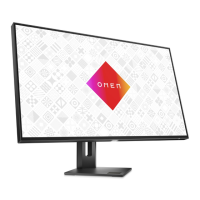
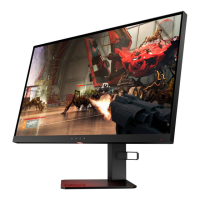
1. Tilt the monitor head forward or backward to set it to a comfortable eye level.
2. Adjust the monitor’s height to a comfortable position for your individual workstation. The monitor’s
top bezel edge should not exceed a height that is parallel to your eye height. A monitor that is
positioned low and reclined might be more comfortable for users with corrective lenses. Reposition
your monitor as you adjust your working posture throughout the work day.
3. Swivel the monitor to the left or right for the best viewing angle.
4. You can pivot the monitor head from landscape to portrait orientation to adapt to your application.
CAUTION: HP recommends that you disconnect all cables before pivoting the monitor from
landscape to portrait. If you pivot the monitor with the cables connected, you might damage the
cables or the connectors.
IMPORTANT: If the monitor is not in full height and full tilt position when pivoting, the bottom-right
corner of the monitor panel will come in contact with the base and potentially cause damage to the
monitor.
Adjusting the monitor
13



 To Next Page
 Loading...