Need help?
Do you have a question about the HP P27v G4 and is the answer not in the manual?
Critical safety precautions for service personnel to minimize injury risk and ensure equipment safety.
Essential information and precautions for professional service technicians performing maintenance on the product.
Details on RoHS compliance requirements for electrical and electronic products sold in the EU and other countries.
Overview of the manual's content and the two levels of service covered within the document.
Information on where to find and how to perform firmware updates for the monitor.
Procedure to ensure product safety and operational integrity before returning it to the customer after service.
Lists the potential features of the monitor, including screen size, resolution, and panel type.
Identifies and describes the controls and indicators located on the front of the monitor.
Identifies and describes the connectors and ports located on the rear of the monitor.
Guidance on locating the unique serial and product numbers on the monitor for identification purposes.
Provides information and links on how to purchase spare parts for the monitor.
Steps and materials required to properly prepare the monitor for disassembly and reassembly.
Details initial steps for removing components like the base and bracket from the monitor.
Step-by-step guide for removing and replacing the monitor's power board, including part number.
Instructions for repairing common connectors such as HDMI, VGA, and DC jacks on the main board.
Guidelines for performing tests to ensure all monitor functions are operational after service or repair.
This document serves as a Maintenance and Service Guide for the HP P27v G4 model monitor, providing comprehensive information on spare parts, removal and replacement procedures, diagnostic tests, and troubleshooting. It is intended for trained service personnel and emphasizes important safety and service precautions to ensure proper and safe maintenance.
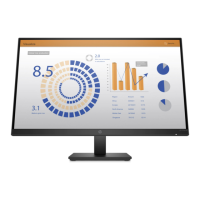
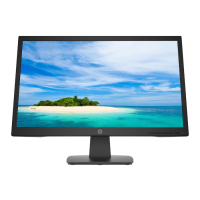
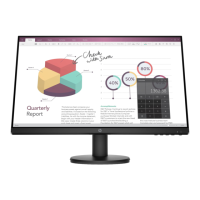
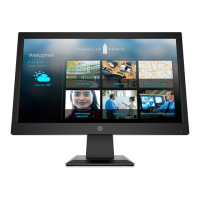
The HP P27v G4 monitor is designed to provide a clear and wide viewing experience, suitable for various applications. It features a diagonal viewable screen area with full-screen support for lower resolutions, ensuring maximum image size while preserving the original aspect ratio. The monitor incorporates an Anti-Glare panel with an LED backlight, enhancing visibility and reducing reflections, which is particularly useful in brightly lit environments. Its wide viewing angle allows for comfortable viewing from different positions, whether sitting, standing, or moving from side to side.
One of the key usage features is its tilt capability, allowing users to adjust the screen to their preferred ergonomic angle. For connectivity, the monitor includes a VGA video input, which is a standard for many older systems, and for select models, a High-Definition Multimedia Interface (HDMI) video input, providing high-quality digital video and audio. Some models also feature an Audio-in jack for connecting external audio sources. The monitor supports plug-and-play functionality, simplifying setup with compatible operating systems. For security, it includes a security cable slot provision on the rear, allowing for an optional security cable to deter theft.
User interaction is facilitated through On-Screen Display (OSD) adjustments, available in several languages, which enable easy setup and screen optimization. The OSD menu allows users to navigate and customize various settings, including brightness, input control, and power-saving features. The monitor also supports High-Bandwidth Digital Content Protection (HDCP) copy protection on all digital inputs, ensuring compatibility with protected content. An energy saver feature is integrated to meet requirements for reduced power consumption, contributing to energy efficiency.
Maintenance features are extensively covered in the guide, starting with crucial safety information. It stresses the importance of performing repairs only by professional service technicians in a repair center, not by end-users. The guide highlights the high voltage area on the primary side during servicing and mandates the use of lead-free solder wire to meet RoHS requirements. When replacing capacitors, technicians are instructed to match polarity, specification, and part numbers to the Bill of Materials (BOM) and location. Precautions against getting the board wet are also emphasized, as water and moisture can cause short circuits. Proper soldering techniques, such as working quickly to avoid overheating and keeping the iron tip clean, are detailed. After repairs, a thorough inspection of the circuit board and a function test of the power supply are required to confirm proper operation.
The guide also addresses ERP Lot5 requirements, stipulating that professional repairers must have technical competence in repairing electronic displays and comply with applicable regulations, including having insurance that covers liabilities from repairs. For RoHS (Restriction of Hazardous Substance in Electrical and Electronic Equipment Directive) compliance, the guide specifies that if original parts are not RoHS compliant, replacement parts can be non-RoHS compliant, but if original parts are RoHS compliant, replacement parts MUST also be RoHS compliant.
The manual provides general descriptions of the monitor, outlining two levels of service: cosmetic/appearance/alignment service and circuit board or standard parts replacement. Firmware updates, if available, can be found on support.hp.com. Before returning a repaired product to the customer, an AC leakage current check on exposed metallic parts is mandatory to ensure safety and prevent electrical shock.
The guide includes detailed procedures for disassembly and reassembly, starting with preparation steps such as reading safety information, cleaning the disassembly room, identifying the disassembly area, and preparing for material flow. It lists necessary equipment and materials, including a press fixture, working table, screwdriver, knife, gloves, cleaning cloth, ESD protection, and a scraper bar of specific dimensions.
Step-by-step instructions are provided for removing components like the base, bracket, rear cover, shielding case/cables, and the function key board. It also details how to remove the bezel and separate it from the panel, as well as the mainboard (M/B) and power board (P/B) from the shielding case. Specific instructions for power board and connector repair (HDMI, VGA, DC jack) are included, detailing the use of soldering irons, desoldering pumps, and hot air guns to remove and replace components, ensuring proper placement and soldering.
Finally, the guide outlines a function test to confirm all functions are working after repair, including HDMI and VGA tests using a computer or DVD player. A comprehensive troubleshooting section lists common problems, their possible causes, and recommended solutions, covering issues like a blank screen, flashing video, monitor being off, improperly connected video cables, system in sleep mode, incompatible video cards, low brightness, "Check Video Cable" message, "Input Signal Out of Range" message, and locked OSD or power buttons. This ensures that technicians can effectively diagnose and resolve issues, restoring the monitor to optimal functionality.
 General
| Color gamut | 72 % |
|---|---|
| Pixel pitch | 0.311 x 0.311 mm |
| Screen shape | Flat |
| Display diagonal | 27 \ |
| Display technology | LCD |
| Native aspect ratio | 16:9 |
| Maximum refresh rate | 60 Hz |
| Contrast ratio (typical) | 1000:1 |
| Display number of colors | - |
| Digital vertical frequency | 50 - 60 Hz |
| Digital horizontal frequency | 30 - 80 kHz |
| Display brightness (typical) | 300 cd/m² |
| Supported graphics resolutions | 640 x 480 (VGA), 720 x 400, 800 x 600 (SVGA), 1280 x 1024 (SXGA), 1280 x 720 (HD 720), 1280 x 768, 1280 x 800 (WXGA), 1440 x 900 (WXGA+), 1600 x 900, 1680 x 1050 (WSXGA+), 1920 x 1080 (HD 1080) |
| HDMI | Yes |
| HDMI version | 1.4 |
| DisplayPorts quantity | 0 |
| AC input voltage | 100 - 240 V |
| Power consumption (standby) | 0.5 W |
| Power consumption (typical) | 28 W |
| Operating temperature (T-T) | 5 - 35 °C |
| Operating relative humidity (H-H) | 20 - 80 % |
| Depth | 47.7 mm |
| Height | 367.7 mm |
| Display viewable area (HxV) | 597.88 x 336.1 mm |
| Tilt angle range | -5 - 20 ° |
| Panel mounting interface | 100 x 100 mm |
| Product color | Black |
| Market positioning | Business |
| Package depth | 200.1 mm |
| Package height | 447.7 mm |
| Package weight | 5700 g |
| Sustainability certificates | ENERGY STAR |
| Cables included | AC, VGA |
| Harmonized System (HS) code | 85285210 |
 Weight and Dimensions
| Depth (with stand) | 44.77 mm |
|---|---|
| Width (with stand) | 61.22 mm |
| Height (with stand) | 20.01 mm |
| Weight (with stand) | 4500 g |
| Depth (without stand) | 4.77 mm |
| Width (without stand) | 612.2 mm |
| Height (without stand) | 36.77 mm |


 To Next Page