14
No
icon Item Description
11
Preview
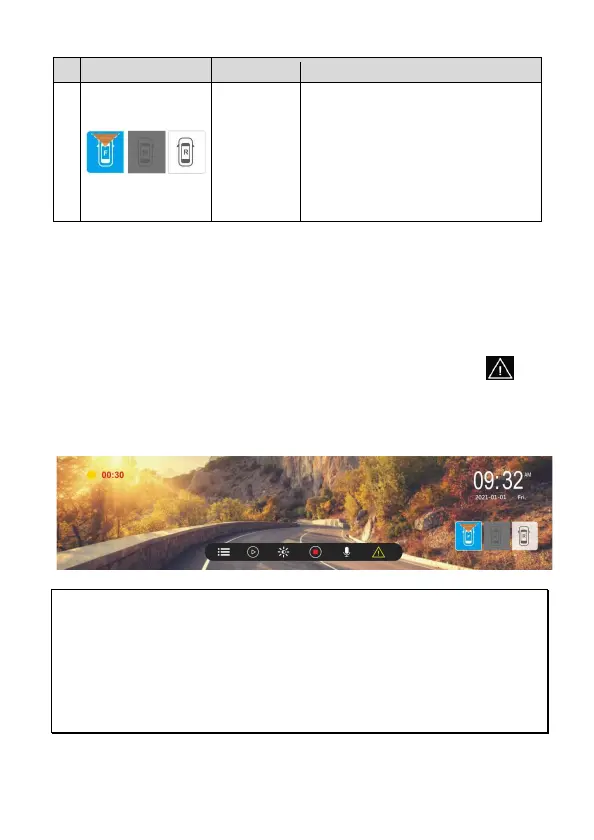
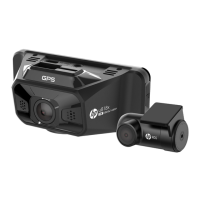
camera
F: front camera
M: middle/interior camera(option)
R: rear camera(option)
If optional middle or rear camera is
installed, the icon will be white, touch
the icon, the preview screen will be the
camera’s view, and icon will change to
blue.
3.1.3 Emergency Recording
This Car Camcorder is equipped with a G-Force sensor. If the G-sensor
function is enabled, when collision is detected, the camcorder will
automatically trigger the Emergency Recording feature. The screen will
pop up “Emergency”, and the yellow dot will blink on left top corner. The
emergency recording files will not be overwritten by the normal loop
recording files.
To manually initiate the emergency recording feature, touch icon
during the normal recording function.
The file length of emergency is as same as interval time of normal loop
recording. Once it reaches setting time, the camcorder will resume to
normal loop recording.
Note:
1. The sensitivity of G-sensor can be adjusted in the Menu. Enter Menu and select
[Collision Detection] to adjust Off, Low sensitivity, Medium sensitivity, High sensitivity.
If choose Off, the camcorder will not activate auto emergency recording.
2. The emergency file is created as a new file and saved in Emergency folder, which
will be protected to avoid being overwritten by normal loop recording.
3. The Emergency folder will occupy 20% of available memory card capacity. When the
space is full, it will overwrite the oldest emergency files.


 To Next Page