Setting up the USB Docking Station
Step 1: Connect to AC power
WARNING! To reduce the risk of electric shock or damage to your equipment:
Plug the power cord into an AC outlet that is easily accessible at all times.
Disconnect power from the product by unplugging the power cord from the AC outlet.
If provided with a 3-pin attachment plug on the power cord, plug the cord into a grounded (earthed) 3-pin
outlet. Do not disable the power cord grounding pin, for example, by attaching a 2-pin adapter. The
grounding pin is an important safety feature. It is possible to receive an electric shock from a system
that is not properly grounded.
To ensure the correct performance of all docking station features, connect the docking station to an AC
power source using the docking station power cord.
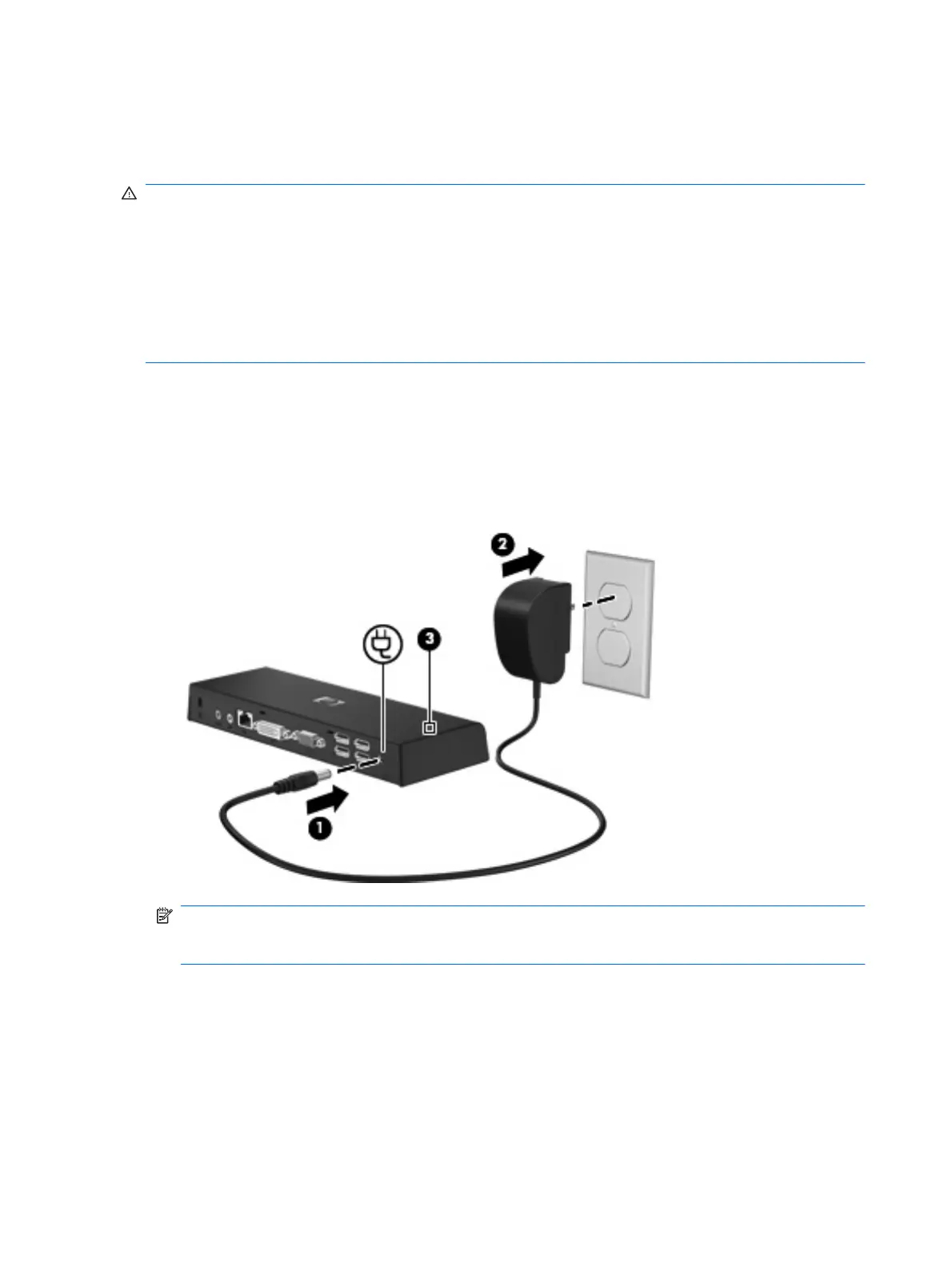
1. Connect the docking station power cord to the power connector (1).
2. Connect the power cord to an AC outlet (2). The power light (3) on the top of the docking station
turns on.
NOTE: The docking station power cord provides power to the docking station only. To provide
power to the computer, connect the computer to external power using the computer AC adapter
and power cord.
4 Chapter 1 Getting started



 To Next Page