6.9. Wireless WIFI on and off
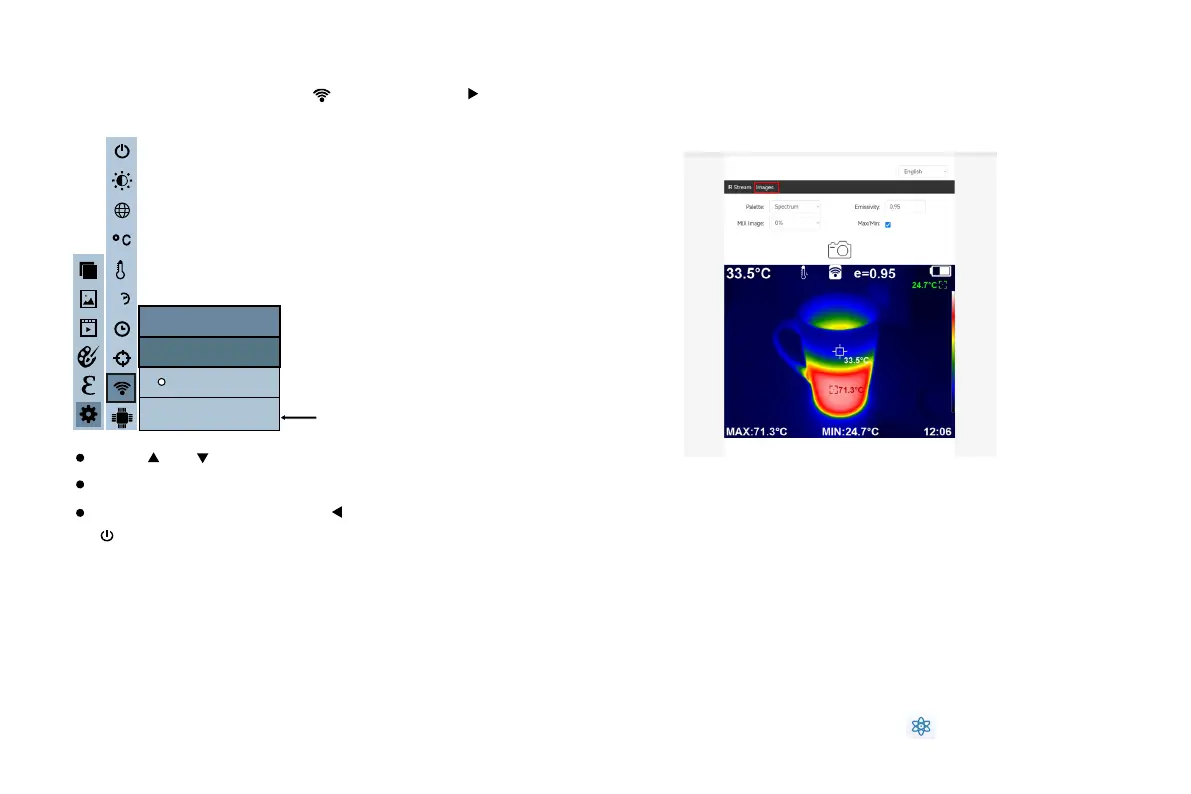
As shown in the figure, after selecting “ ” (WiFi), press the “ ” button
in the navigation key to enter the WIFI
setting.
Press “ ” /“ ” key to select “ on ” or “ off ” the option.
Then press “
SELECT/ENTER
” key to determine selection.
After the setting is completed,press “ ” key to return. Press
“
/MENU
” key to exit from the menu.
L
H
WIFI
SN:Thermal-0000
WiFi
Off
On
Click to take a photo on the mobile device, and the image will be saved on
the machine synchronously, as shown in the figure below.
Image view: click "Image" in the mobile device to enter the image list, and
click "Infrared video streaming" to return to the video streaming page.
After turning on WIFI, use the mobile device to search for WIFI, the WIFI
name can be found in the local menu (as shown above); access the device
through the IP address 192.168.230.1.
In the mobile device, you can set the color palette, fusion, emissivity,
maximum/minimum value, language conversion, and then it can be
synchronized to the machine, and the settings on the machine can also be
synchronized to the mobile device (Note: If not converted, the refresh on
the device).
Enter the image list, select the image to download and press and hold to
download the corresponding image, long press the image to save it to the
mobile device, and click "Infrared video streaming" to return to the video
streaming page.
3029
24h
Thermal Imaging Image Analysis Software
Operation Guide
1. Connect the product with a USB cable, and then connect to the computer.
Open the removable disk in the computer, find the "INSTALLATION
PACKAGE" folder and open it, and click to install the software.
Software Installation And Operation



 To Next Page