1817
1.“Image Overlapping” Submenu
1.1. Description of Image Overlapping
Introduction to the Menu
Press the left of “
MENU/
” key and the menu bar appears. They are “image
overlapping”, “image”, “video”,“color palette”, “emissivity” and “setting”
submenus.
Image overlapping makes it easier for users to understand the infrared
images by using aligned visible images and infrared images. The use of
image overlapping can capture the visible image of every infrared image
so as to display the temperature distribution in the target region correctly
and share with other people more effectively.
1.2. Application of Image overlapping
Press the “
/MENU
” button to enter the main menu, and select “ ”
(Image registration) in the main menu.
Press the “
SELECT/ENTER
” button to enter the image overlap
adjustment mode.Press the navigation keys (up, down, left and right
buttons) to perform the visible image shift operation.
Press the “
SELECT/ENTER
” button to exit the image blending mode (Note:
If there is no operation for more than 6 seconds, the image blending mode
will be automatically exited).
2. Introduction to “image” Sub-menu
2.1. View Image
2.2. Delete Images
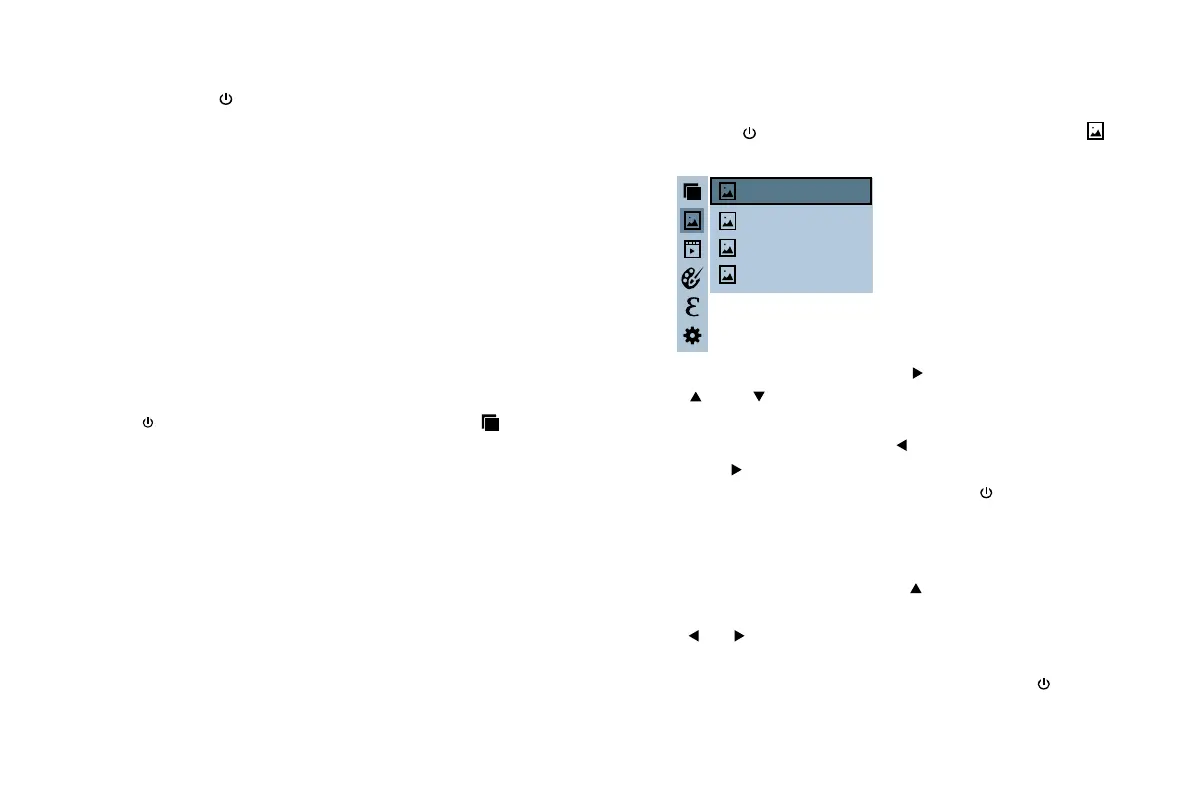
As shown in the figure, Then press “ ” key to enter image list. Press
“ ”or “ ” key in navigation to select the image. Then press
“
SELECT/ENTER
” key to view image.
When viewing the images, press “ ” key to view the precious image,
Press “ ” to view the next image.
Press “
SELECT/ENTER
” key to return. Press “
/MENU
” key to exit
from the menu.
While viewing the image, press the “ ” key, the screen will display
“Delete photo?” Select “Yes” or “No” to delete the image, press the
“ ”“ ”key, to Switch the selection, then press the“SELECT/ENTER”
key, to confirm.When the image is deleted, “No Image” will be displayed.
Press “SELECT/ENTER” to return to the menu and press “ /MENU” to
exit the menu.
Press the “
/MENU
” button to enter the main menu, and select “ ”
(image) in the main menu.
171229-105030
171229-105031
171229-105032
171229-105033



 To Next Page