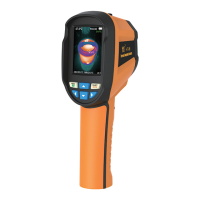
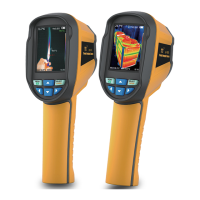
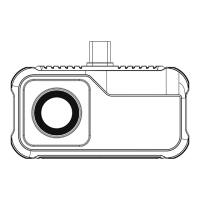
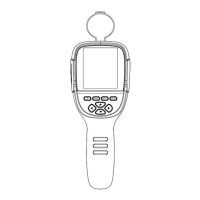
5. Initial Operation
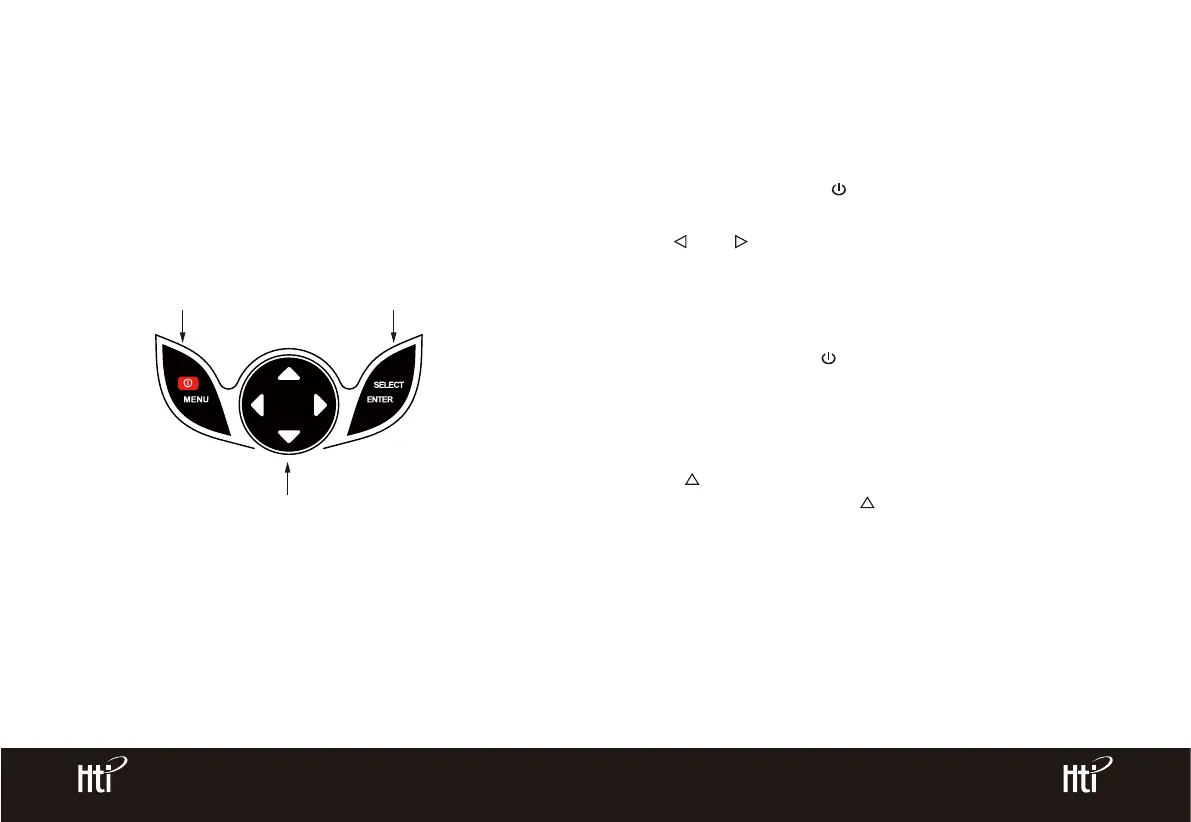
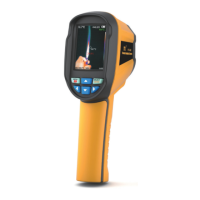
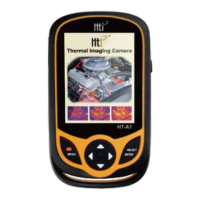
4.3. Key Description
On/off key/Menu key Selection key/Entry key
Navigation key: Up, down, left and right
5.4 Image capture: press the image capture key. When the capture is
successful, the screen will display “store photo?” prompt. If “yes” is
selected, please press “ /MENU” key to determine to save the image.
If “no” is selected, press “SELECT/ENTER” key to determine not to save
the image.
5.6 Image output: The saved images through capture may be checked
and output by connecting with a computer through Micro USB.
5.5 The function to hide highest/lowest temperature column at the
screen bottom: under the operation after normal start up, press
“ ” key and the screen bottom will display highest/lowest
temperature column. Press “ ” can also hide it.
5.1 Charging: the product is provided with built-in 1800 lithium battery.
When the battery power is not sufficient, please charge it through Micro
USB interface in time.
5.2 On/off key: hold down “ /MENU ” key to power on /off.
5.3 Switching between infrared thermal image and visible image: press
“ ” or “ ” key to switch the degree of fusion between inferred
thermal images and visible images (the degree of fusion is 0%, 25%,
50%, 75% and 100%).
www.xintest.com.cn
6
www.xintest.com.cn
7
4. The lowest temperature cursor: used to indicate the lowest temperature
position in the screen area. It will move with the movement of the lowest
temperature. The cursor displays red. The temperature value is displayed at
the central position of the screen.


 To Next Page