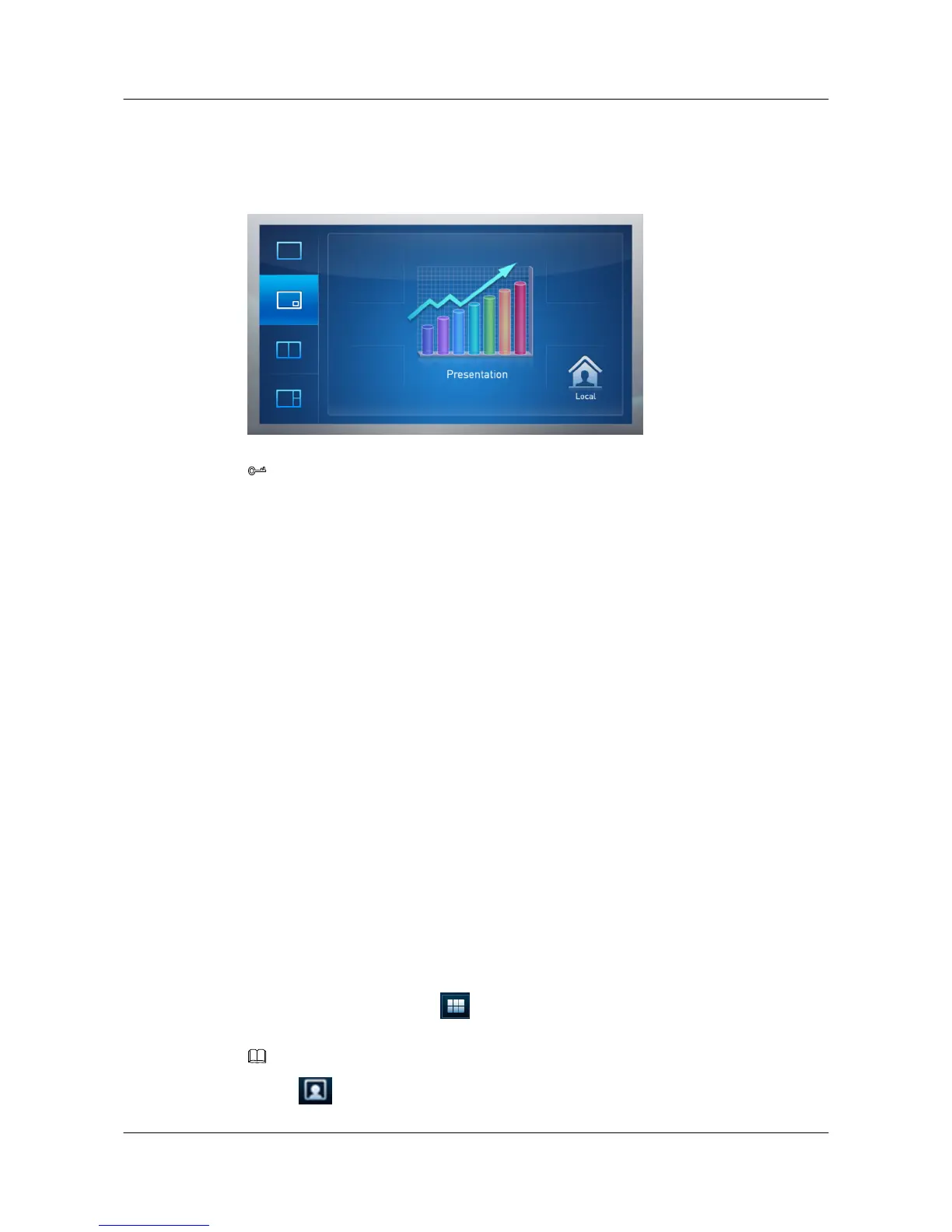
you can enable the presentation, local video, and remote video to be displayed in three
panes.
Figure 4-1 Switching between screen layouts
TIP
l In PiP, four small frames are displayed on the touch panel user interface. Tap a frame to allow the
small window in PiP to be displayed in the corresponding location on the monitor.
l In full screen, drag a site or continuous presence entry to the screen layout control area to view that
site or continuous presence. If you are chairing the conference, you can also broadcast the site or
continuous presence.
4.5 Viewing Continuous Presence
Use the touch panel to select to view continuous presence.
Prerequisites
This function is available only when continuous presence resources have been reserved for the
conference.
Context
The continuous presence function is used to display the video from two or more sites on the
same monitor at the same time. The number of the sites whose video is displayed and the layout
of the video vary according to continuous presence modes.
When initiating a multipoint conference using the touch panel, you can set continuous presence.
For details about how to set continuous presence, see Table 3-1.
Procedure
Step 1 After the conference starts, tap
from the home screen to display the continuous presence
list.
NOTE
Tap to swap the continuous presence list for the site list.
HUAWEI 9000 HD Video Terminal Touch Panel
User Guide 4 Controlling What You See
Issue 01 (2012-04-30) Huawei Proprietary and Confidential
Copyright © Huawei Technologies Co., Ltd.
24


 To Next Page