Step 10 Run the modinfo nvme command to check the driver author information to determine
whether the driver is successfully installed.
The following command output indicates that the driver is successfully uninstalled.
modinfo: could not find module nvme
The following author in the command output also indicates that the driver is successfully
uninstalled.
author: Matthew Wilcox <willy@linux.intel.com>
l If yes, no further action is required.
l If no, go to Step 11.
Step 11 Contact Huawei technical support for help.
----End
5.1.2 Uninstalling the Driver in Windows
Operation Scenario
If you want to stop using or replace the ES3000 V3, uninstall its driver first.
Uninstall the ES3000 V3 driver by following the procedure described in this topic.
Do not uninstall the ES3000 V3 driver by using Device Manager. If you have uninstalled the
ES3000 V3 driver by using Device Manager, you still need to uninstall the driver by
following the procedure described in this topic before installing the driver again. To install the
driver, see 3.6.2 Installing the ES3000 V3 Driver in Windows.
Procedure
l Uninstall the driver by using Control Panel.
a. Log in to the OS as an administrator or a member of the administrator group.
b. Stop the programs that are accessing the ES3000 V3.
c. Choose Start > Control Panel.
The Control Panel window is displayed.
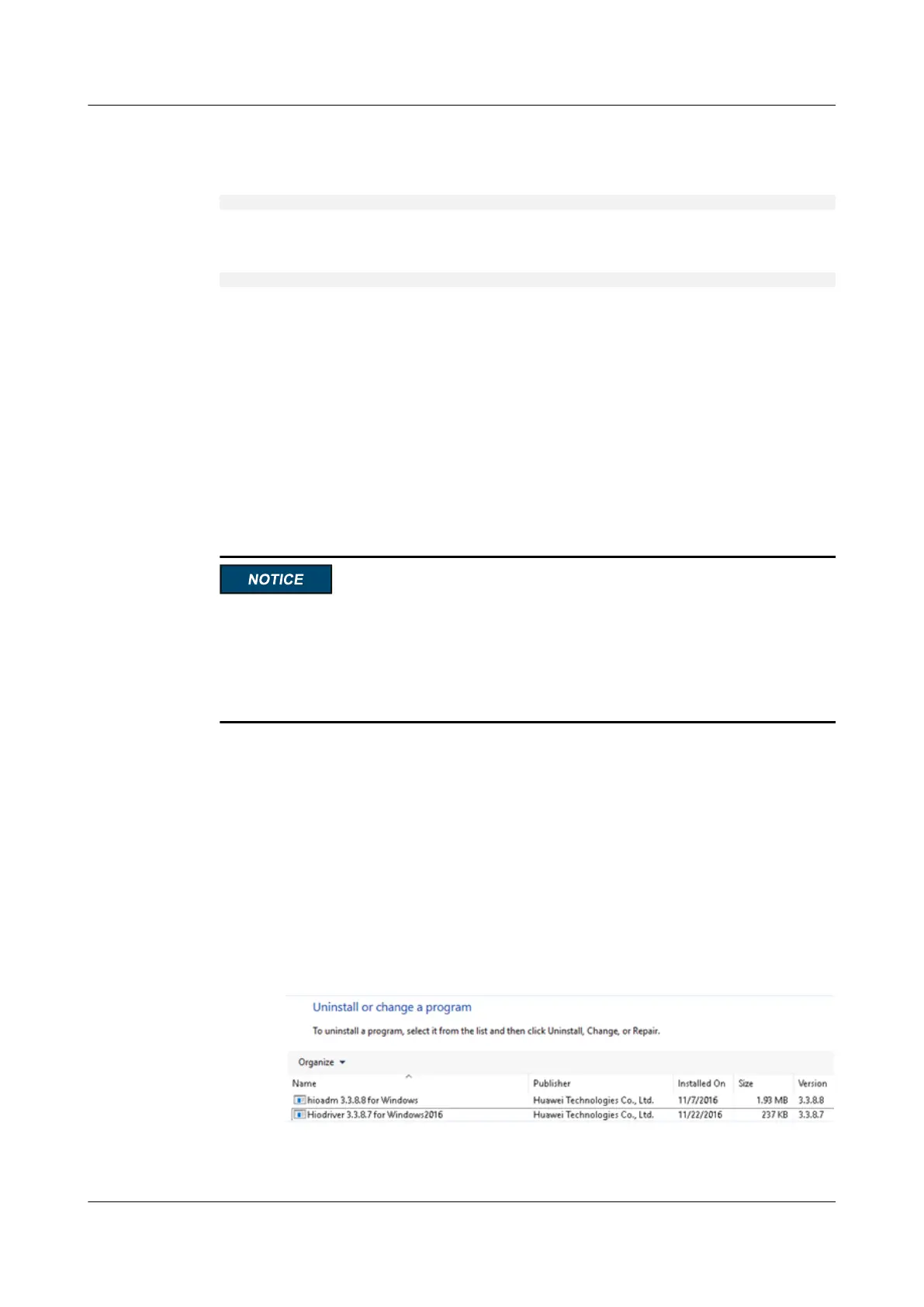
d. Click Uninstall a program.
The Uninstall or change a program window is displayed, as shown in Figure 5-1.
Figure 5-1 Uninstall or change a program
e. Right-click the ES3000 V3 driver, and choose Uninstall/Change from the shortcut
menu.
ES3000 V3 NVMe PCIe SSD
User Guide
5 Maintenance and Upgrade
Issue 20 (2019-02-27) Copyright © Huawei Technologies Co., Ltd. 64




 To Next Page