1.1 Connecting your Huddly camera
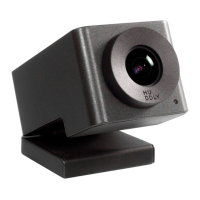
Connecting your Huddly camera to your device could not be easier. Just plug the included
USB-C cable into your device and connect it to a USB 3.0 certified port and you are good to go!
Make sure the right cable is used. For more information on what cables you can use, click here.
1.1.1 Connecting your camera to a USB 2.0 port
Here is the link to the full FAQ.
The Huddly GO is USB 2.0 compatible and will show constant light that should be visible when
plugged-in, and should be properly operational.
Huddly IQ is not yet fully compatible with USB 2.0 port, but works perfectly with a USB 3.0 & 3.1
certified port. In a recent software update (v.1.3.1), Huddly IQ can be used with USB 2.0 in
combination with Crestron Mercury. For more information about the correct setup, please see
this FAQ.
1.1.2 Camera plugged in but no image
On rare occasions, it might happen that despite having the correct cables and having them
correctly connected to the USB ports, the camera screen is active but no image is displayed.
The camera might work with third-party cables, but as there is such a high number of extenders
and cable brands out there, we cannot guarantee that the Huddly camera works perfectly with
all of them. For more information on third-party hubs and cables that are certified to work with
Huddly, please see this FAQ.
General note:
Windows and Mac OS X does not allow you to have several video streaming applications
running simultaneously. Therefore, please close all open or in use video programs, restart or
refresh the program you want to use. Please be aware that you need to open a camera or
video conference application to actually use the Huddly camera. The Huddly App is not a video
conference tool.
The first time any device is plugged into your Windows device it will automatically try to search
and install new or additional drivers. The time varies for each device and internet connection,
give it some time and try again. Make sure that you have connected the cable correctly to the
correct port and no interference between video conference tools. If you still encounter the same
situation, please contact support for further assistance.
3


 To Next Page