80
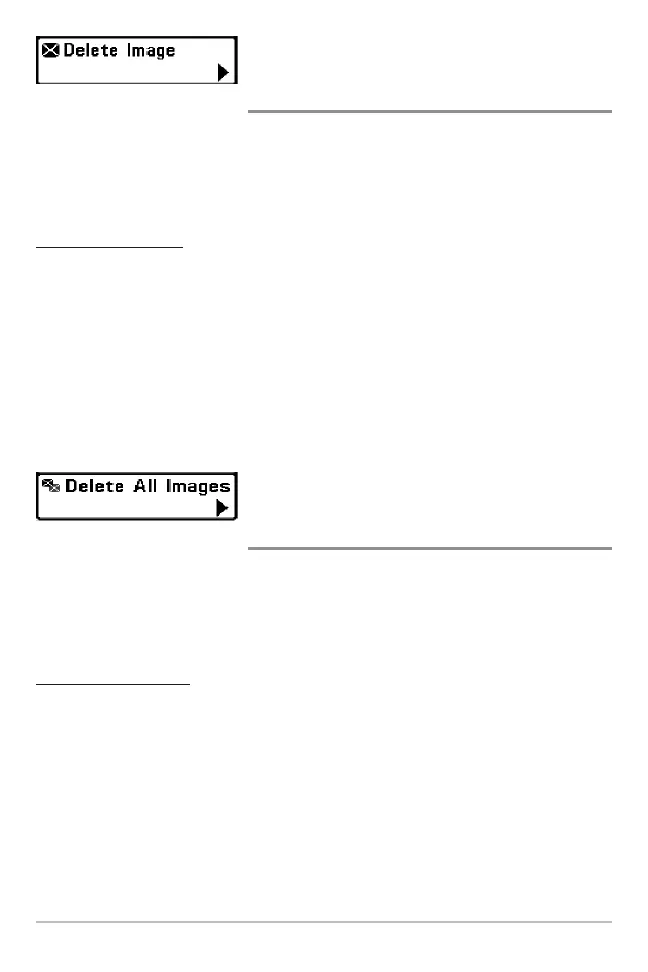
Delete Image
(optional-purchase MMC/SD Card, Snapshot and
Recording View only)
Delete Image allows you to delete a single screen capture image from the
Snapshot and Recording View. This menu option is only available when you
have an optional-purchase MMC/SD card installed and you are in Snapshot
and Recording View and you have selected an image thumbnail.
To delete an image:
1. On the Screen Snapshot View, use the UP and DOWN 4-Way Cursor
keys to select the image you want to delete.
2. Highlight Delete Image on the Snapshot and Recording X-Press™ menu.
3. Press the RIGHT 4-Way Cursor key to initiate this procedure.
4. A Confirm Dialog box will appear. Select Yes to delete the image or No
to cancel the operation.
Delete All Images
(optional-purchase MMC/SD Card, Snapshot and
Recording View only)
Delete All Images allows you to delete all the images at once from the
Snapshot and Recording View. This menu option is only available when you
have an optional-purchase MMC/SD card installed and you are in Snapshot
and Recording View.
To delete all images:
1. From the Snapshot and Recording View, highlight Delete All Images on
the Snapshot and Recording X-Press™ Menu.
2. A confirmation dialog box will ask if you want to delete all images.
Select Yes to delete, or No to change your mind.




 To Next Page