HUNTER OPERATION SECTION 2.1
2. 1. 1
SWITCHING ON
To switch HUNTER on press the key marked PWR at the top right
hand corner of the keyboard. HUNTER should respond with a
'beep'.
If not, check that the batteries have been installed or
need to be replaced, See section 2.8, BATTERIES. If all is
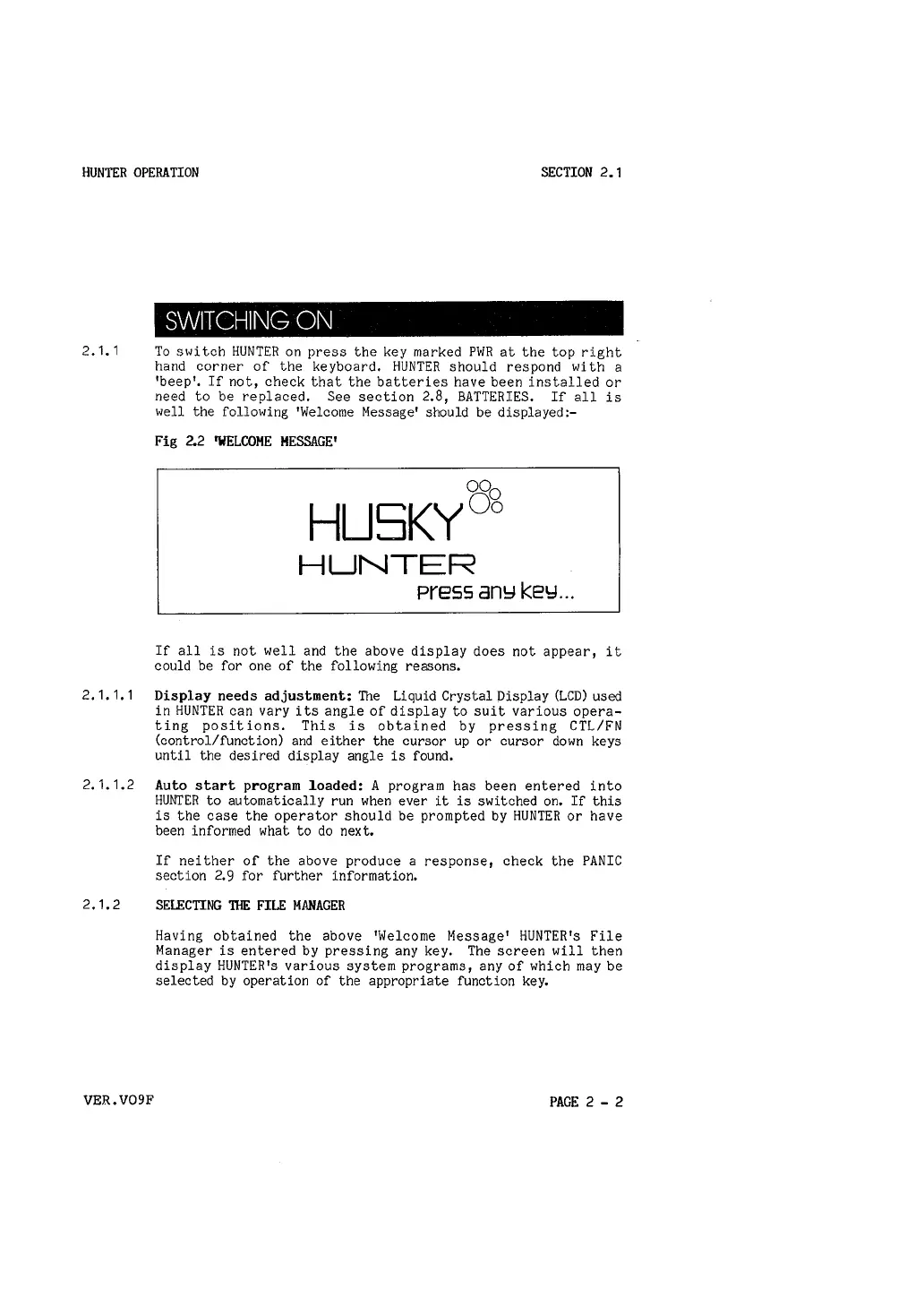
well the following 'Welcome Message' should be displayed:-
Fig 2.2 'WELCOME MESSAGE'
00
0
HLJ5KY
00
HUNTER
Press anY keY ...
If all is not well and the above display does not appear, it
could be for one of the following reasons.
2. 1. 1. 1
Display needs adjustment: The Liquid Crystal Display (LCD) used
in HUNTER can vary its angle of display to suit various opera-
ting positions. This is obtained by pressing CTL/FN
(control/function) and either the cursor up or cursor down keys
until the desired display angle is found.
2.1.1.2
Auto start program loaded: A program has been entered into
HUNTER to automatically run when ever it is switched on. If this
is the case the operator should be prompted by HUNTER or have
been informed what to do next.
2.1. 2
VER.V09F
If neither of the above produce a response, check the PANIC
section 2. 9 for further information.
SELECTING TilE FILE MANAGER
Having obtained the above 'Welcome Message' HUNTER's File
Manager is entered by pressing any key, The screen will then
display HUNTER's various system programs, any of which may be
selected by operation of the appropriate function key.
PAGE 2 - 2



 To Next Page