3.7. APPLYING THE CONFIGURATION TO THE LOGGER (SAVE SETTINGS)
3.7.1. UPDATE LOGGER
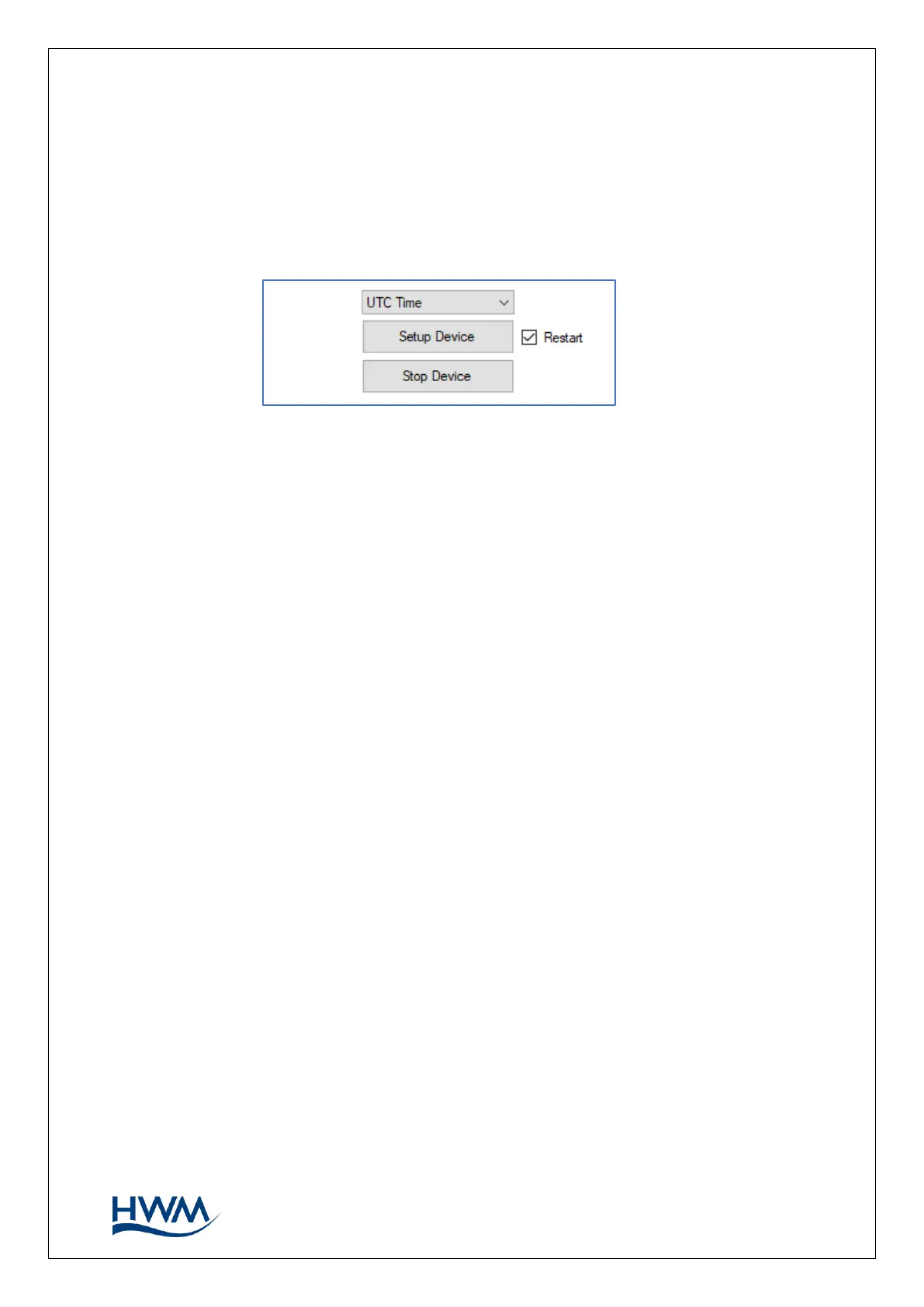
Once the configuration settings have been updated in IDT, they should be saved to the
logger using the ‘Setup Device’ button at the bottom of the IDT window.
3.7.2. SAVING THE CONFIGURATION FILES (BULK AND INC)
When the settings are saved to a logger, the configuration is also saved to the PC as a
‘Bulk’ File and an ‘Inc’ file. This file can be found in the WITSBLKINC folder in the IDT
install directory, normally C:\HWM\IDT.
• The ‘Bulk’ file can be used by the WITS Master Station to reset the device to a
known state.
• The ‘Inc’ file produced by IDT is for the initial logger setup in WITS format.
Inc files can also be used by the WITS Master Station to track any subsequent
incremental changes it makes to the logger configuration.
3.8. POINT ALLOCATION (DATA OUTPUTS)
The logger produces digital (i.e., numeric) data from a variety of sensor types; it does
not matter whether the sensor electrical output was originally analogue or digital in
nature. The WITS Master Station refers to numeric data as being ‘Analog’.
The logger references an outgoing datapoint stream as being a ‘Channel’. The WITS
Master Station references a stream of data as being a ‘point’.
The logger channel numbering scheme starts with channel ‘1’. The WITS Master Station
point numbering scheme starts at point ‘0’.
A WITS Master Station has an extensive number of ‘points’ available to store data. Some
are for ‘analogue’ types of data. Others are for binary types of data (these can handle a
single binary bit, such as a status flag). Still others are of the type ‘string’ (these can be
used for any purpose that requires text items to be stored, such as postal address or
location information).


 To Next Page