© Copyright 2019 HYPERVSN. All rights reserved 25
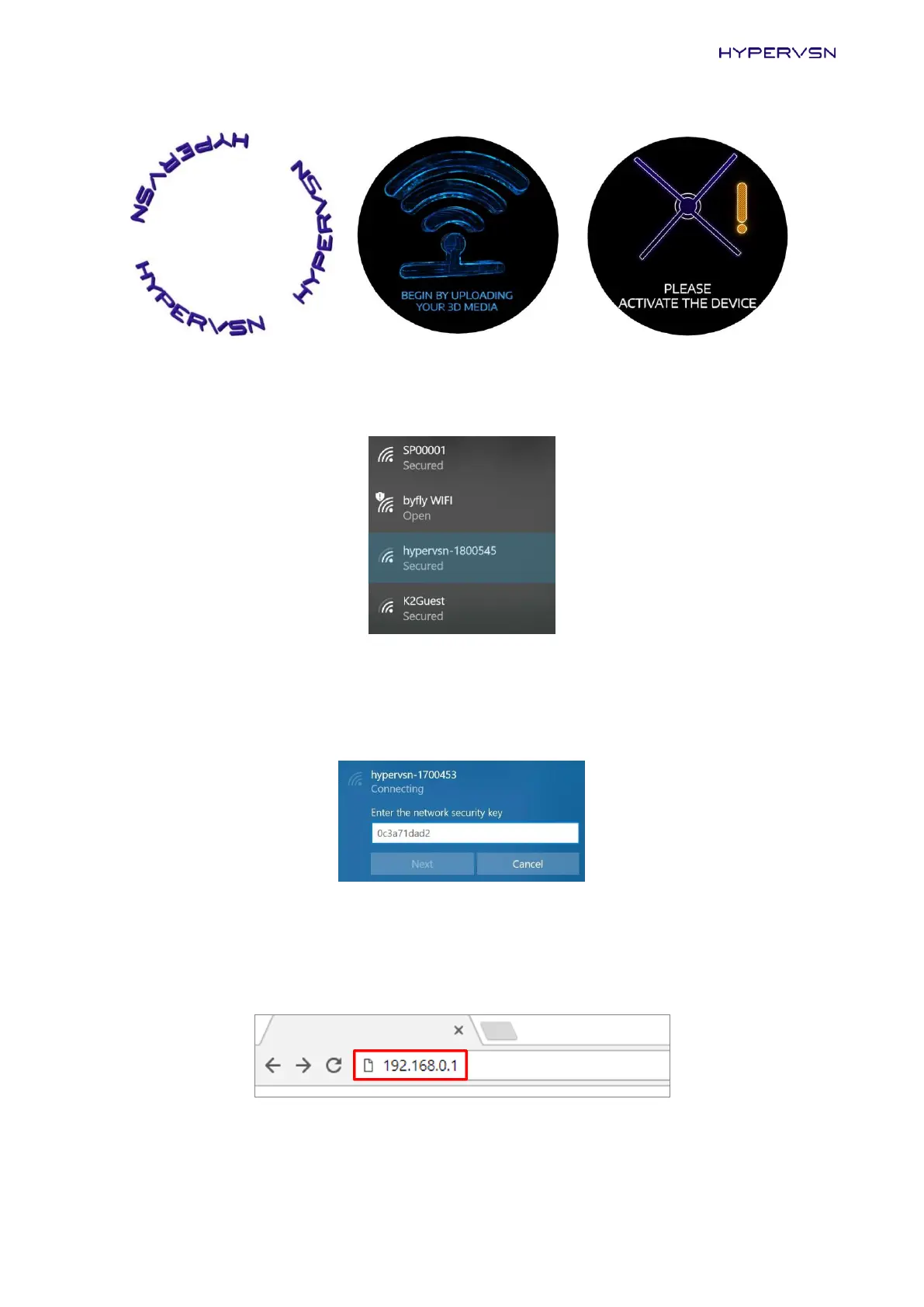
Picture 25. Messages that you should see before activation
11. Navigate to the Wi-Fi settings on your laptop or any other device. The Wi-Fi network “hypervsn-
YYXXXXX” will appear in 1-2 minutes in the list of available networks.
Picture 26. Example of a list of available networks
12. Connect to the “hypervsn-YYXXXXX” Wi-Fi network (YYXXXXX is a 7-digit serial number located on
the base of the rotor): use the following password: 0c3a71dad2.
Note. The first digit in the password is a zero.
Picture 27. Entering the password
Note. Depending on the operating system, a message with a requirement to enter a code may appear
at this step, ignore it and choose the command to enter the password.
13. Open a browser. Type in 192.168.0.1 in the browser address bar.
Picture 28. Input this IP-address into the browser address bar


 To Next Page