18
until it has been paired within the app. Visit the App Store
SM
or the Google
Play Store
SM
to download the iDevices Connected app.
On iPhone, iPad or iPod touch:
If the pairing seems to be taking a long time or fails, return to your
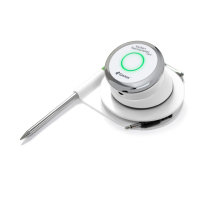
device’s Bluetooth settings and select the (i) option next to the Kitchen
Thermometer. Now you can complete the following steps to pair your
device:
• Select “Forget this Device”.
• Close Settings.
• Close out of the iDevices Connected app.
• Reopen the iDevices Connected app.
On Android:
If the pairing seems to be taking a long time or fails, tap on “More”
located at the bottom of the app, and tap “Support”. From there tap
“Restart Android Bluetooth” and “Restart” to reset the bluetooth
connection on your Android device. Go to your device manager and quit
the iDevices Connected app. Now you can complete the following steps to
pair your device:
• Reopen the app by tapping on the iDevices Connected app icon
• Tap iDevices located at the top of the app to show available devices
• Tap on the Kitchen Thermometer and wait for it to pair
If you are still experiencing an issue after completing these steps, please
contact our customer support team for further assistance.



 To Next Page