4
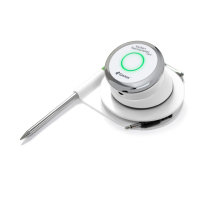
5. Clip the Kitchen Thermometer top back into its base.
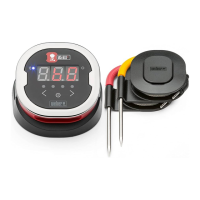
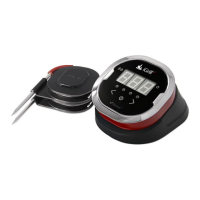
6. Plug one or more probes into the probe ports of the Kitchen
Thermometer.
7. Press the power button located at the bottom of the faceplate
between the < and > buttons for two seconds. The display will
animate and a single beep will sound, indicating that the Kitchen
Thermometer has powered on.
8. Open the iDevices Connected app to connect to your Kitchen
Thermometer. Tap on the iDevices logo in the gray toolbar at the
top of the app. Select your Kitchen Thermometer from the device
manager.
9. You are ready to use your Kitchen Thermometer!
Getting Started
iDevices Connected App
The iDevices Connected app provides all of the functionality and
customization you’ll need to get the most out of your Kitchen
Thermometer. The iDevices Connected app is compatible with the
following devices:
• iPhone
®
(4S and later)
• iPad
®
(3rd generation and later)
• iPad mini
™
(all generations)
• iPod touch
®
(5th generation and later)
• Many Android
™
devices equipped with Bluetooth 4.0 and running
Android software version 4.3 or later
You must be running iOS 7+ or Android version 4.3+ on your device to use
the iDevices Connected app. Please visit the App Store
SM
or Google Play
Store
SM
and search “iDevices Connected” to download the free iDevices
Connected app.
Once you’ve downloaded the app, you’ll have access to links



 To Next Page