Part 2 - Conguration
30
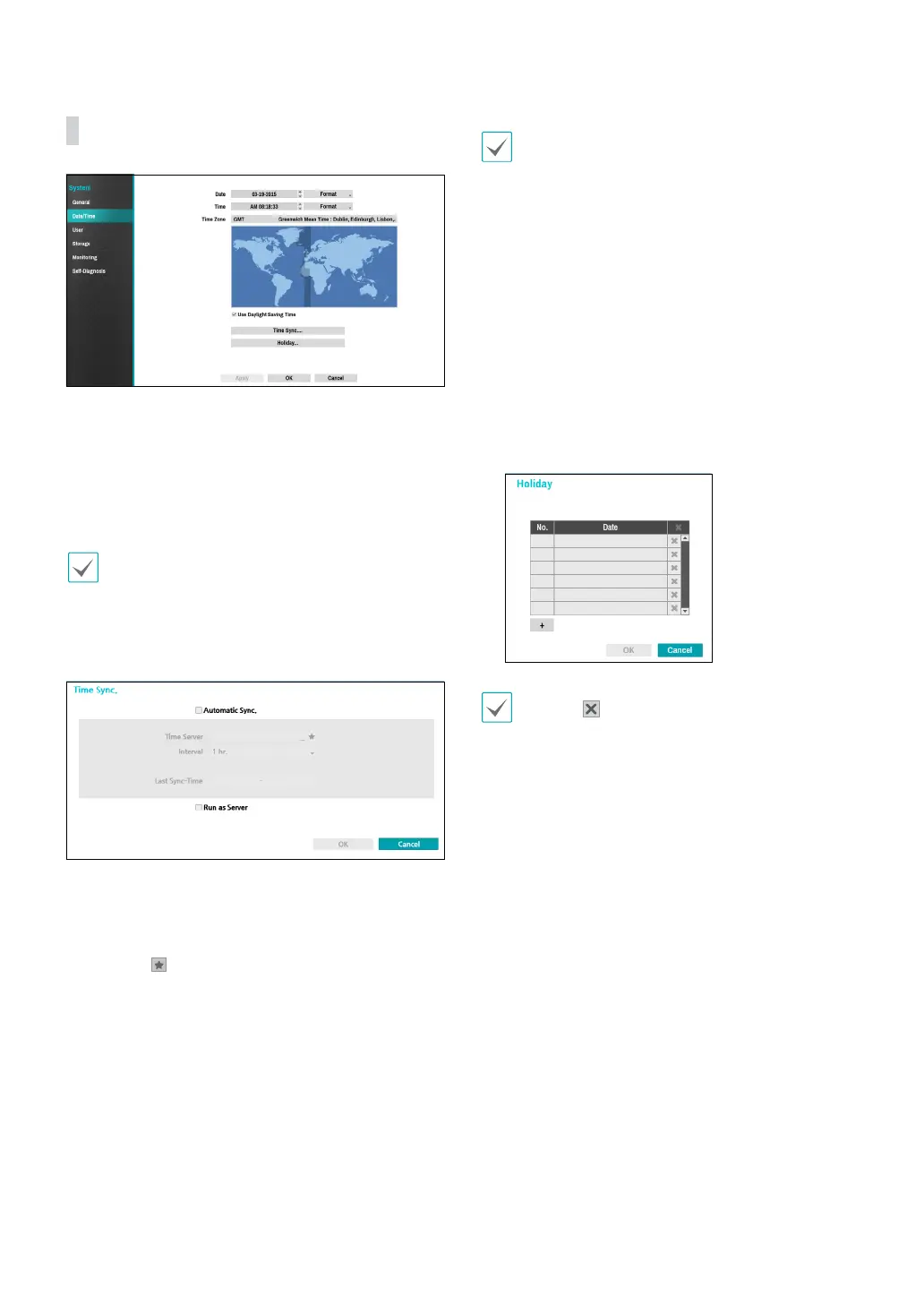
Date/Time
● Date: Used to change the system’s date setting.
● Time: Used to change the system’s time setting.
● Date Format/Time Format: Used to change the
system’s date and time formats.
● Time Zone: Used to designate the system’s time zone.
Refer to the map displayed on the screen and change
the time zone using the mouse or the arrow buttons.
● Use Daylight Saving Time: Enables DST correction.
● Time Sync.: Select a time server for the system to
synchronize with.
1
Select Automatic Sync.
2
Enter the Time Server’s IP address or domain name
or select
and then choose a server from the list of
registered time servers.
3
Specify the server synchronization Interval.
4
Select OK to apply and exit.
• If you have congured the DNS Server setting under
Network - WAN, you can enter the time server's
domain name instead of its IP address.
• Selecting Run as Server sets the current NVR as a
time server for other NVRs within the system.
● Holiday: Designate holidays. On specied holidays,
recording takes place according to the holiday
recording schedule specied under Record Schedule.
1
Select the + button at the bottom of the window.
2
Select a date.
3
Select OK to apply and exit.
Select the icon to delete the existing holiday date.


 To Next Page