Part 2 - Conguration
37
● No.: Select the registered camera number and click
the Add Camera button to register the camera.
● MAC Address: Displays the scanned camera’s MAC
address.
● Address: Displays the scanned camera’s IP address.
● Model: Indicates the camera model.
● Protocol: Indiscates the scanned camera’s protocol.
● Name: Displays the scanned camera’s IP name.
● Status: The “Registered” indicates the camera is
registered to the NVR and “Not registered” indicates
the camera is not registered to the NVR.
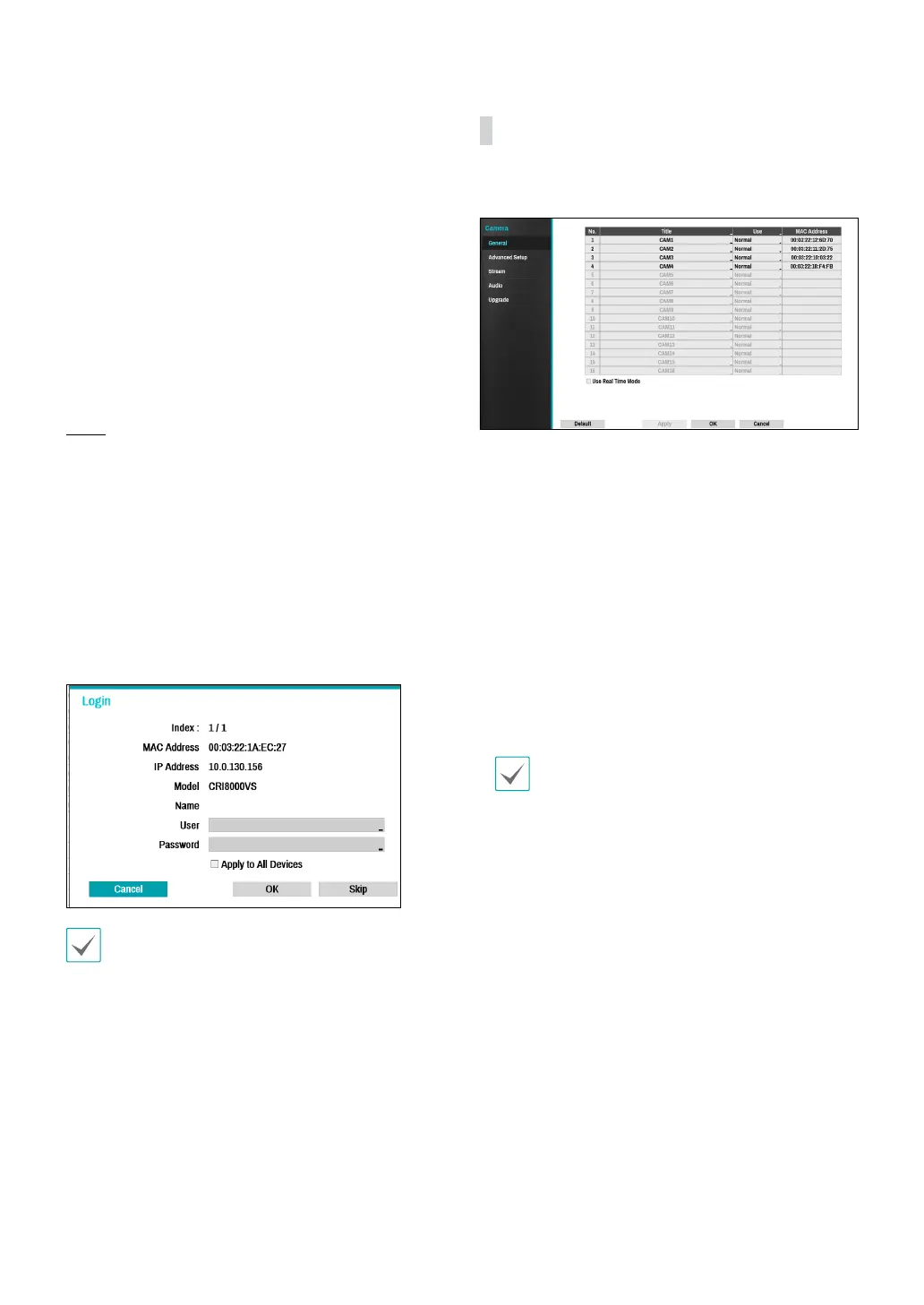
Login
If the password is set or you want to register third party
cameras, registering a device requires an authorized
user login.
1
Select the desired deivce from the list and click the
Add Camera button, then the login window will
appear.
2
Select a user, enter the password, and then select
OK.
• By selecting Apply to All Devices, you can
apply the same authentication information to
all of the network devices in the list.
• When you select multiple network devices
from the list and click the Add camera button,
a window for the network device will appear.
Select Skip to skip the authentication settings
for the current network device and to display
the Authentication window of the next network
device.
• For IDIS cameras, a user and password may not
be required.
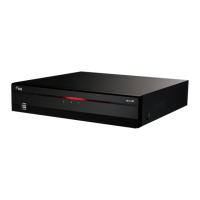
General
Enable/disable the covert view and rename cameras.
● Title: Edit the camera’s name.
● Use: Set the camera as Normal, Covert 1, or Covert 2.
Live images and video recordings from cameras that
have been set as Covert 1 or Covert 2 will not be
available to users who do not have covert camera
access. Setting a camera as Covert 1 hides its images
but does display OSD information about the camera.
Setting a camera as Covert 2 hides its images as well
as ODS information about the camera as if it has been
deactivated completely.
● Use Real Time Mode: Supports seamless video
display even when there are multiple camera
connections. (Only for the 16-channel model)
• If you have congured Use Real Time Mode, the
streaming settings may change for all registered
cameras. Some settings may be disabled.
• If you have congured Use Real Time Mode, the
remote streaming IPS can be low.


 To Next Page