Part 3 - Search
79
● Use event lters to include/exclude specic system
events such as Panic Record, Check Recording,
Check Alarm-In, Disk Almost Full, Disk Bad, Disk
Temperature, Disk S.M.A.R.T., Fan Error, eSATA
Disconnected and Disk Cong Change from the
search.
Camera Filter
● Alarm-In: Select which channels to search alarm-in
events in.
● Motion: Select which channels to search motion
detection events in.
● Video Loss: Select which channels to search video
loss events in.
● Audio Detection: Select which channels to search
audio detection events in.
● Trip Zone: Select which channels to search trip zone
events in.
● Tampering: Select which channels to search
tampering events in.
● Text-In: Select which channels to search text-in
events in.
● Record Channel: Select which record channels to
search events in.
● Recording Fail: Select which channels to search
recording fail events in.
● Fan Error: Select which channels to search fan error
events.
● Face Detection: Select which channels to search face
detection events
Selected record channels are searched for events with
at least one linked recording. If no camera is selected,
only the events with no linked recording camera are
searched.
Thumbnail Search
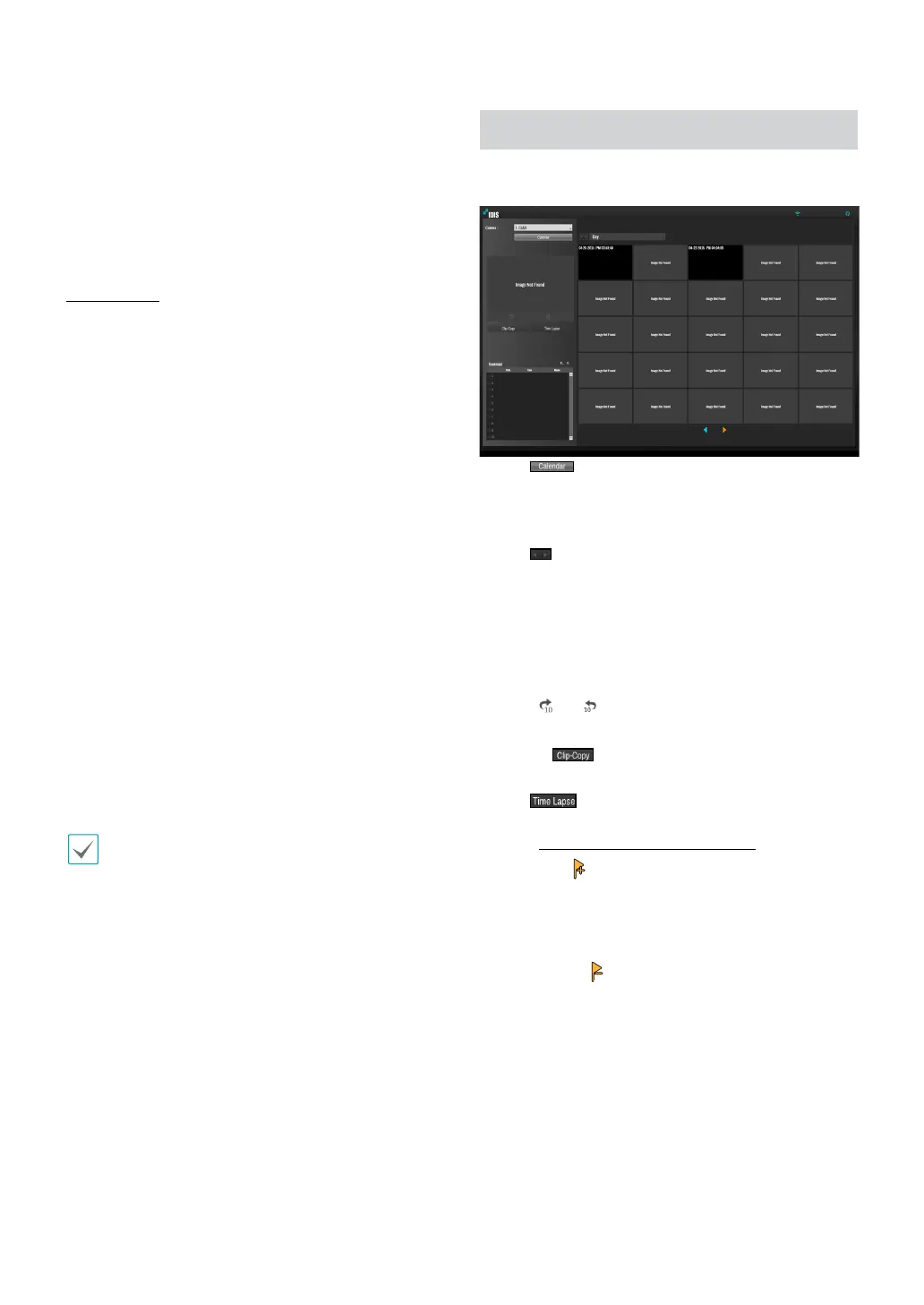
Select Search Mode > Thumbnail Search to bring up
the thumbnail Search window.
● Click on the left side of the screen to search for
video recording specic dates. Dates containing video
recordings are highlighted in black. Selected date is
highlighted in blue.
● Click
on the next to the Calendar button to search
the video recording in detail. It allows you to search
the video recording in Day -> Hour -> Minutes ->
Seconds or Seconds -> Minutes -> Hour -> Day.
Selected the specic event displays the screen to be
stationary. By clicking the play button on the middle of
the screen, you can play the video recording. Also, By
clicking
or , you can jump to the recording in 10
seconds.
● Clicking
displays the Clip Copy Setup window
to designate points A and B.
● Click
to go to the time lapse mode. For more
information on time-lapse search, refer to the section
under Time-Lapse Search on page 71.
● Select the
icon to add a bookmark to the current
playback position. Select a bookmark from the
Bookmark setup window on the right side of the
Time-Lapse Search mode screen to move to the
registered playback position. Select Bookmark list
and then the
icon to delete the corresponding
bookmark.


 To Next Page