Part 2 - Conguration
39
two points. At least two presets must be available in
order to use the scan feature.
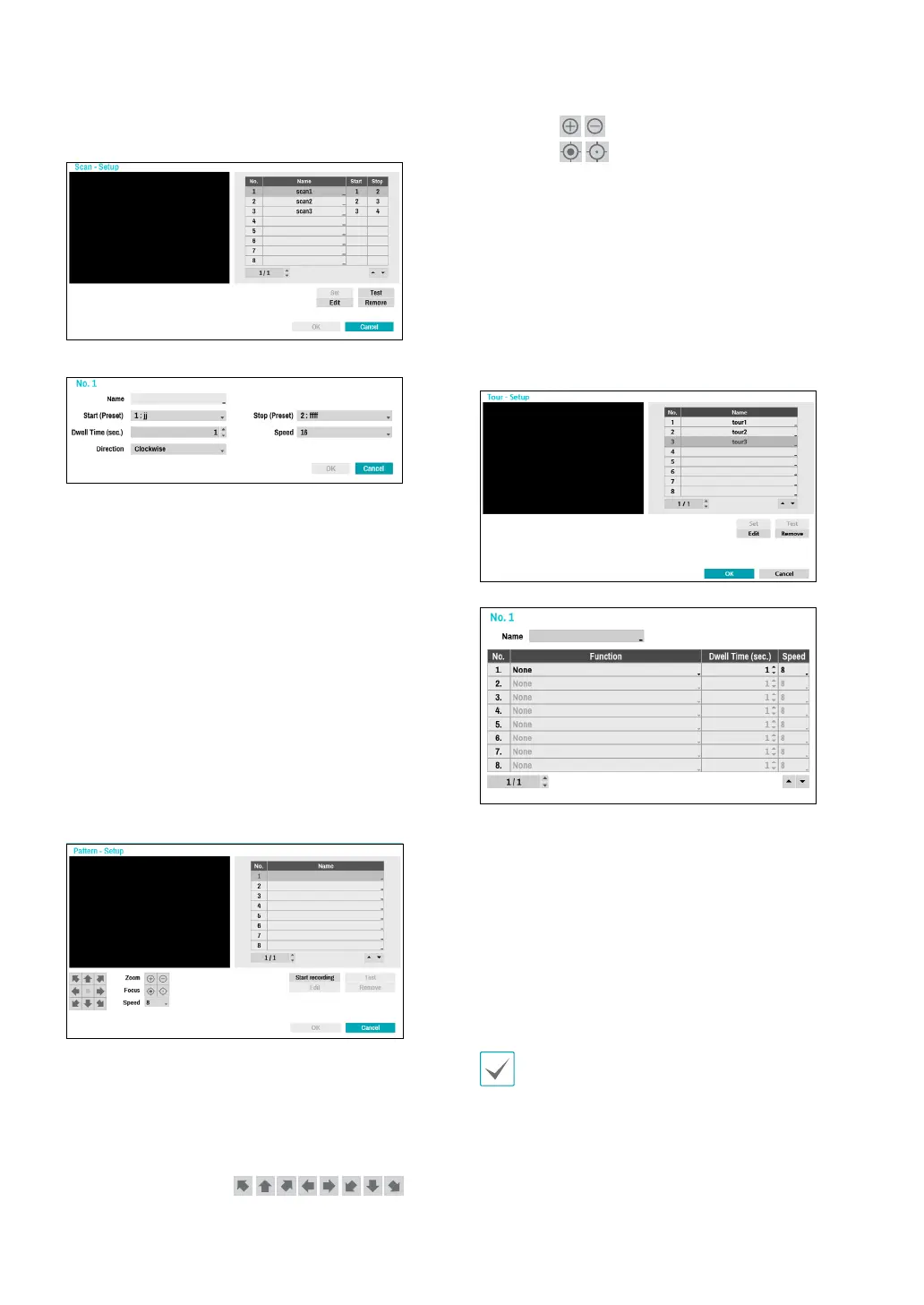
Set: Used to set up a scan prole.
– Name: Enter a name for the scan prole.
– Start/Stop: Specify which presets to use as start
and stop points.
– Dwell Time (sec.): Specify how long the camera will
dwell at start and stop positions.
– Speed/Direction: Specify scanning speed and
direction.
– Test: Select a scan prole and then click Test to test
it.
● Edit: Used to edit the selected scan prole.
● Remove: Used to remove the selected scan prole.
3 Pattern
Used to set up a pattern prole for the camera to follow
along.
Start recording: Select a pattern number, enter a name
for the pattern, and then click OK to save the pattern.
Move the camera using directional, zoom, and focus
buttons and then click Stop recording to save the
pattern prole. You can record up to two minutes of
movement.
– Directional Buttons (
):
Used to tilt and pan the camera.
– Zoom (
): Zoom in and out.
– Focus (
): Adjust camera focus to far or near.
– Speed: Specify the camera’s panning and tilting
speed.
● Test: Select a pattern prole and then click Test to test
it.
● Edit: Used to edit the selected pattern prole.
● Remove: Used to remove the selected pattern prole.
4 Tour
Used to set up a tour prole of multiple functions in a
designated sequence.
Set: Used to set up a tour prole.
– - Name: Enter a name for the tour prole.
– Function: Indicates the order of the function in the
tour sequence.
– Dwell Time (sec.): Specify how long to perform the
selected function for.
– Speed: Specify the preset speed.
● Test: Select a tour prole and then click Test to test it.
● Edit: Used to edit the selected tour prole.
● Remove: Used to remove the selected tour prole.
Select Apply after setting up a preset, scan,
pattern, or tour prole to see images from the
concerned camera on the left side of the screen.
Selecting Apply or OK displays a popup screen
that indicates whether the prole has been set up
successfully.
⑤ PTZ Reset: Reboots the camera’s panning / tilting



 To Next Page