ID TECH SREDKey 2 Integration Manual
Page | 19
8.3. Enabling and Disabling the SREDKey 2 Admin Key
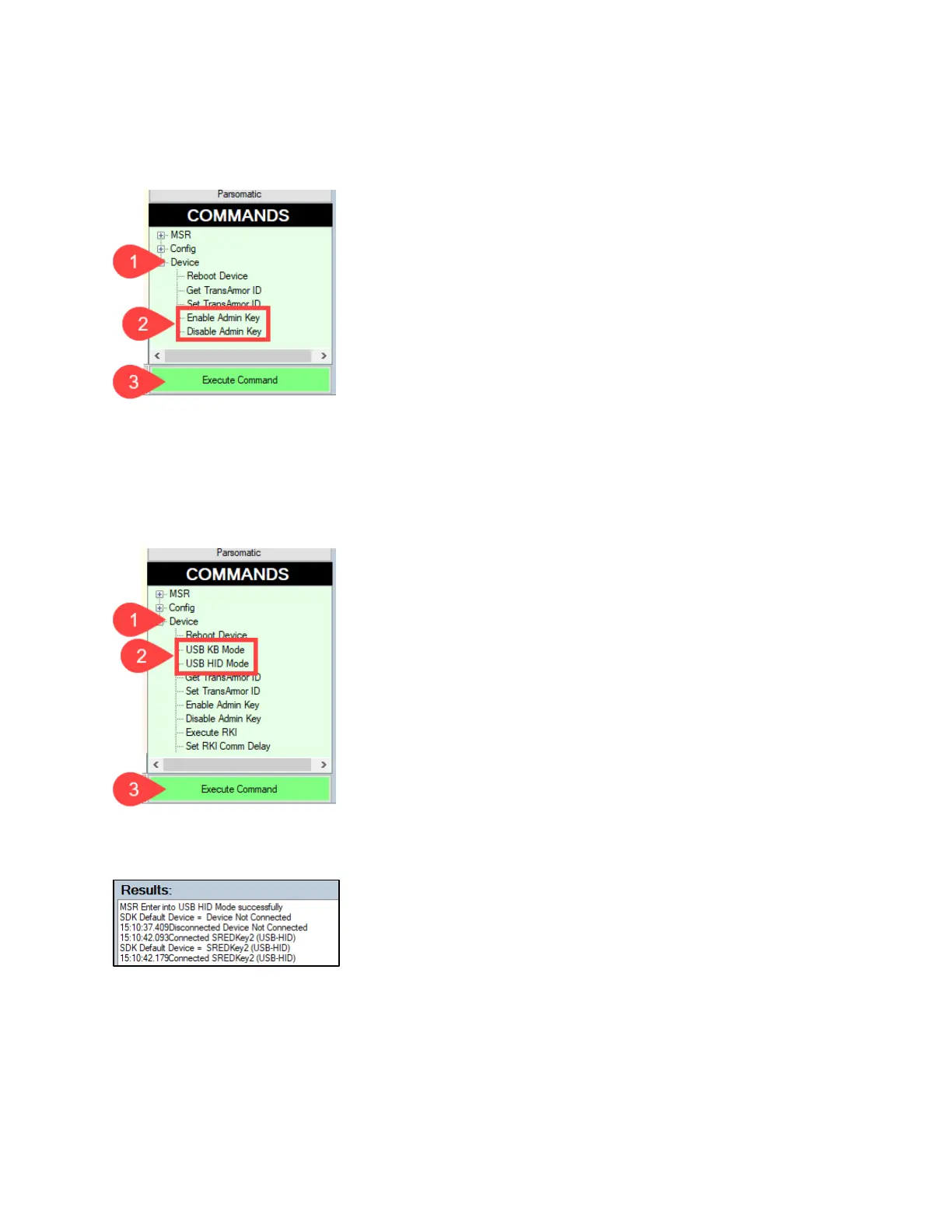
To enable or disable the Admin key:
1. Under Device, select Enable Admin Key or Disable Admin Key, then click Execute Command.
The USDK Demo app displays “Admin Key Enabled” (or disabled) in the Results panel.
8.4. Switching a SREDKey 2 Between USB-KB and USB-HID Modes
To switch the SREDKey 2 between USB-KB and USB-HID modes:
1. Under Device, select the desired mode, then click Execute Command.
The USDK Demo app reboots the SREDKey 2; when the device reboots, the Results panel displays the
selected USB mode:



 To Next Page