The STEPS edit option is used to review or manually change the individual
set points for each parameter of each step within a Multi Step Session.
1. Select STEPS edit option from the Multi Step Editing Options described on page 17.
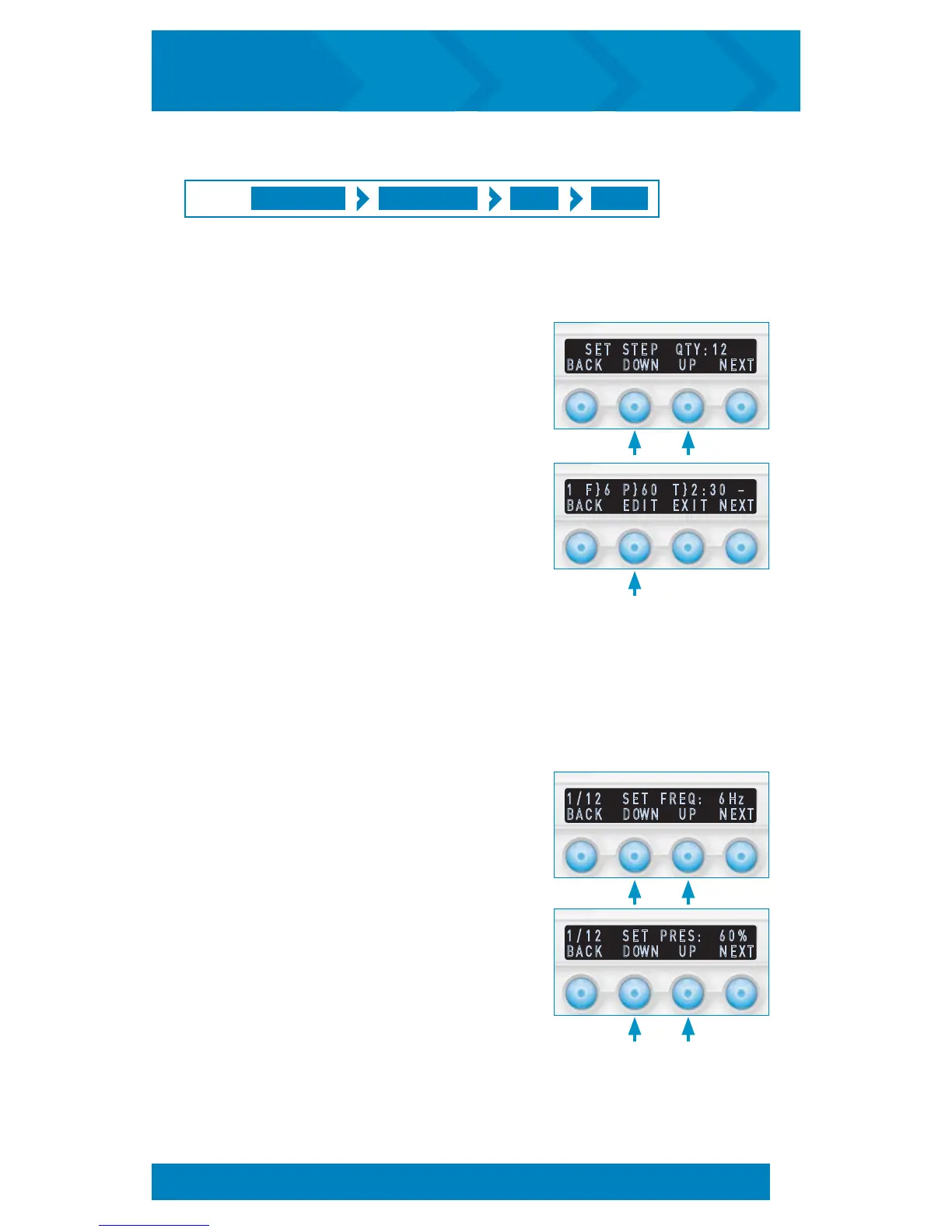
2. After the STEPS option is selected, session
step quantity is requested for the selected
program. Press DOWN or UP to adjust
desired number of steps, then press NEXT.
3. The step summary information will then display for
the first step as displayed in the example to the
right. The line includes the step number (1),
frequency (6), pressure (60), step time (2:30), and
pause step ("–" indicates off, "Pse" indicates on).
If no selections are made, the top line will begin
to scroll providing expanded parameter information about the step. The user can
quickly check the settings of each step by pressing NEXT after reviewing a step. The
EXIT button will return to the Program Ready screen.
4. Select EDIT to begin adjusting the parameters of the selected step that is
currently displayed.
5. Once in step EDIT mode, pressing the BACK button at any time will return
to the step summary for the previous parameter viewed.
6. Press DOWN or UP to adjust frequency (FREQ)
to desired level, then press NEXT.
7. Press DOWN or UP to adjust pressure
(PRES) to desired level, then press NEXT.
S E T S T E P Q T Y : 1 2
B A C K D OW N U P N E X T
Review and Adjust Multi Step Session Settings:
MULTI STEP PROGRAM # EDIT STEPS
PRESS:
1 F } 6 P } 6 0 T } 2 : 3 0 –
B A C K E D I T E X I T N E X T
1 / 1 2 S E T F R E Q : 6 H z
B A C K D OW N U P N E X T
1 / 1 2 S E T P R E S : 6 0 %
B A C K D OW N U P N E X T
MODIFY A MULTI STEP SESSION (cont’d)
18
inCourage
®
Airway Clearance Therapy | INSTRUCTION MANUAL


 To Next Page