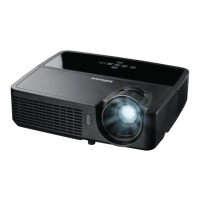
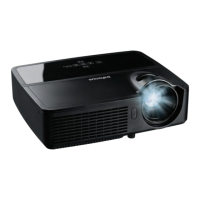
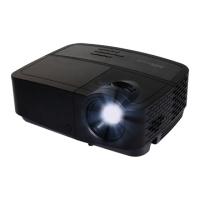
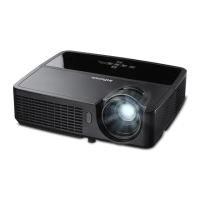
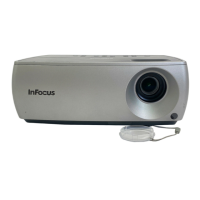
How to adjust the aspect ratio on my InFocus IN2124a Projector?
- Ccharles18Sep 12, 2025
If the image does not fit the 4:3 or 16:9 screen on your InFocus Projector, change the aspect ratio to 4:3 or 16:9 in Basic Menu > Aspect Ratio menu.
How to adjust the aspect ratio on my InFocus IN2124a Projector?
If the image does not fit the 4:3 or 16:9 screen on your InFocus Projector, change the aspect ratio to 4:3 or 16:9 in Basic Menu > Aspect Ratio menu.
How to center the image on my InFocus IN2124a?
To center the image on the screen with your InFocus Projector, move the projector and adjust its height.
| Noise Level | 32 decibels |
|---|---|
| White Brightness | 3500 lumens |
| Native Resolution | 1024 x 768 |
| Contrast Ratio | 15000:1 |
| Aspect Ratio | 4:3 |
| Throw Ratio Range | 1.9 - 2.2:1 |
| 3D | yes |
| Focus Adjustment | manual |
| Video Input | vga |
| Inputs | hdmi |
| Sound Mode | mono |
| Built In Speakers | yes |
| Speakers Output | 2 watts |
| Remote Control | yes |
| OS Compatibility | mac, windows |
| Depth | 8.7 inches |
|---|---|
| Height | 4.3 inches |
| Width | 11.5 inches |
| Net Weight | 7.1 pounds |
How to connect a computer using a VGA cable for video output.
Guide for connecting the projector to a computer via USB.
Connecting video sources like DVD players and set-top boxes via HDMI.
Interpreting the projector's status indicator lights for diagnosis.
Steps to resolve issues where the projector does not display a startup screen.
Solutions for when only the startup screen is visible, not the computer image.
Resolving "Signal out of range" errors when connecting a computer.
Fixing issues where only the laptop's background is displayed.
Adjusting settings to fix fuzzy or cropped projected images.
Solutions for embedded videos not playing correctly on the screen.
Addressing overheating issues and lamp not turning on.
Steps to take when the "Replace Lamp" message appears.
Overview of buttons and their functions on the remote control.
Managing PIN protection, power saving, and instant power on.
Configuring DHCP, IP address, subnet mask, and gateway.
Connecting and configuring the projector for LAN control.
Manual network setup for environments without DHCP.
Connecting the projector to an existing Wi-Fi network.
Configuring the projector to act as an access point.
Navigating the Crestron e-Control user interface for projector management.
Step-by-step guide for connecting and operating the LiteBoard Wand.
Important safety warnings and precautions before replacing the lamp.
Step-by-step instructions for safely replacing the projector lamp module.