35
Displaying images through ifPresenter
Downloading and installing ifPresenter
The ifPresenter is an application which can run on the host PC. It helps connect your
computer to an available network projector and transfer the desktop content to the
network projector via local network connection.
1 Enter the main page of Network Control. See steps 1-2 on page 31 for details.
2 Download ifPresenter.
3 When the download is complete, install the software to your computer by
clicking the exe file. Follow the on-screen instructions to complete the
installation.
4 Launch ifPresenter.
Using ifPresenter
7
1
2
3
4
5&
6
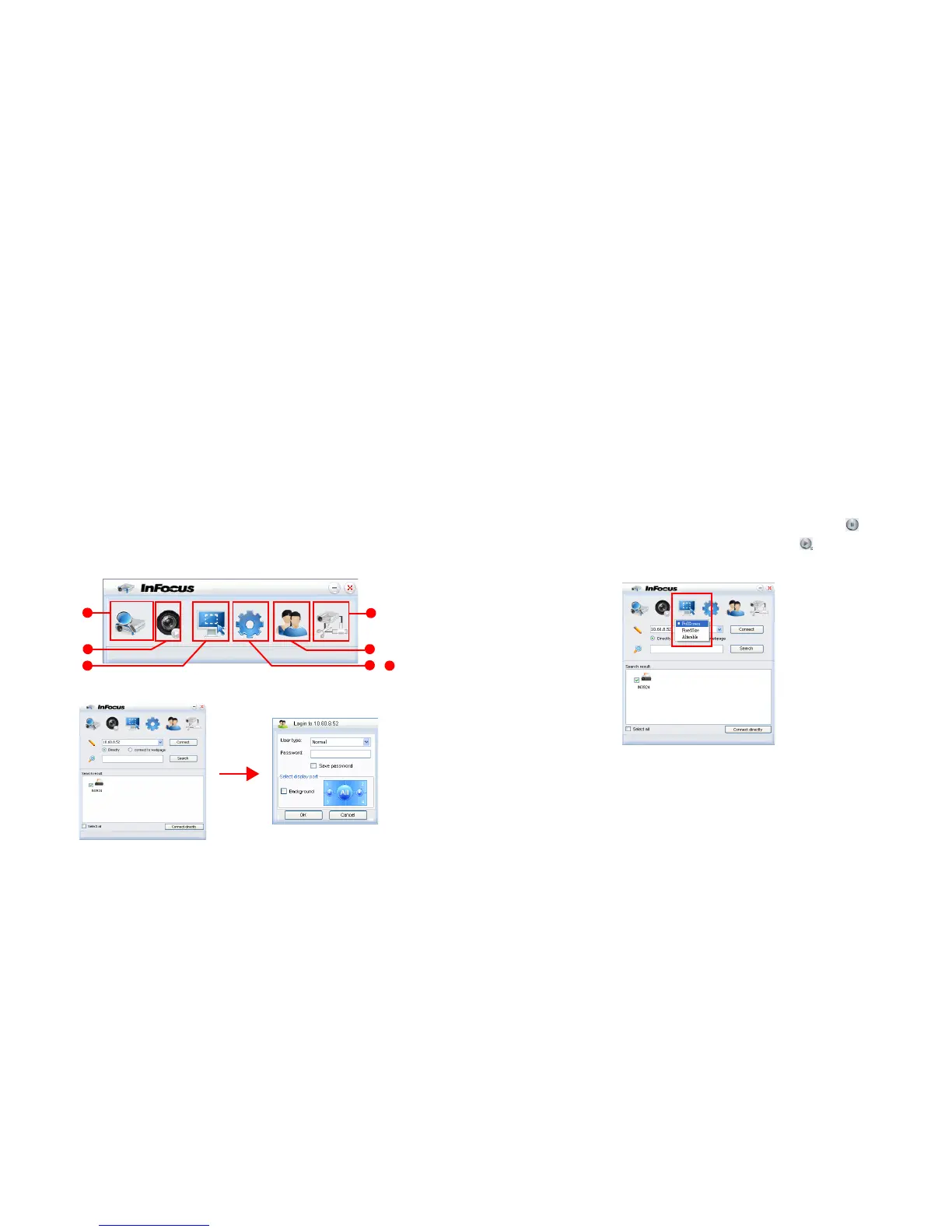
1 The Search page allows you to search and connect to a projector.
i. To connect to a projector, select Connect Directly then type the projector’s
IP Address and click Connect.
ii. To search for projectors, simply click Search to list all the projectors on the
same local area network. Click the desired projector in the Search result list,
and click Connect directly. You can also type a desired projector name and
click Search.
iii. You can link to the InFocus webpage control system on page 31.
• If you are a first time user, choose your identity as a Normal user or
Administrator. Neither requires a password. However if you choose to be
an Administrator, you have the authority to set a password for connecting
to the projector. That password should be written down and used to
connect to the same projector.
• If there are multiple computers connected to the projector, you can decide
a display zone by clicking 1, 2, 3, 4, L, R, All, or Background.
2 If you want to freeze the projected image on the screen, press . Any further
movements will be not been seen on the screen until is pressed.
3 You can choose a capture mode from here.
i. To display a full screen, click FullScreen.
ii. To display a partial screen, click FixedSize. A square appears on your screen.
You can place it where you want to project.
iii. If you wish to change the square, click Alterable.


 To Next Page