EasyManua.ls Logo

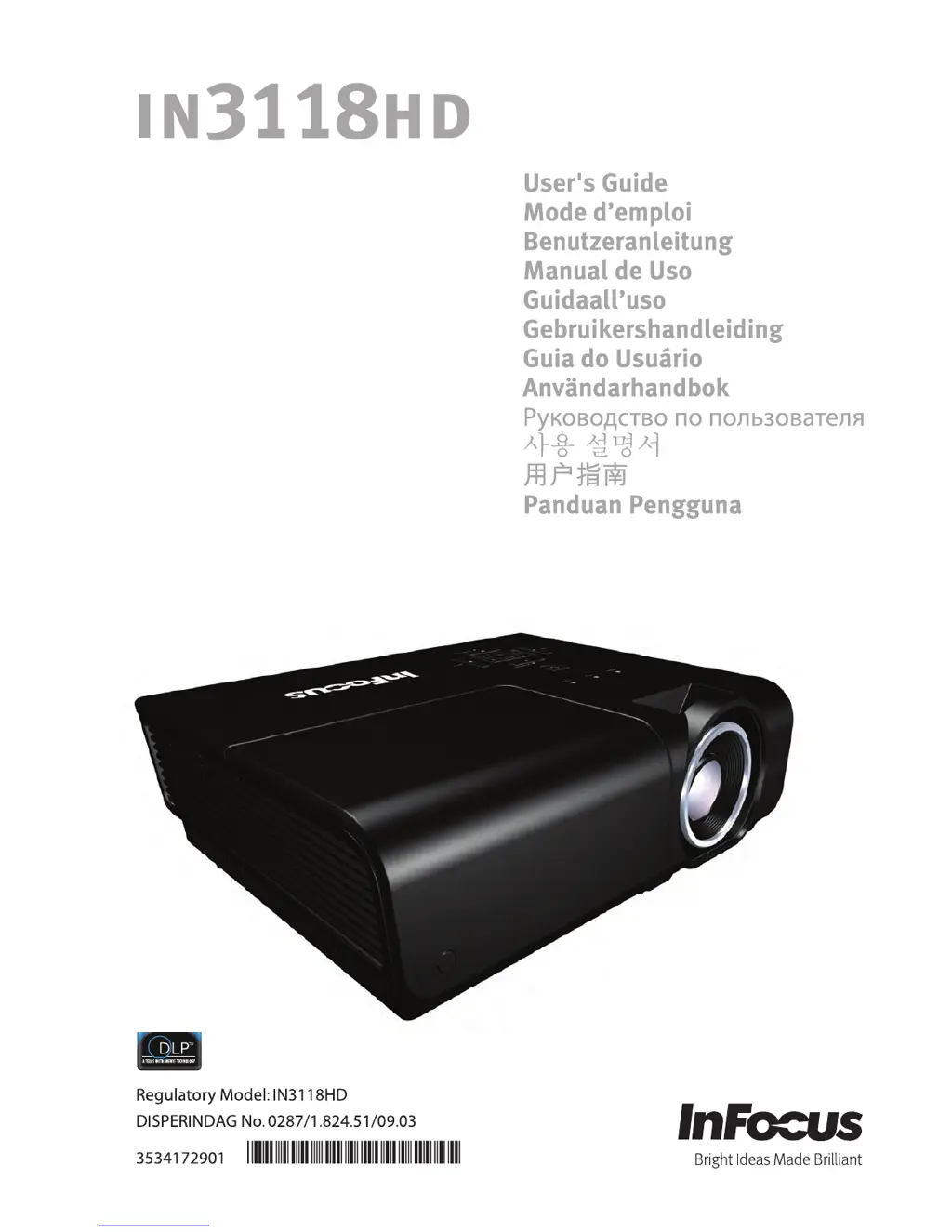
InFocus IN3118HD - User Manual

InFocus IN3118HD
54 pages
Print Icon
To Next Page IconTo Next Page
Loading...

Other manuals for InFocus IN3118HD

Questions and Answers

  • R
    Richard FrazierAug 17, 2025
    How to fix no image on InFocus IN3118HD?
    • R
      Richard CainAug 18, 2025
      If no image appears on the screen of your InFocus Projector, verify the settings on your notebook or desktop PC. Also, try turning off all equipment and powering it up again in the correct order. Usually, a key combination like FN + F8 or CRT/LCD key turns the external display on and off, so check that as well.
  • P
    porterchristopherAug 20, 2025
    What to do if the lamp goes off on InFocus Projector?
    • S
      Sarah MorganAug 20, 2025
      If your InFocus Projector lamp goes off, power surges might be the cause. Try unplugging and re-plugging the power cord, then press the Power button. If the lamp still doesn't ignite, unplug the projector and let it cool for 60 minutes before replacing the lamp. If a new lamp doesn't fix it, put the old lamp back in and have the projector repaired.
  • B
    Brandon HinesAug 22, 2025
    How to fix blurred image on InFocus IN3118HD?
    • R
      Roberto RosarioAug 22, 2025
      If your InFocus Projector image is blurred, start by adjusting the Focus on the projector. You can also press the Auto Image button on the remote or the Re-sync button on the keypad. Make sure the projector-to-screen distance is within 10 meters (33 feet), and check that the projector lens is clean.
  • J
    Jenny LamAug 25, 2025
    How to fix streaked image on InFocus IN3118HD?
    • J
      Jessica PenaAug 26, 2025
      If the image on your InFocus Projector is streaked, set the Frequency and Tracking settings on the Display >> PC Detail Adjustment menu of the OSD to the default settings. If that doesn't work, try connecting to another computer.
  • E
    Eugene JohnsonAug 28, 2025
    How to correct reversed image on InFocus Projector?
    • A
      Alexander PhillipsAug 28, 2025
      To correct a reversed image on your InFocus Projector, check the Projection setting on the Setup >> Basic menu of the OSD.
  • H
    Heidi FordAug 30, 2025
    Why is the remote control not working with my InFocus IN3118HD Projector?
    • J
      Jill LevineAug 30, 2025
      If your InFocus Projector is not responding to the remote control, first, ensure you're directing the remote towards the remote sensor on the projector and that nothing is blocking the path between them. Try turning off any fluorescent lights and check the battery polarity, replacing the batteries if necessary. Also, turn off other Infrared-enabled devices nearby. If none of these steps work, the remote control may need to be replaced.
  • A
    amanda83Sep 2, 2025
    Why is there no light from my InFocus Projector?
    • E
      Elizabeth HumphreySep 2, 2025
      If there is no light from your InFocus Projector, check that the power cable is securely connected and that the power source is working by testing it with another electrical device. Restart the projector and make sure the Power LED is green. If you've recently replaced the lamp, try resetting the lamp connections. If problems persist, replace the lamp module or put the old lamp back in and have the projector serviced.
  • J
    Jeffery DiazSep 4, 2025
    How to correct trapezoid effect on InFocus Projector?
    • E
      Elijah AtkinsSep 4, 2025
      If the image from your InFocus Projector is wider at the top or bottom (trapezoid effect), position the projector so it is as perpendicular to the screen as possible. You can also use the Keystone button on the remote control or projector to correct the problem.
  • T
    Thomas HendersonSep 7, 2025
    Why is there no sound from my InFocus IN3118HD?
    • D
      Daniel EvansSep 7, 2025
      If there is no sound from your InFocus Projector, adjust the volume on the remote control and the audio source. Check the audio cable connection and test the source audio output with other speakers. If the issue persists, have the projector serviced.
  • M
    Mary LloydSep 9, 2025
    What to do if the sound is distorted on InFocus IN3118HD Projector?
    • M
      Mason MorrisSep 9, 2025
      If the sound from your InFocus Projector is distorted, check the audio cable connection and test the source audio output with other speakers. If the distortion continues, have the projector serviced.

Summary

Important Safety Information

Symbols Used

Explains warning symbols and text styles used in the manual.

General Safety Information

Provides essential safety guidelines for projector operation and placement.

Preface and Installation

Projector Installation Notice

Details requirements for projector placement, tilt angle, and ventilation.

Power Safety

Outlines precautions for using the power cord and batteries.

Maintenance and Security

Replacing the Projection Lamp

Provides instructions and warnings for replacing the projector lamp.

Cleaning the Projector

Offers guidance on cleaning the projector's lens and case.

Regulatory Warnings and Recycling

Advises on handling mercury and recycling electronic equipment.

About this Manual

Explains the manual's purpose, format, and intended audience.

Specifications and Compliance

Projection Distance vs. Projection Size

Lists projector screen sizes based on projection distance.

Timing Mode Table

Outlines supported video resolutions and signal timings.

Projector Dimensions

Provides physical measurements of the projector.

Regulatory Compliance Information

Covers FCC, Canada, WEEE, and safety certifications.

Getting Started

Packing Checklist

Lists all items included in the projector package for verification.

Views of Projector Parts

Front-right View

Identifies parts visible from the front and right side of the projector.

Top View - OSD Buttons and LEDs

Details the buttons and status indicators on the projector's top panel.

Rear View - Connectivity Ports

Illustrates and labels all input and output ports on the projector's rear.

Bottom View - Mounting and Feet

Shows the bottom of the projector, highlighting leveling feet and mounting holes.

Remote Control Parts

Remote Control Button Identification

Labels and describes each button on the projector's remote control.

Setup and Operation

Inserting Remote Control Batteries

Step-by-step guide for installing batteries into the remote control.

Starting and Shutting Down the Projector

Instructions for powering the projector on and off correctly.

Adjusting the Projector Level

Guidance on using elevator and leveling feet for proper projector height and angle.

Adjusting Zoom, Focus, and Keystone

Explains how to adjust image size, sharpness, and trapezoid effect.

Adjusting the Volume

Details how to control the audio volume and use the mute function.

On-Screen Display (OSD) Menu Settings

OSD Menu Controls and Navigation

Explains how to access, navigate, and change settings within the OSD menus.

Setting the OSD Language

Guide to selecting the user interface language for the OSD.

OSD Menu Overview

Provides a visual map of all available OSD menus and their settings.

PICTURE >> Basic Menu Settings

Details adjustments for display mode, brightness, contrast, color, tint, and sharpness.

PICTURE >> Advanced Menu Settings

Covers noise reduction, color temperature, gamma, and color space adjustments.

HSG Adjustment (Hue, Saturation, Gain)

Allows fine-tuning of primary colors, hue, saturation, and gain.

DISPLAY Menu Settings

Options for aspect ratio, keystone, overscan, and auto keystone.

PC Detail Adjustment Settings

Fine-tuning for PC video input, including frequency, phase, and position.

SETUP >> Basic Menu Settings

Configuration for language, splash logo, projection method, timers, and background color.

Menu and Source Settings

Controls for OSD position, display time, and selecting input sources.

Lan Control Settings

Configuration for network control via RS232 or RJ45 ports.

Network State Configuration

Settings for DHCP, IP address, subnet mask, gateway, and DNS.

Network Alert Configuration

Steps to configure email notifications and projector settings for network alerts.

SETUP >> Advanced Menu Settings

Access to audio, lamp, HDMI, altitude, and timer settings.

Audio Settings

Controls for volume, treble, bass, mute, and AGC.

Lamp Settings

Options for lamp mode, resetting lamp timer, and viewing lamp hours.

HDMI Settings

Configuration for HDMI format and amplifier gain.

Closed Caption Settings

Options to enable closed captioning and select caption version.

Presentation Timer Settings

Configuration for the on-screen presentation timer.

Status Menu

Displays current input source, resolution, lamp hours, and firmware version.

Troubleshooting

Common Problems and Solutions

General tips for diagnosing and resolving projector issues.

Tips for Troubleshooting

Advice on systematic problem-solving and record-keeping.

Error and Image Issues

Information on LED error codes and solutions for image display problems.

Lamp and Remote Control Issues

Troubleshooting steps for lamp failures and remote control malfunctions.

Audio Problems and Servicing

Solutions for audio issues and guidance on obtaining projector service.

Specifications and Information

HDMI Q & A

Frequently asked questions regarding HDMI cables and certification.

Product Specifications

Technical details including model, resolution, connectivity, and power.

Projection Distance vs. Projection Size

Lists projector screen sizes based on projection distance.

Timing Mode Table

Outlines supported video resolutions and signal timings.

Projector Dimensions

Provides physical measurements of the projector.

Regulatory Compliance Information

Covers FCC, Canada, WEEE, and safety certifications.

InFocus IN3118HD Specifications

General IconGeneral
Number of colors16.78 million colors
Native aspect ratio16:9
Projection distance- m
Projection technologyDLP
Supported aspect ratios4:3, 16:9, 16:10
Contrast ratio (typical)3000:1
Screen size compatibility- \
Projector native resolution1080p (1920x1080)
Vertical synchronization (max)120 kHz
Vertical synchronization (min)50 kHz
Horizontal synchronization (max)100 kHz
Horizontal synchronization (min)31 kHz
Projector brightness (economic mode)3000 ANSI lumens
FocusManual
Offset115 %
Throw ratio1.6 - 1.92:1
Focal length range- mm
Lamp typeUHP
Lamp power280 W
Light source typeLamp
Lamp power (economic mode)230 W
Service life of light source3000 h
Service life of light source (economic mode)4000 h
3DNo
Full HDYes
Supported video modes1080i, 1080p, 480i, 480p, 576i, 576p, 720p
Analog signal format systemNTSC, PAL, SECAM
Serial interface typeRS-232
USB 2.0 ports quantityUSB 2.0 ports have a data transmission speed of 480 Mbps, and are backwards compatible with USB 1.1 ports. You can connect all kinds of peripheral devices to them.
Component video (YPbPr/YCbCr) in0
Ethernet LAN data rates10, 100 Mbit/s
HDCP-
Noise level35 dB
Noise level (economic mode)30 dB
On Screen Display (OSD) languagesCHI (SIMPL), CHI (TR), DAN, DEU, DUT, ENG, ESP, FIN, FRE, ITA, KOR, NOR, POL, POR, RUS, SWE, TUR
RMS rated power5 W
PlacementDesktop
Product typeStandard throw projector
Product colorBlack
Power consumption (max)355 W
Power consumption (standby)1 W
Operating temperature (T-T)5 - 35 °C
Cables includedVGA
Remote control typeIR
Weight and Dimensions IconWeight and Dimensions
Depth254 mm
Width335 mm
Height102 mm
Weight3700 g
Package depth400 mm
Package width456 mm
Package height196 mm
Package weight6000 g

Related product manuals