25
Using the keypad buttons
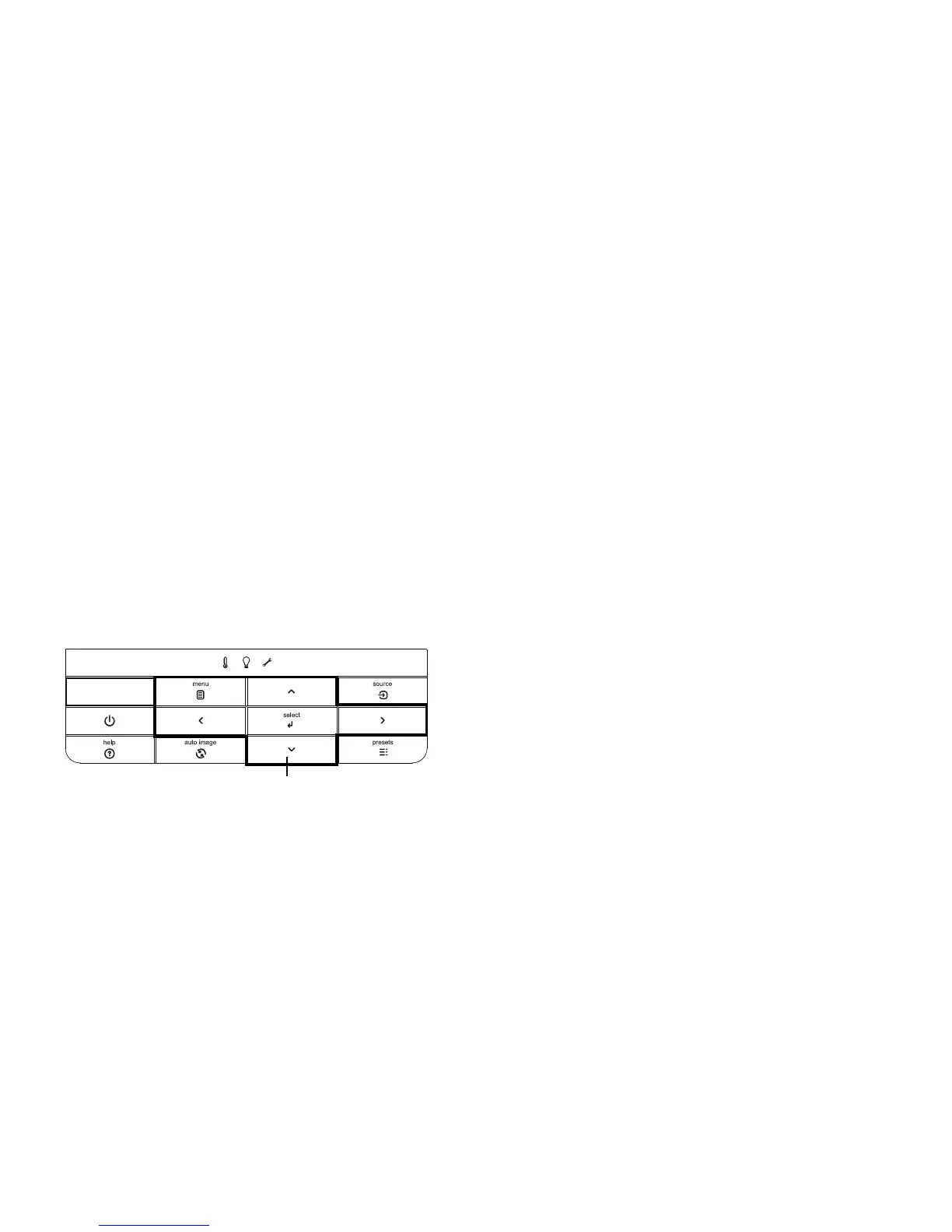
Most buttons are described in detail in other sections, but here is an overview of
their functions:
Power–turns the
projector on and off (page 9).
Auto Image–resynchr
onize the projector to the source (page 30).
Presets–
cycles through the available preset settings (page 28).
Menu–opens the
onscreen menus (page 27).
Select–co
nfirms choices made in the menus (page 27).
Up/Down/Left/Right arrows–n
avigates to and adjusts settings in the menus
(page 27).
Source–changes th
e active source (page 9).
Help–bu
tton to access the projector’s help feature (page 33)
Optimizing computer images
After the projector is running and the image is on the screen, you can optimize the
image using the onscreen menus. For general information on using the menus, see
page 27.
• Adjust the Keystone, Contrast, or Brightness in the Basic Picture
menu
(page 28).
• Change the Aspect Ratio. Choose the option that best fits your inp
ut source
(page 28).
• Adjust the Color Temperature in the Advanced Picture menu (page 29).
• Adjust the Phase, Tracking, or Horizontal or V
ertical position in the Advanced
Picture menu (page 29).
• Once you have optimized the image for a particular source, you can save the
settings using Presets. This allows you to quickly recall these settings later
(page 28).
• If your computer is using the projector's DisplayLink connector, see the
InFocus DisplayLink Software User's Guide for information about optimizing
images.
Presentation features
Several features are provided to make giving presentations easier. Here is an
overview, details are found in the menu section.
• The Custom key allows you to assign various features
to the button. The
default effect is Source Info, which displays information about the projector
and current source. See page 30 for details.
• The Search Screen option lets you change the appearance of the blank screen
and start up screen (page 31).
• Two options, Auto Off and Screen Save Time, are provided to automatically
shut down the projector after several minutes of inactivity or display a black
screen. This helps preserve lamp life (page 30).


 To Next Page