16
NS-46E480A13/NS-55E480A13 Insignia 46"/55" 1080p LED TV
www.insigniaproducts.com
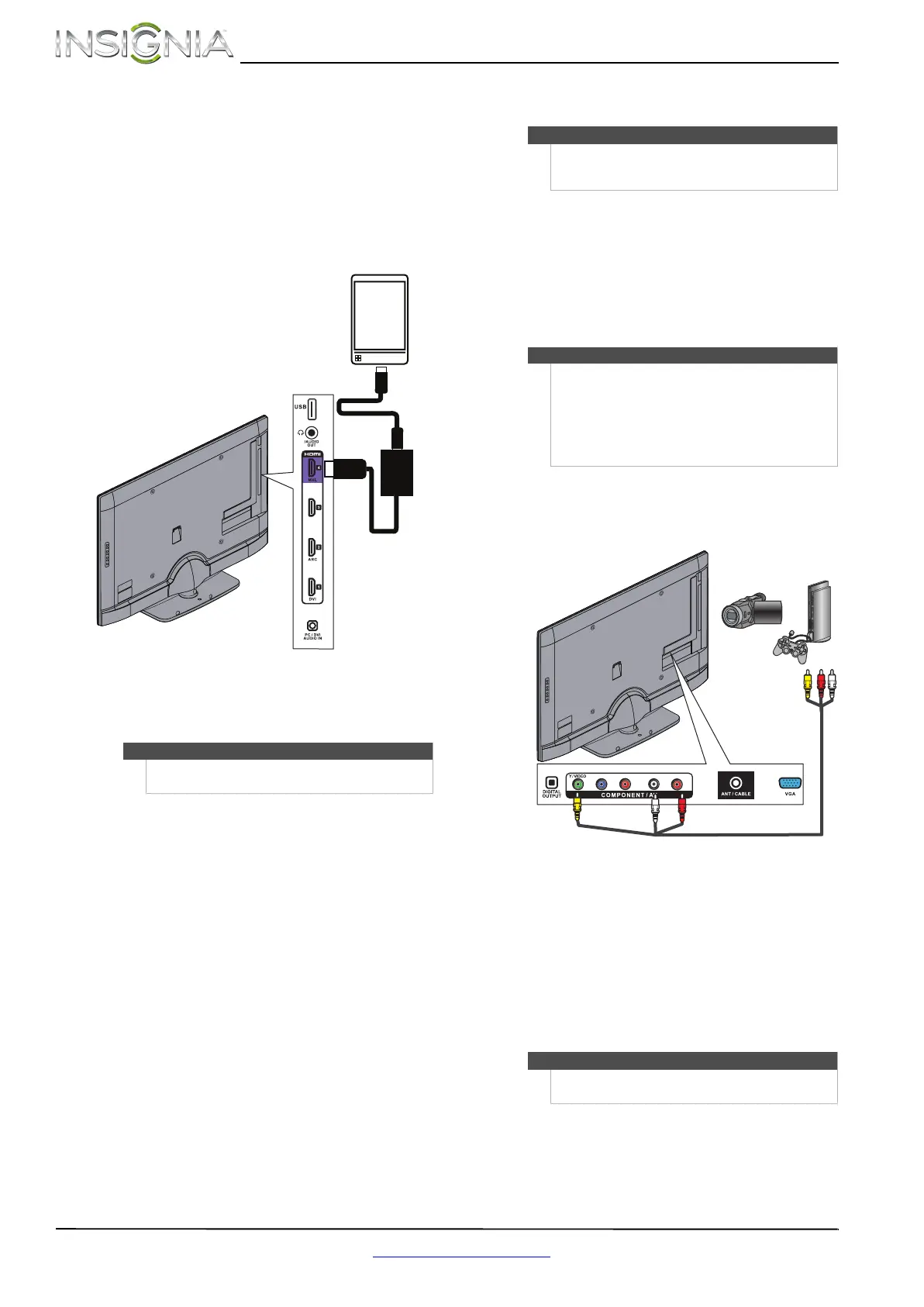
Connecting an MHL-enabled device
You can connect an MHL-enabled device, such as a
cell phone or Roku Streaming Stick™, and view your
device’s screen on your TV.
To connect an MHL-enabled device:
1 Connect an MHL cable (not provided) to the
micro USB port on the device, then connect the
other end of the cable to the HDMI 4/MHL jack
on the side of your TV.
2 Press INPUT to open the Input Source list.
3 Press
S or T to select HDMI 4/MHL / ACC, then
press ENTER.
Connecting a camcorder or game console
To connect a camcorder or game console:
1 Make sure that your TV’s power cord is
unplugged and the camcorder or game console
is turned off.
2 Connect an AV cable (not provided) to the
COMPONENT/AV Y/VIDEO and L and R audio
jacks on the back of your TV and to the AV OUT
jacks on the camcorder or game console.
3 Plug your TV’s power cord into a power outlet,
then turn on your TV.
4 Turn on the camcorder or game console, then
set it to the correct output mode. For more
information, see the documentation that came
with the camcorder or game console.
5 Press INPUT to open the Input Source list.
6 Press
S or T to select Component/AV, then
press ENTER.
Notes
You can also press ACC to select a connected
MHL-enabled device.
HDMI cable with
HDMI-to-MHL
adapter
Side of TV
MHL-enabled device
Note
If your camcorder or game console has an HDMI
connection, we recommend that you use the HDMI
connection to get the best quality possible.
Note
•The COMPONENT/AV Y/VIDEO, Pb, and Pr
video jacks (used to connect a component
device) share the L and R audio jacks with the
COMPONENT/AV Y/VIDEO jack (used to
connect a composite device).
• When you connect the audio using the L and R
audio jacks, the audio output is analog.
Notes
You can also press VIDEO to select the camcorder or
game console.
Y / VIDEO
P
B
P
R
L R
Cables are often color-coded to
match color-coded jacks.
Note: The yellow video connector
on the AV cable connects to the
green COMPONENT/AV Y video
jack.
Camcorder or
game console
AV cable
Back of TV








 To Next Page