EasyManua.ls Logo

Insignia NS-DXA2 - User Manual

Insignia NS-DXA2
28 pages
Print Icon
To Next Page IconTo Next Page
Loading...
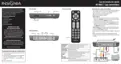
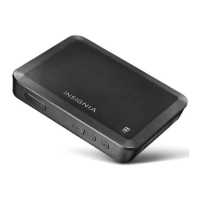
Digital to Analog Converter Box
NS-DXA2
User Guide
Before using your new product, please read these instructions to prevent any damage.
NS-DXA2_13-0501_V1_ENG.fm Page 0 Monday, July 29, 2013 8:06 AM

Other manuals for Insignia NS-DXA2

Questions and Answers

  • D
    daniel60Jul 31, 2025
    Why are not all channels available after auto scan on my Insignia NS-DXA2 Media Converter?
    • C
      Christopher GentryJul 31, 2025
      If not all channels are available after an auto scan on your Insignia Media Converter, try adjusting your antenna and then scan for available channels again by pressing MENU, then selecting General Settings, then Channel Scan.
  • S
    Sherry ThorntonAug 8, 2025
    How to reset parental control PIN on Insignia NS-DXA2 Media Converter?
    • J
      Jeffrey MarshAug 8, 2025
      To reset your forgotten four-digit parental control PIN on the Insignia Media Converter, press Menu > Settings > System Reset. This will reset the code to 1234 and restore all settings to factory defaults, requiring a new Channel Scan.
  • J
    Jeanette LozanoAug 15, 2025
    What to do if no closed caption is displayed on Insignia NS-DXA2 Media Converter?
    • K
      Kurt BanksAug 15, 2025
      If no closed caption is displayed on your Insignia Media Converter, first ensure that the channel you are watching actually transmits closed caption information. If the channel does, press the CC button on the remote control to activate closed caption output.
  • E
    Erika KramerAug 22, 2025
    Can I use Insignia Media Converter with my cable box?
    • D
      David GallowayAug 22, 2025
      The Insignia Media Converter is designed to work exclusively with over-the-air broadcast television signals. It is not compatible with cable or satellite services.

Summary

Welcome and Safety Information

General Safety Overview

Key safety precautions and warnings for operating the converter box.

Detailed Safety Guidelines

Important Operational Safety Instructions

Critical guidelines for safe operation, handling, and installation of the device.

Electrical and Environmental Safety Warnings

Precautions for electric shock, lightning, and power line hazards.

Servicing and Grounding

Conditions Requiring Professional Service

Situations that necessitate expert servicing for the converter box.

Outdoor Antenna System Grounding

Proper grounding techniques for antenna systems to prevent electrical surges.

Product Features and Overview

Included Package Contents

List of all items provided in the converter box package.

Front and Back Panel Identification

Identification and description of ports and controls on the converter box.

Remote Control Usage

Remote Control Button Functions

Detailed explanation of each button on the remote control and its purpose.

Connecting the Converter Box

Remote Control Battery Installation

Step-by-step guide for inserting batteries into the remote control.

AV Cable Connection Guide

Instructions for connecting the converter box to a TV using AV cables.

Advanced Connections and Pass-Through

RF (Coaxial) Cable Connection

Guide for connecting the converter box to a TV using an RF coaxial cable.

Analog Signal Pass-Through

How to receive analog signals via the converter box for analog broadcasts.

Initial Setup Wizard

Language and Time Zone Configuration

Setting the menu language and configuring the local time zone for the device.

Channel Scanning and Setup Completion

Performing Automated Channel Scan

Process of searching for and memorizing available TV channels.

Finalizing System Setup Process

Confirmation of successful setup and exiting the initial configuration.

Basic Converter Box Operation

Powering On;Off and Channel Changing

Basic operations including turning the device on/off and switching channels.

Volume Control and Muting

How to adjust the audio volume and mute the sound output.

Navigating the Setup Menu

Accessing and navigating the main menu for various settings.

Program List and AV Settings

Viewing Program Information

Accessing the program list to view current and upcoming TV shows.

Adjusting AV Settings

Configuring audio and video output parameters for optimal viewing.

Audio and Video Output Configuration

Changing Sound Output Format

Selecting preferred audio output like Stereo or Alternate Audio.

Video Aspect Ratio Adjustment

Setting Video Display Aspect Ratio

Adjusting the aspect ratio for widescreen or standard content display.

RF Output Channel Selection

Configuring RF Output Channel

Selecting the output channel (CH-3 or CH-4) for RF signals.

Ratings and Content Blocking

Modifying Content Ratings Settings

Adjusting V-Chip rating limits for content protection.

Parental Control Management

Enabling;Disabling Parental Controls

Turning the parental control features on or off.

Setting Parental Control Rating Limits

Defining TV Show Rating Blocks

Setting block levels for TV shows based on FCC age ratings.

Movie Rating Limit Configuration

Defining Movie Rating Blocks

Setting block levels for movies based on MPAA ratings.

Password Management for Controls

Changing Parental Control Password

Procedure to change the PIN used for parental controls.

Closed Captioning Customization

Adjusting Closed Caption Display Options

Customizing font, background, and service options for closed captions.

General System Settings

Configuring General System Options

Adjusting system-wide settings like language and power saver.

Troubleshooting Solutions

Addressing Power and Picture Issues

Solutions for problems with power indicator and picture quality.

Resolving Audio and Video Output Problems

Troubleshooting steps for lack of audio or video signal.

Advanced Troubleshooting and Specifications

Channel Scan and Reception Fixes

Resolving issues with channel availability and signal reception.

Product Technical Specifications

Detailed technical data of the converter box and its components.

Legal and Compliance Information

FCC Compliance and Statement

Declarations regarding the device's adherence to FCC regulations.

Software and Dolby Licensing Notices

Information on open source software and Dolby licensing.

Product Warranty and Coverage

90-Day Limited Warranty Details

Overview of the warranty period and what it covers for the product.

Warranty Exclusions and Limitations

Specific conditions and damages not protected by the warranty.

Insignia NS-DXA2 Specifications

General IconGeneral
BrandInsignia
ModelNS-DXA2
CategoryMedia Converter
LanguageEnglish

Related product manuals