EasyManua.ls Logo

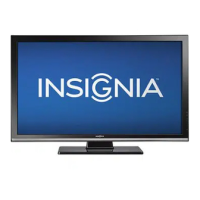
Insignia NS-PDP50 - User Manual

Insignia NS-PDP50
34 pages
Print Icon
To Next Page IconTo Next Page
Loading...
INSIGNIA
NS-PDP50

Other manuals for Insignia NS-PDP50

Questions and Answers

  • J
    Jordan JonesAug 19, 2025
    How to fix Insignia NS-PDP50 Plasma TV remote control not working?
    • C
      cconradAug 19, 2025
      First, ensure that there are no obstructions between the remote and the sensor on the front of your Insignia Plasma TV. Then, check the batteries are correctly installed, aligning the + and – symbols. After that, verify you've selected the correct mode (e.g., TV, VCR). Finally, try replacing the batteries.
  • M
    Megan BlakeAug 21, 2025
    What to do if my Insignia Plasma TV has no picture or sound?
    • L
      Lisa FischerAug 22, 2025
      First, check if the Insignia Plasma TV is turned on and plugged into a working power outlet. Ensure the power outlet is receiving power. Try changing the channel, as the current channel might have issues. If you're using an antenna, adjust its position.
  • R
    Ricky ScottAug 23, 2025
    Why is there no sound on my Insignia Plasma TV but the picture is fine?
    • E
      emily13Aug 23, 2025
      To resolve the issue of no sound from your Insignia Plasma TV, first increase the volume. Then, press the MUTE button to ensure the sound isn't muted. Try switching to another channel in case the current one has issues. Also, check that the audio cables are securely and correctly connected.
  • K
    kingjoeAug 26, 2025
    Why does my Insignia Plasma TV power suddenly turn off?
    • J
      julie57Aug 26, 2025
      To address the issue of your Insignia Plasma TV suddenly turning off, check if the sleep timer is enabled. Also, verify if the channel is set to Auto off. Ensure that the power outlet is receiving power.
  • D
    Daniel WelchAug 28, 2025
    How to fix no color or poor color on Insignia Plasma TV?
    • K
      Kyle FrenchAug 28, 2025
      To fix the issue of no color or poor color on your Insignia Plasma TV, start by adjusting the color settings in the OSD (On-Screen Display). Ensure your TV and any VCR are not too close together. Try switching to another channel, as the current one might have issues. Check that all video cables are securely and correctly connected. Press any button to restore the brightness level.
  • L
    Laura IngramAug 30, 2025
    Why is there poor reception on some channels on my Insignia NS-PDP50 Plasma TV?
    • J
      jenkinsrebeccaAug 30, 2025
      To address poor reception on some channels with your Insignia Plasma TV, try switching to another channel as the current one may be experiencing difficulties. If using an antenna, adjust its orientation. Ensure that no electrical appliances or power tools are interfering with your TV. The signal from some channels might also be too weak.
  • B
    Belinda ShepherdSep 1, 2025
    How to fix one speaker not working on Insignia NS-PDP50 Plasma TV?
    • B
      Bryan BarberSep 1, 2025
      Adjust the audio balance on your Insignia Plasma TV to resolve the issue of one speaker not producing sound.
  • T
    Theresa GonzalesSep 3, 2025
    What causes horizontal bars or shaking picture on Insignia Plasma TV?
    • S
      Shannon LopezSep 4, 2025
      If your Insignia Plasma TV picture has horizontal or vertical bars, or the picture 'shakes,' ensure that no electrical appliances or power tools are interfering with it.
  • V
    Vernon HillSep 5, 2025
    How to fix picture lines or streaks on Insignia Plasma TV?
    • M
      melinda17Sep 5, 2025
      To resolve the issue of lines or streaks on the picture of your Insignia Plasma TV, adjust the orientation of the antenna if you are using one.
  • Y
    ymartinezSep 8, 2025
    What to do if Insignia NS-PDP50 says signal out of range in PC mode?
    • M
      Misty HernandezSep 8, 2025
      Adjust the resolution or the horizontal or vertical frequency to fix the 'signal out of range' issue on your Insignia Plasma TV in PC mode. Ensure that the PC is connected correctly and securely.

Summary

Introduction and Safety Overview

Safety Information

Crucial safety guidelines for operating the Insignia plasma TV.

Important Safety Instructions

Key instructions for safe use and maintenance of the plasma TV.

Safety Guidelines

Electrical Safety and Grounding

Guidelines on electrical safety, grounding, and ventilation.

Product Features

Package Contents

List of items included in the plasma TV package.

Front Panel Overview

Front Panel Controls

Description of buttons and indicators on the front of the plasma TV.

Connection Ports

Rear and Side Jacks

Identification of various input/output jacks on the TV.

Remote Control

Remote Control Buttons

Description of the function of each button on the remote control.

Back Panel Jacks

Back Panel Connections

Detailed identification of input/output jacks on the back of the TV.

Setting Up Your Plasma TV

Installing Batteries

Steps to install batteries in the remote control.

Remote Control Range

Information about the effective range of the remote control.

Cable Management

Bundling Cables

Instructions for bundling cables using the management bracket.

Ventilation and Grounding

Positioning for Ventilation

Ensuring proper airflow by maintaining space around the TV.

Grounding the Unit

Instructions for proper grounding to prevent electric shock.

Connecting External Devices

Connecting Antenna or Cable TV

How to connect antenna or cable TV signals to the TV.

Connecting Standard A;V Devices

Steps for connecting standard audio/video devices.

Connecting an S-Video Device

How to connect an S-Video source to the TV.

Connecting More Devices

Connecting an HDMI Device

Steps for connecting an HDMI source to the TV.

Connecting a Component Device

Instructions for connecting component video devices.

Advanced Connections

Connecting a DVI Device

How to connect a DVI device using an HDMI-to-DVI cable.

Connecting a Digital Audio Device

Steps for connecting a digital audio output device.

Connecting a PC

Connecting via VGA or DVI

Instructions for connecting a PC using VGA or DVI ports.

Using Your Plasma TV

Turning the TV On or Off

Steps to power the plasma TV on and off.

TV Operation Basics

Selecting Video Input

How to choose the active video source for the TV.

Adjusting Volume and Channels

Steps to control audio volume and change TV channels.

Labeling Input Sources

How to assign custom names to video input sources.

Picture Settings

Selecting Picture Modes

Choosing preset or custom picture modes for optimal viewing.

Adjusting Color Temperature

Modifying color temperature for desired picture tone.

Advanced Picture Adjustments

Customizing Picture Modes

Creating custom color temperature and DB modes.

Movie Picture Quality

Enhancing movie playback with Cinema 3:2 Mode.

Video and Sound Settings

Adjusting Black Level and Resetting Video

Fine-tuning black levels and restoring video settings to defaults.

Selecting Sound Modes

Choosing preset or custom sound modes for audio.

Audio Customization

Creating Custom Sound Modes

Steps to create personalized sound profiles.

Adjusting Balance and Audio Language

Fine-tuning audio balance and selecting preferred audio language.

Speaker and Clock Settings

Turning Speakers On;Off

How to enable or disable the TV's internal speakers.

Setting the Clock

Setting the TV's internal clock automatically or manually.

Timer Functions

Setting On;Off Timers

Programming the TV to turn on and off at specific times.

Sleep Timer and Auto Off

Setting automatic turn-off timers for convenience.

Display Settings

Aspect Ratio Selection

Adjusting the screen's aspect ratio for optimal viewing.

OSD Language and Signal Strength

Setting OSD language and checking DTV signal quality.

Closed Captions

Selecting Closed Caption Modes

Choosing caption display modes for analog and digital TV.

Changing Caption Styles

Customizing the appearance of closed captions.

Power and Screen Protection

Low Power Mode

Enabling low power mode to reduce energy consumption.

Image Burn-in Prevention

Using ISM methods to prevent screen image burn-in.

Parental Controls

Setting Parental Controls

Configuring TV ratings, movie ratings, and input blocking.

Maintenance and Cleaning

Cleaning the Screen and Cabinet

Instructions for safely cleaning the TV screen and cabinet.

Parental Control Setup

Setting Up Parental Controls

Steps to set up parental lock, password, and channel blocking.

Troubleshooting Common Issues

Remote and Power Problems

Solutions for remote control and power-related issues.

Picture and Sound Problems

Troubleshooting common picture and sound issues.

PC Mode Issues

Solutions for problems encountered when using PC mode.

Specifications and Remote Programming

Product Specifications

Technical details and requirements of the plasma TV.

Programming the Remote Control

Instructions for programming the remote to control other devices.

Legal Notices

FCC Compliance

Information regarding FCC regulations and warnings.

Canadian Compliance

Statement regarding compliance with Canadian ICES-003.

One-Year Limited Warranty

Warranty Coverage

Details on what the limited warranty covers and for how long.

Obtaining Warranty Service

Instructions on how to get service or repair under warranty.

What the Warranty Does Not Cover

Exclusions from the limited warranty coverage.

Insignia NS-PDP50 Specifications

General IconGeneral
Screen Size50 inches
Display TechnologyPlasma
Resolution1366 x 768
Aspect Ratio16:9
HDMI Ports2
Component Video Inputs2
Composite Video Inputs1
Contrast Ratio10000:1
Brightness1500 cd/m²
Viewing Angle160 degrees
Response Time0.001 ms
InputsHDMI, Component, Composite

Related product manuals