13
The
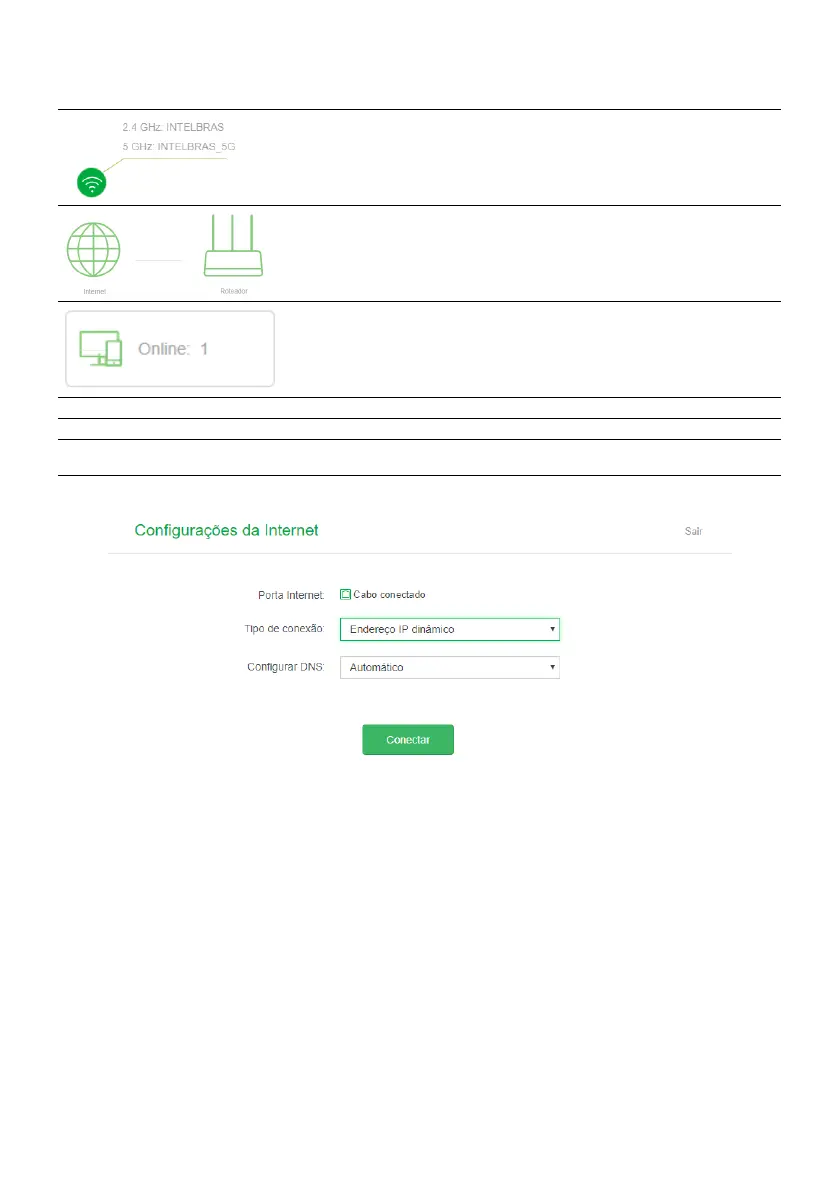
Internet Status
screen displays the main information about your router. In addition, you can access the main settings
via icons.
In this area, the names of your 2.4 GHz and 5 GHz wireless networks are displayed. By clicking the
icon you can congure the names and passwords of these networks.
In this area, the status of your internet connection is displayed. If there is any connection problem,
the phrase
Connection failure
will appear between the internet (globe) and router icons. By clicking
the Internet icon (globe) you can congure your connection. Clicking on the router icon, it is
displayed the screen
System Status
with more detailed information about the device.
This area displays the number of devices connected to the router. Clicking on the icon displays the
list of devices and the information: download and upload speed, access type, and block device.
Internet consumption Shows the current download and upload consumption of all devices connected to the router.
WAN IP Address Shows the IP address of the WAN (
Internet
port) of the router.
Firmware version
Shows the current version of the router software. ACtion RF 1200 periodically checks for new
rmware versions; if a new version is available, a warning is displayed on the screen
Internet Status.
4.4. Internet settings
Internet conguration screen
The menu
Internet Settings
groups the settings related to your Internet connection.
Below we will explain each available option.
» Internet port: shows the status of the port
Internet
, informing if the cable is connected or not.
» Connection type: there are 3 possible connection modes:
» Dynamic IP address: use this mode if your connection details are provided automatically through a DHCP server.
» PPPoE: use this mode if your Internet access requires authentication via PPPoE. In this mode, a user and password
(provided by your operator or ISP) is required to authenticate with the Internet. You must enter the user in the eld
Provider User
and your password in the eld
Provider Password
.
» Address Static IP: use this mode if your Internet access is provided via a static IP address. All information for the
conguration in this mode must be provided by your Internet operator.
» Conguring DNS: if you want to congure DNS servers manually, you can choose the option
Manual
and enter the
servers in the elds
Primary DNS Server
and
Secondary DNS
.
When you nish the settings click the
Connect
button to apply the settings.
4.5. Wi-Fi Network Settings


 To Next Page