8
After starting the installation wizard, your internet connection will be recognized automatically. Please wait and follow
the guidelines described in the installation wizard. To create your Wi-Fi network, the Wi-Fi password, and the password
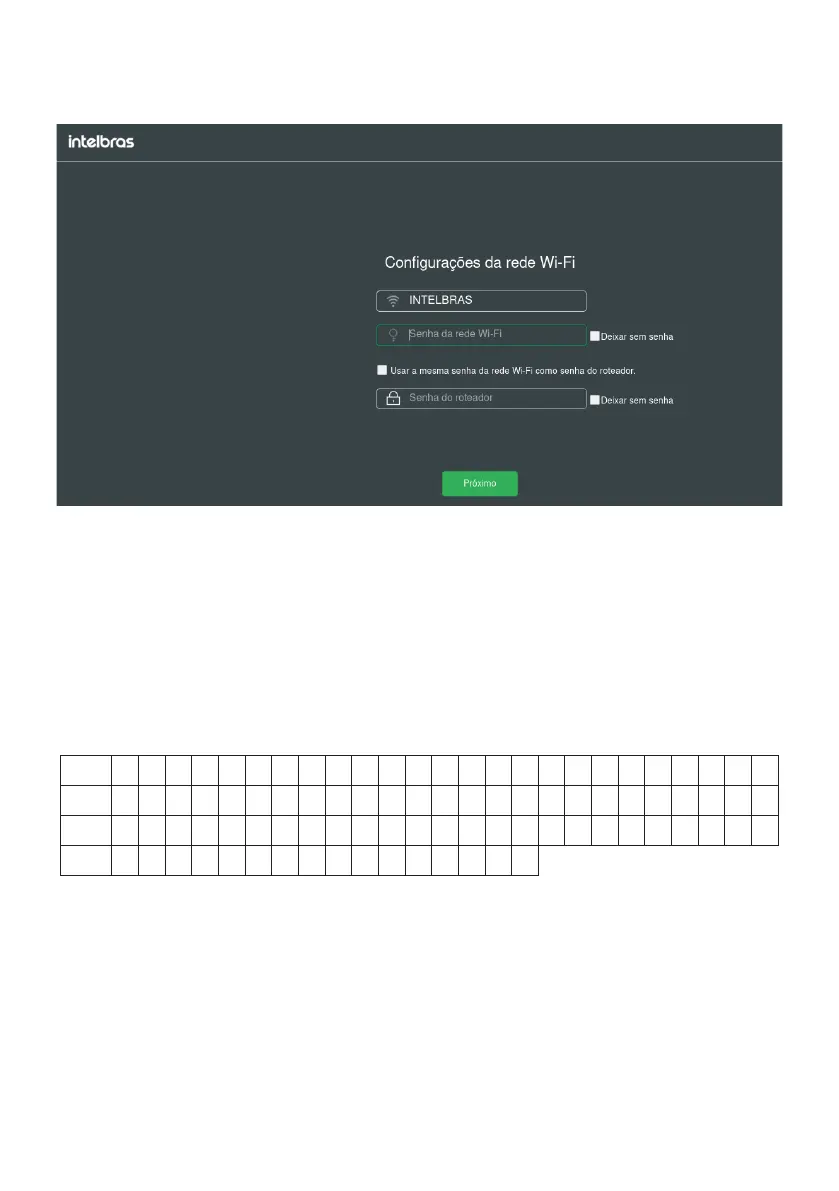
to access your router’s conguration page, please ll out the elds shown on the next screen:
Conguration screen of the setup wizard
1. Fill in the
Wi-Fi Network Name
eld with the name you want for your Wi-Fi network, for example,
My Network
. This eld
by default is lled in with the name
INTELBRAS
, but can be changed to any name up to 29 characters long;
Note: the Wi-Fi network name at 5GHz will be set to
_5G
at the end of the network name, e.g.,
My Network_5G
.
2. Now, ll in the
Wi-Fi Network Password
eld with the password you want for your Wi-Fi network. This is the password
you will use when connecting your wireless devices to your network (e.g. mobile phones, tablets, laptops, etc.). This
password will be for both 2.4 GHz and 5 GHz Wi-Fi networks, and can be up to 63 characters long;
Note: To put a different password for each network, see the item
4.5. Wi-Fi network settings.
3. Fill in the
Router Password
eld with a password that will be used to access your router settings.
Note: the
Wi-Fi Network Name
and
Wi-Fi Network Password
elds allow the following characters:
Space ! “ # $ % & ‘ ( ) * + , - . / 0 1 2 3 4 5 6 7 8 9
: ; < = > ? @ A B C D E F G H I J K L M N O P Q R S
T U V W X Y Z [ \ ] ^ _ ` a b c d e f g h i j k l m
n o p q r s t u v w x y z { | } ~
4. Click on the button
Next
to apply the settings made.


 To Next Page