9
See the following sample image:
SYSWLAN WAN1 2 3
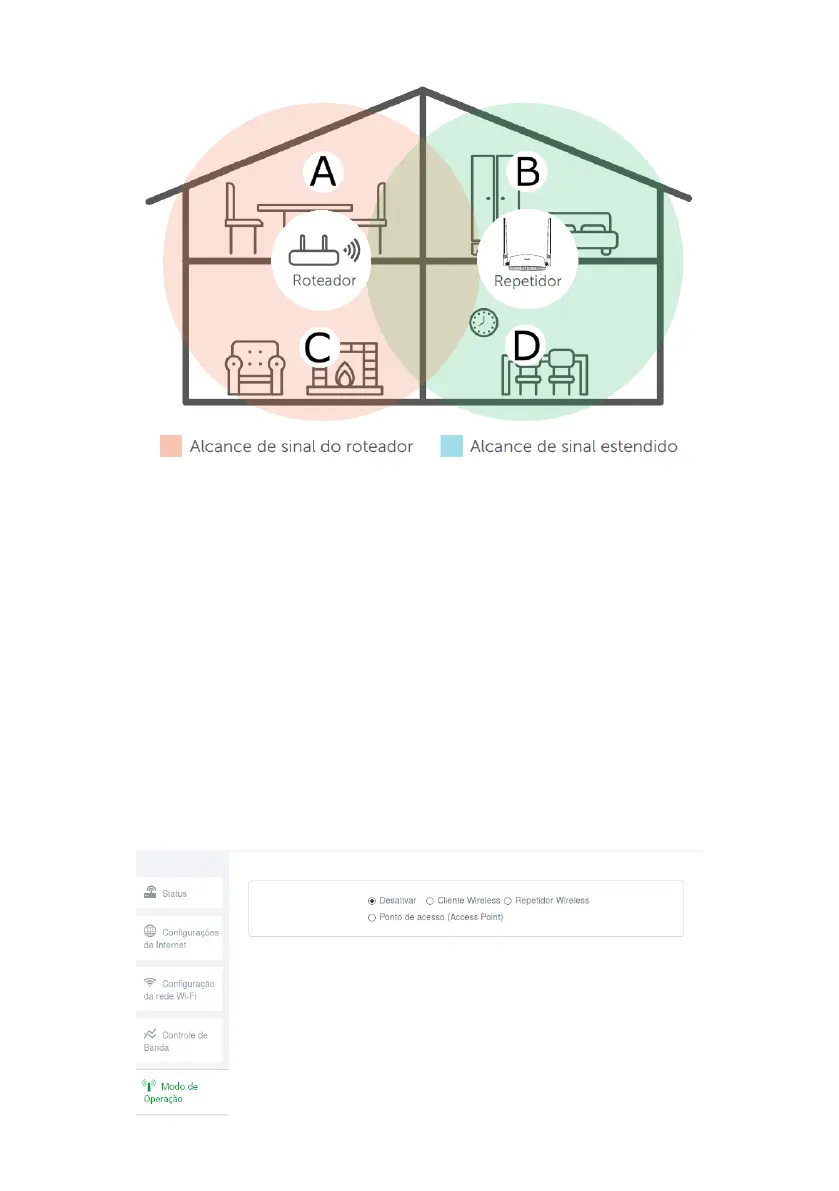
Example of residence with Wi-Fi signal repeater
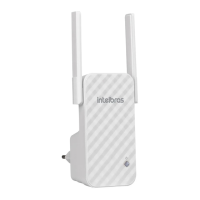
Note that the router’s coverage area does not cover the entire residence, so a RF 301K is used as a
Wi-Fi
repeater to
solve this problem. It is important to note that in this scenario, depending on the room you are in, when connecting a
device (a laptop or smartphone, for example) to the
Wi-Fi
network it may connect either to the router or the repeater.
Examples:
» If you are in the living room (C) and connect to Wi-Fi, you are connecting to your main router’s
Wi-Fi
network.
» If you are in the kitchen (D) and connect to the
Wi-Fi
network, you are connecting to the repeater
Wi-Fi
network.
» If you connect to the
Wi-Fi
network while in the dining room (A) and then you move to the bedroom (B), and the main
signal network still reaches it, even if weak, your device will still be connected to the main router, not automatically
switching to Wi-Fi on the repeater. If you want your device to connect to the repeater and thus get a stronger signal,
disable and enable your device’s
Wi-Fi
network again (if you don’t know how to do this, you can try restarting it so that
the
Wi-Fi
connection with the stronger signal network occurs). The same goes for the displacement in the direction of
the area covered by the repeater, larger area covered by the router (from the bedroom to the dining room, for example).
In short: when moving between the rooms, disconnect and reconnect your device to the
Wi-Fi
network so that it
connects to the network with the best signal.
To perform the conguration this way, in the
Advanced settings
of the web interface of conguration of the router go
to the menu
Operation ode
.
Operation mode conguration screen


 To Next Page