14
Interwrite
TM
Board Getting Started
1 Log in as Administrator. Insert the Interwrite Learning CD into the
CD drive on your PC. The installer will autoload. If it doesn’t, click
on the Start button on the Windows Task Bar and select Run from
the menu. Type X:\setup.exe (X represents the CD drive letter).
2 Select the Install Interwrite Workspace Software menu option.
3 Follow the onscreen instructions for the software installation. You
will know Interwrite Workspace has installed successfully by the
appearance of the Interwrite Workspace icon in the System Tray on
the Windows Task Bar. If the icon does not appear, restart your
computer.
Installing the Interwrite Workspace
Software on Windows
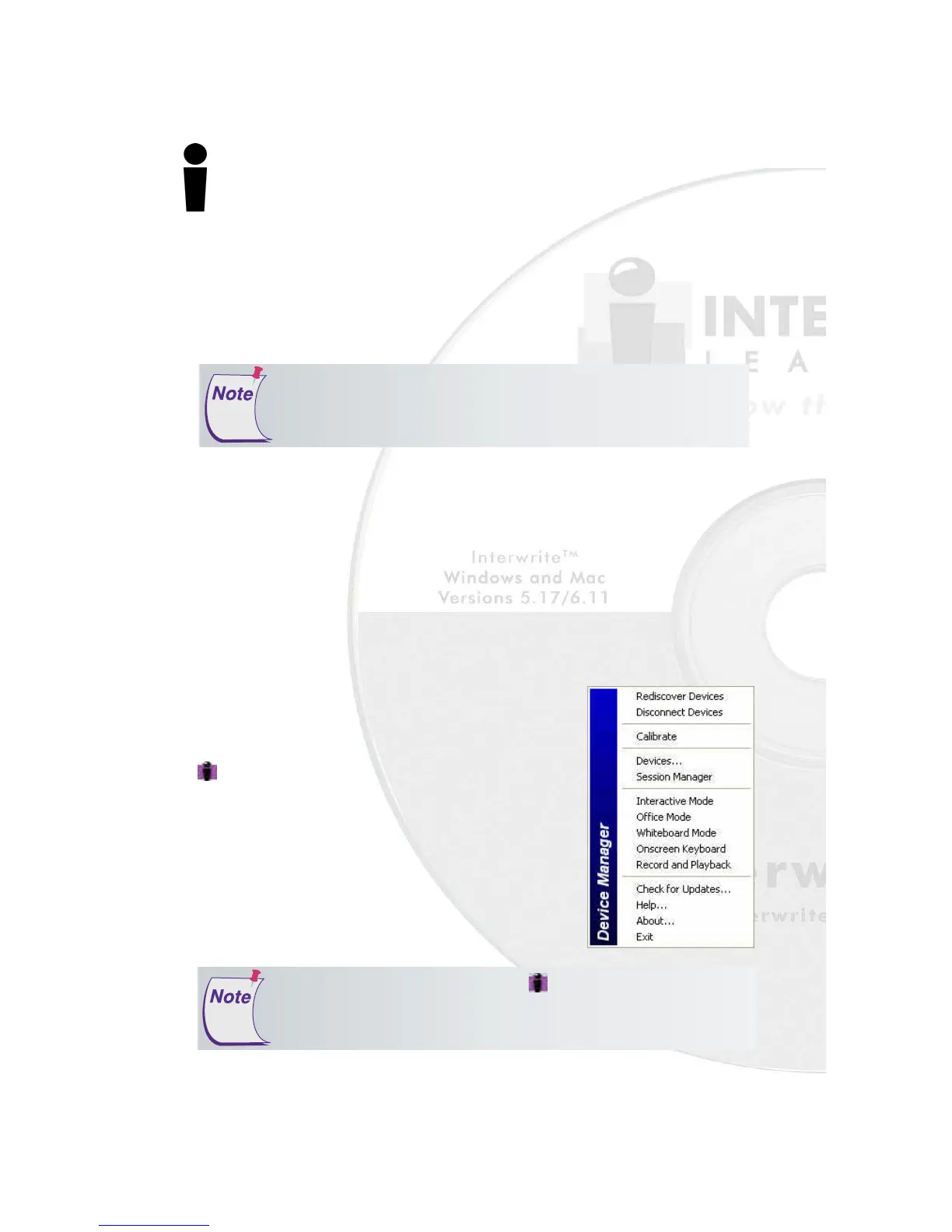
The appearance of the Interwrite Workspace icon
on the Task Bar indicates that the Interwrite
Device Manager is now running on your PC.
Click on the Workspace icon to display the op-
tions on the Device Manager Menu shown here.
Device Manager, in addition to managing the
Interwrite hardware devices, provides direct
access to the three operational modes of the
Interwrite Workspace software.
Click the Interwrite Workspace icon in the System Tray of the
Windows Task Bar to display the Device Manager Menu. Select the
Check for Updates
option. If a new version of Workspace is available,
download it now. You should periodically check for updates.
The Interwrite Workspace software must be installed on Windows
by a user with Administrator privileges. Interwrite Workspace is
compatible with Windows 2000, XP, and Vista.
If you are using Windows 98/Me/NT, you must use Interwrite
Workspace version 5.0. For more information, contact Techni-
cal Support to order an installation CD.



 To Next Page