22
Interwrite
TM
Board Getting Started
Connect the Interwrite Devices
Connecting a Wireless Device on Windows
The last step in setting up wireless communications between your Bluetooth
modules on the Interwrite Board and your PC is performed by Device
Manager. Make sure the Interwrite Board is powered on.
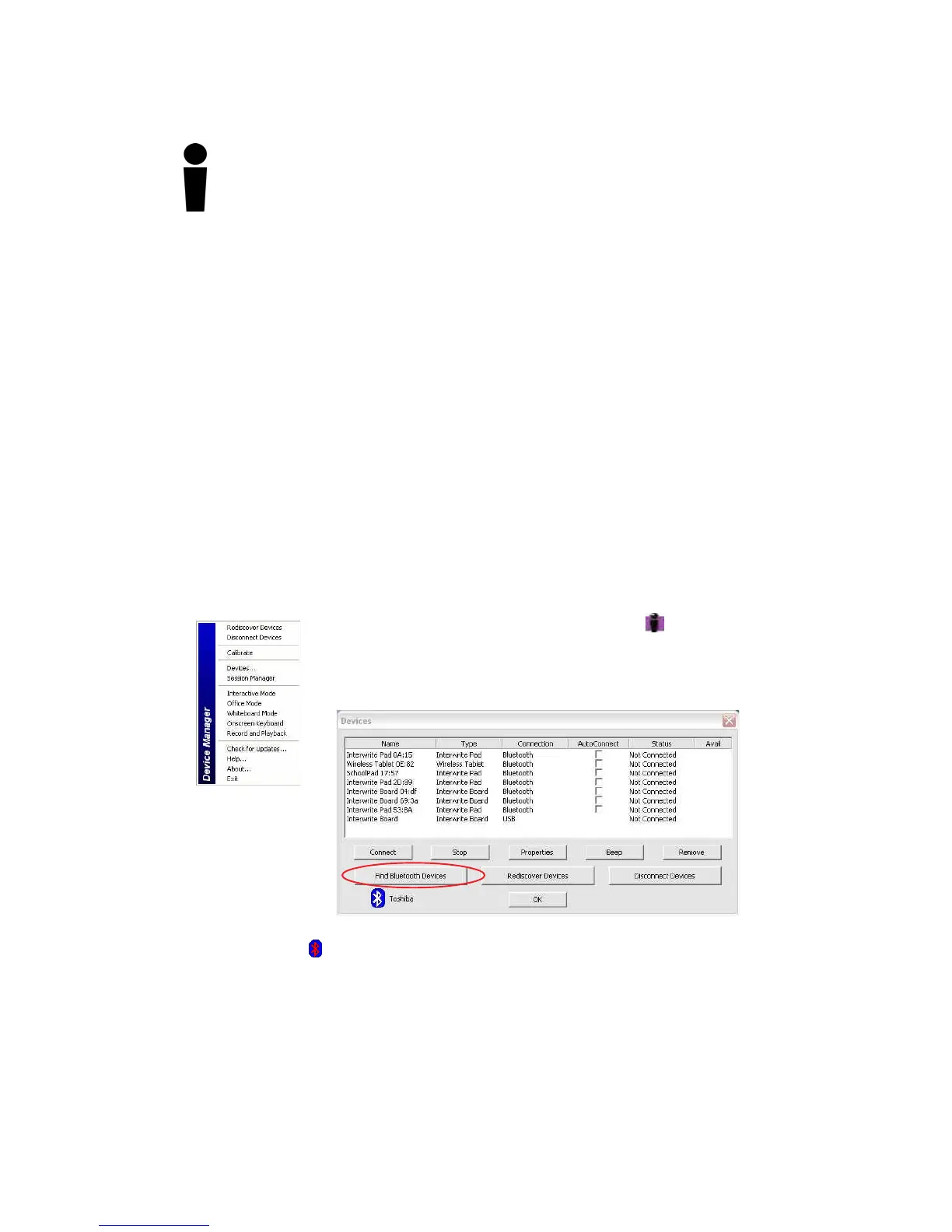
1 Click on the Interwrite Workspace icon in the
System Tray on the Windows Task Bar to display the
Device Manager menu.
2 Select the Devices... menu option.
The Interwrite Workspace software component Device Manager is the
driver for the Interwrite Devices—Interwrite Boards, Interwrite Pads and the
Interwrite Panel. Device Manager is loaded when Interwrite Workspace is
successfully installed on the computer. It automatically detects a cabled
Interwrite Board or Interwrite Panel. However, the wireless Interwrite
Devices need to be discovered – and, in the case of the Mac, to select a
Service – before the communication connection is complete.
The following sections describe how to connect wireless Interwrite Devices,
first on Windows, then on the Mac.
Once the Interwrite Devices are connected, a user with Administrator privi-
leges will calibrate the Interwrite Board.
The icon is red
when the Bluetooth module is not connected to the PC.
3 Click on the Find Bluetooth Devices button.
A search inquiry for all Bluetooth Devices will begin automatically. When the
inquiry is completed, all Devices discovered during the search will be listed in
the Find Bluetooth Devices dialog.
The Devices
dialog box with
the Bluetooth
icon is displayed.



 To Next Page