23
Getting Started Interwrite
TM
Board
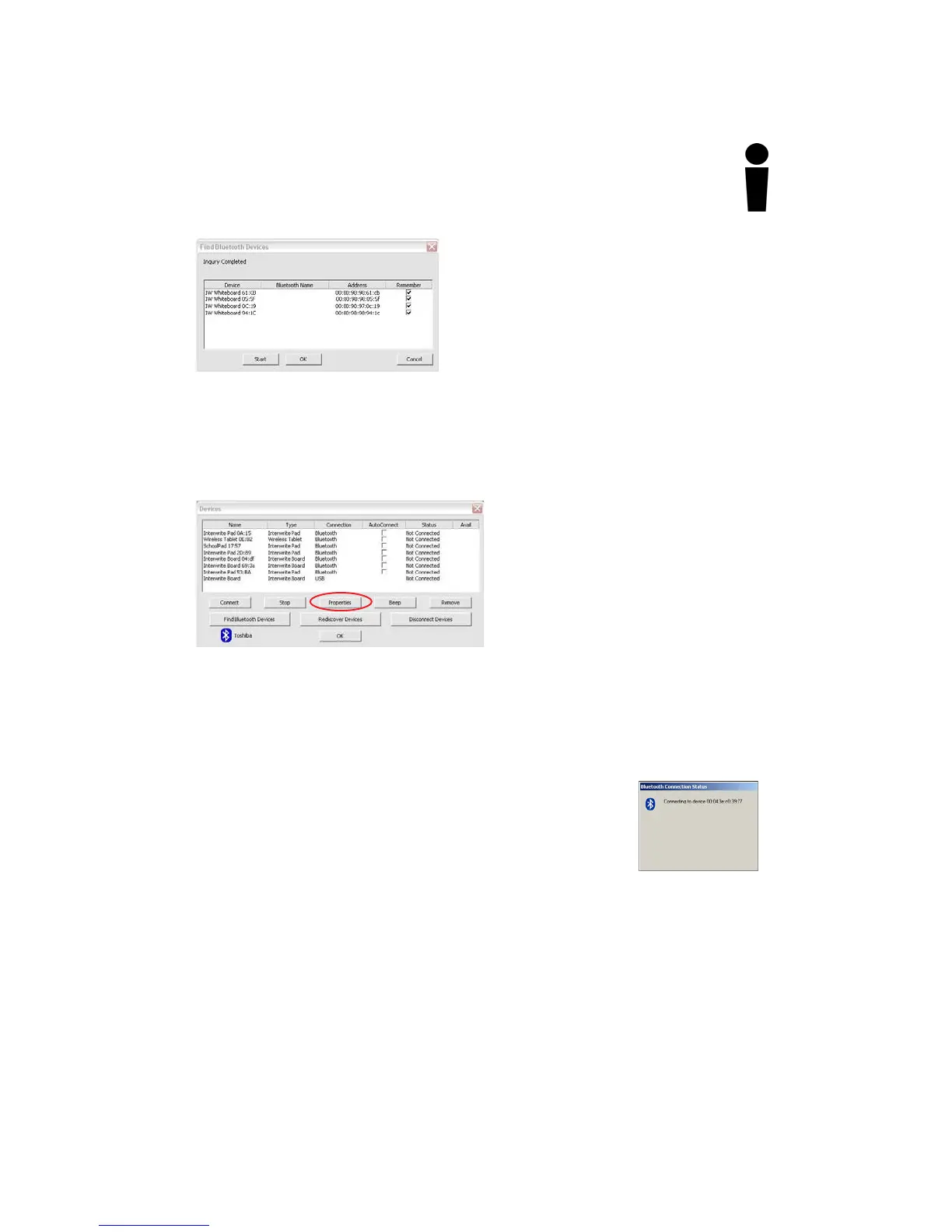
4 Click on the Remember checkbox
next to each discovered Device
you want to see listed in the
Devices List Window.
5 Click OK to return to the Devices
dialog.
Each discovered device is identified in the Devices dialog by its Name, Type,
Connection, Status, Availability, and whether AutoConnect is enabled. The
Properties feature allows you to
give a connected Interwrite
Device the Name shown in the
Devices List Window (the Inter-
write Pad is given an additional
Bluetooth Name) and to program
its SoftKeys.
AutoConnect is a property unique
to Bluetooth-enabled Interwrite
Devices. When AutoConnect is enabled, the computer will scan continu-
ously for this and other active, AutoConnect-enabled Bluetooth Interwrite
Devices and attempt to connect them. Scanning stops once a Device is
detected and connected. Therefore, if you are connecting multiple Devices,
make sure they are all powered on, so all of the Devices will be detected by
the scan. The Status property will tell you whether the
connection succeeded or failed. The Availability option
indicates that a discovered Device is available for connec-
tion. The Connect button can be used to manually con-
nect discovered devices.
6 If you want the Interwrite Board to AutoConnect when it is powered on,
click on the AutoConnect checkbox.
7 Select your Interwrite Board in the Devices List Window and click on the
Properties button. Give the Interwrite Board a Name. This Name is stored
in the Interwrite Workspace software on this computer and will identify
the Interwrite Board when it is connected to this computer.
Once connected, your Interwrite Board is available as a system pointing
device. Your computer mouse can still be used as a pointing device.
The Interwrite Device Address shown here is the Radio ID and can be found
on the back of the Interwrite Device.



 To Next Page