33
Getting Started Interwrite
TM
Board
Using the Pen Tool
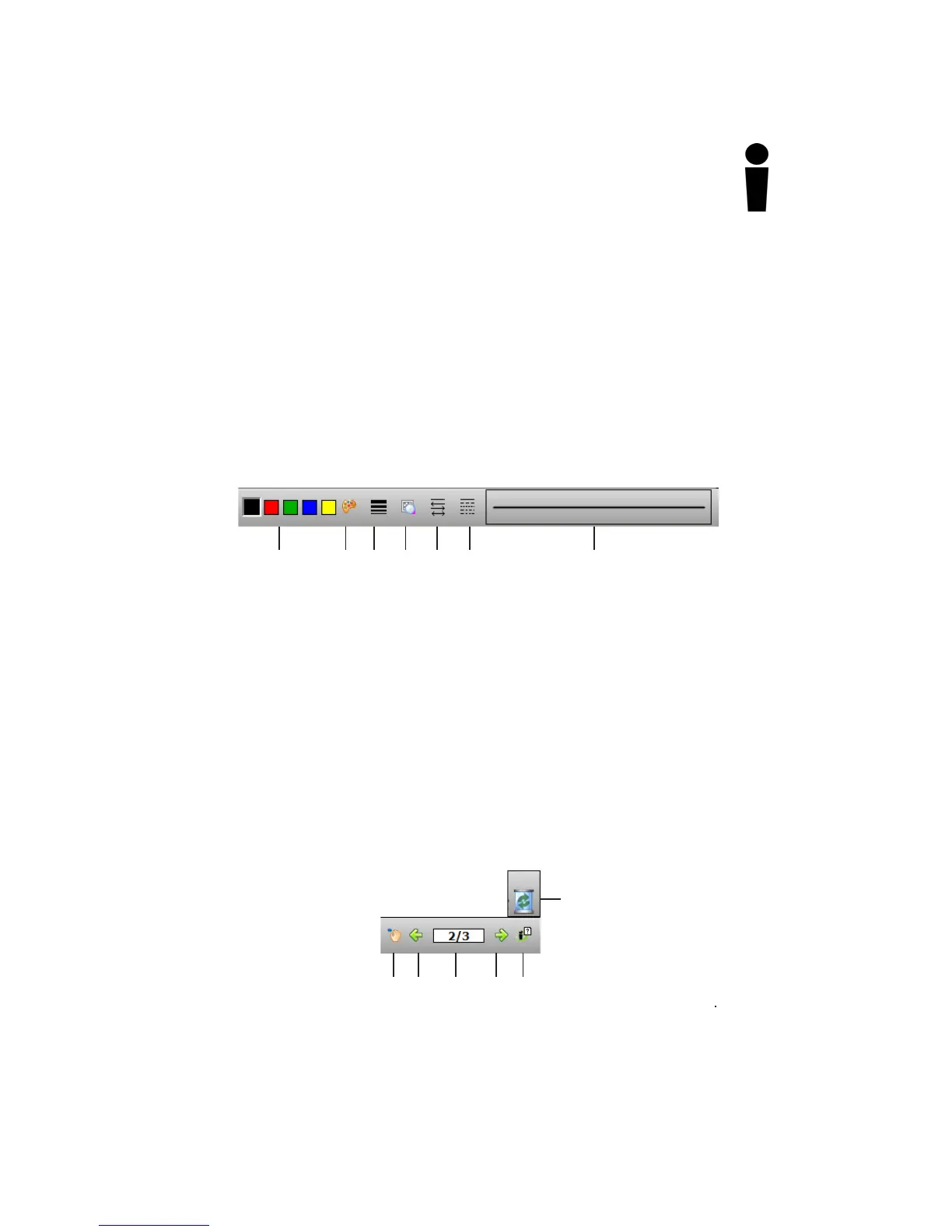
The attributes of the Pen tool can be changed by selecting different
options from the Properties Bar at the bottom of the Annotation
Window.
Select the Pen tool’s Down Arrow to display its Tool Settings Menu.
Properties Bar
The Pen tool Properties Bar provides options to change line color,
width, transparency, and line ends and line styles. Each attribute change
is displayed in the Preview Box.
Change the Pen tool’s line color and width to determine how it will
affect the look of your annotations. The best way to familiarize yourself
with all the different Interwrite Workspace tools and how they can be
used to enhance your presentations is to experiment with them.
Page Functions
Workspace also provides the ability to move within pages within the
window. Select the functions at the bottom of the screen to pan a page,
move between pages, use the PRS tool (optional), or discard annota-
tions.
Line transparency
Properties Bar
Line color
Change line color
Line width
Line ends
Dash styles
Preview box
Pan page
Next
Current location
Previous
Insert question
(PRS)
Trash



 To Next Page