25
Getting Started Interwrite
TM
Board
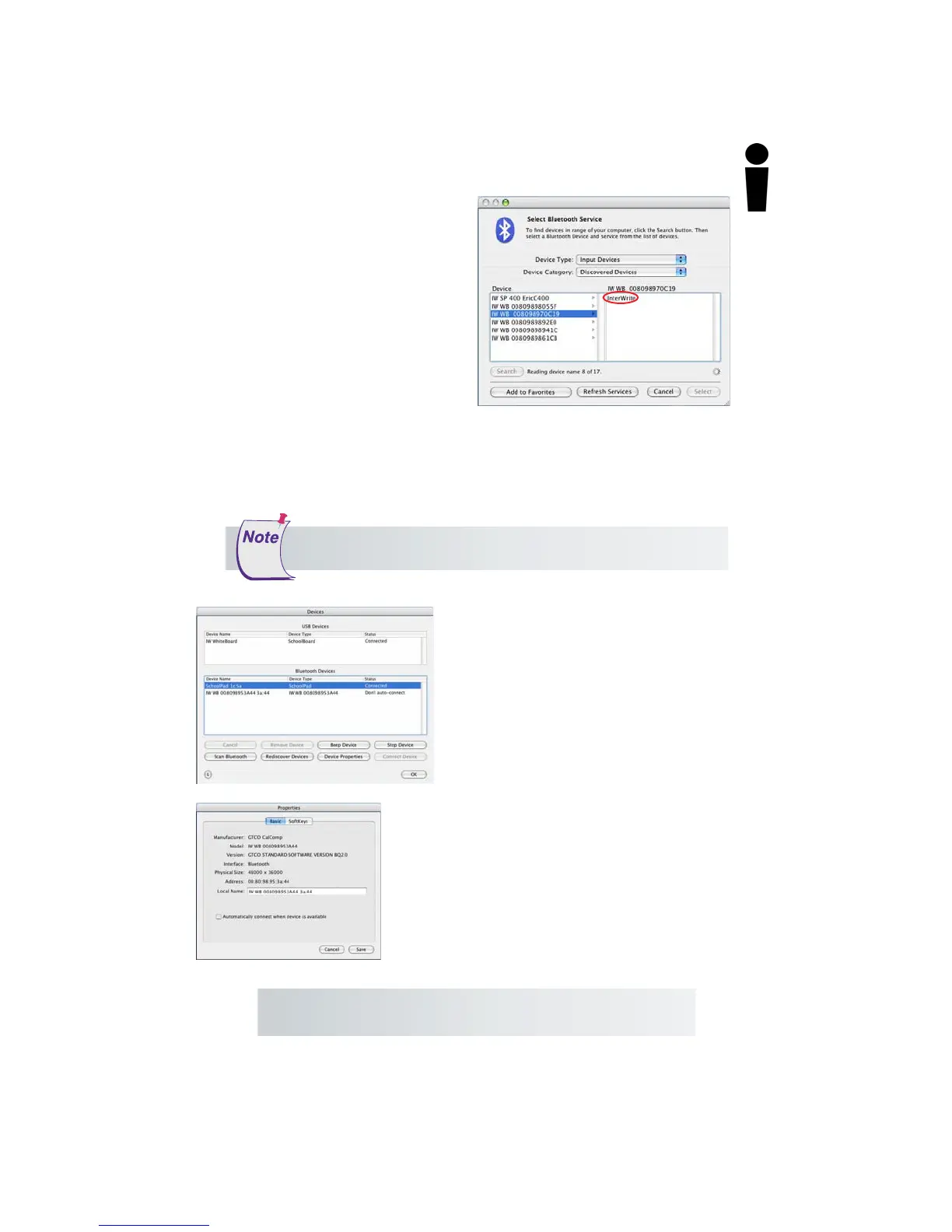
The Bluetooth dialog box goes away. The Interwrite Board beeps once when it
is connected.
The Interwrite Board is now listed in the
Bluetooth Devices section of the Devices
dialog with Status Connected. By default,
the Interwrite Board will automatically
reconnect in the future. If you want to
change that, select the Interwrite Board,
click on the Device Properties button and
clear the Automatically connect when
device is available checkbox.
If you turn off your Interwrite Board and
power it on during the current session,
Device Manager will detect that the device
has gone away and will change its status
to Disconnected. Click on the Connect
Device button to reconnect.
If the Device doesn’t connect, repeat the process—click on the
Device, click on the Service, click on the Select button.
Tip: Give each Interwrite Device a
Local Name
so it will be
distinguishable in the Bluetooth Devices list box.
6 Click on the Device in the left
column. A Service is displayed
in the right column. Interwrite
Bluetooth Devices—Interwrite
Boards and Interwrite Pads—will
use either the ZV-AT Service or
InterWrite Service.
7 Click on the Service displayed in
the right column. When you do,
the Select button is activated.
8 Click on the Select button.



 To Next Page