Getting Started, Continued
Optional:
Installing the
Countess
™
Software
The Countess
™
instrument is designed for stand-alone use and does
not require the use of an external computer.
If you wish to archive data and generate reports, you must transfer
data to your computer, and use the Countess
™
software to generate
and
rint re
orts (see instructions, below). Alternativel
, data stored
in the .CSV file may be transferred to your computer by the USB
drive and imported into any spreadsheet pro
ram, without the need
for Countess
™
software.
Computer requirements (Countess
™
is not compatible with
Macintosh Operating systems)
USB port (1.1 or later, 2.0 is recommended)
Windows XP/2000/Vista
1. Visit www.invitrogen.com/countess and follow instructions
on the page to install the Countess
™
software.
2. When the software is installed, the Countess
™
automated cell
counting software icon appears on your desktop.
3. To download data, use any USB drive to capture data from
your experiment and transfer data to your computer as
described in Transferring Data to a PC (page 16).
Start-Up
Screen
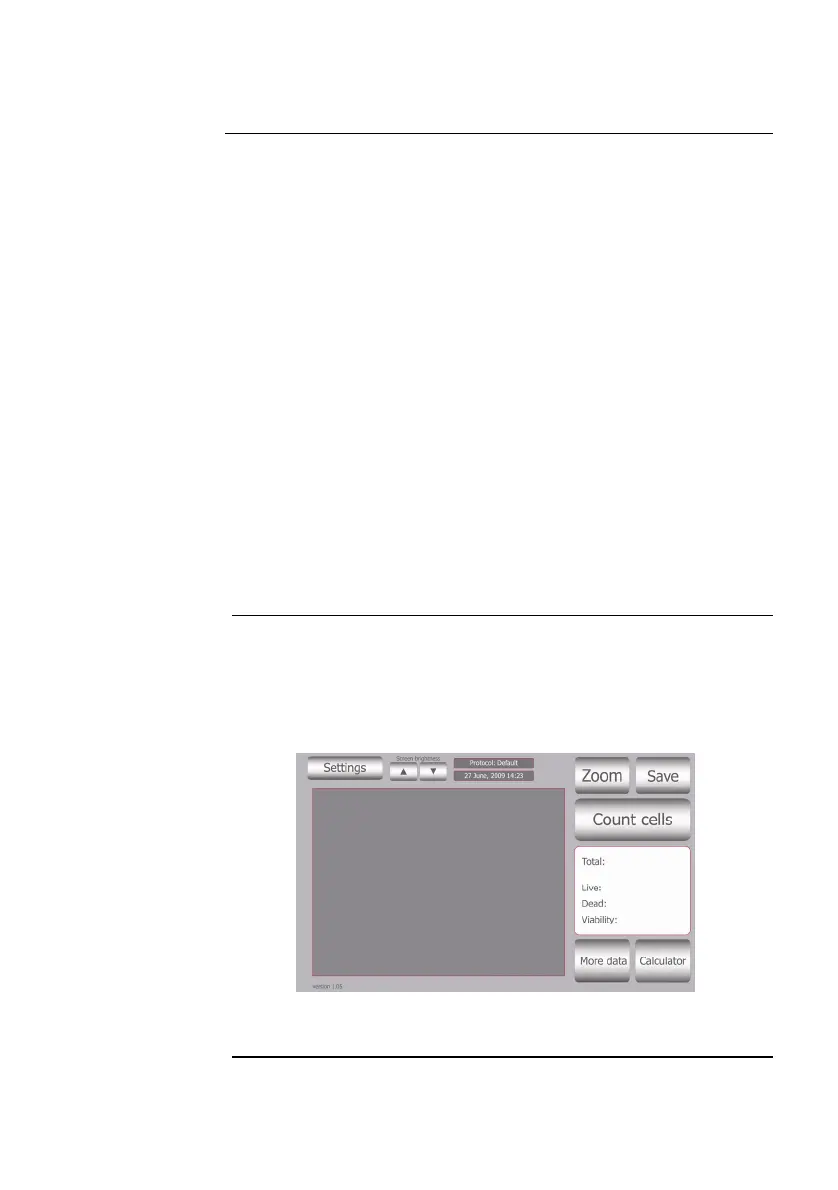
When the instrument is turned on, the Start Up screen is
displayed. Here you can proceed immediately to cell counting
(page 9), set up the instrument for cell or bead
count, or adjust the
screen brightness.
Start Up Screen
Screen Brightness
Use the scroll buttons to adjust the screen brightness.
Continued on next page
4


 To Next Page