Using the Countess
™
Automated Cell
Counter,
Continued
Optional:
Transferring
Data to a
Computer
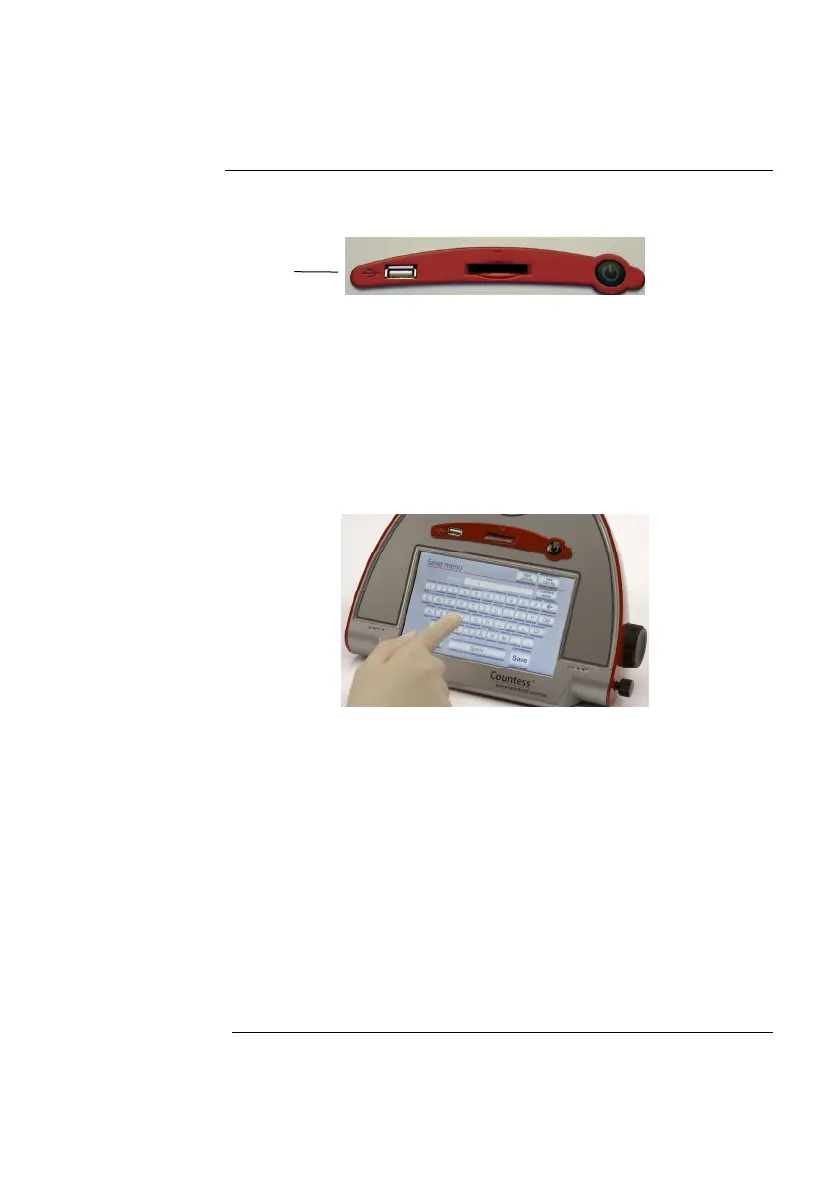
1. To archive your data or generate a printed report, insert
Countess
™
USB drive into the USB port.
2. Save your data on the USB drive by pressing the Save button
on the main screen. The image and the counting data are
saved.
The numerical data is also automatically saved as a .CSV file
that can be opened with any spreadsheet program. To delete
all data from the .CSV file and start with a blank file, press
Start .CSV file button.
3. Enter the file name using the keypad buttons displayed on the
Save menu.
4. Transfer the Countess
™
USB drive to the USB port on your PC.
You may open the .CSV file using a spreadsheet program. To
see the image and generate a report, use the Countess
™
software.
5. Click on the Countess
™
automated cell counting software icon
on your PC (see Installing the Countess
™
Software, page 4).
6. Open a file using the Open button. Select the saved file you
wish to open.
7. Zoom in on the image obtained by clicking in the zoom grid,
(this screen also allows you to examine which cells have been
counted as live or dead).
8. Click on Prepare Report to obtain a printable version of the
image and data.
USB port
Continued on next page
16


 To Next Page