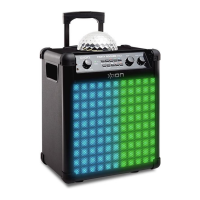
ION Audio Block Rocker
®
User Guide 8
3. Play/Pause / Presets Button
Press this button to start and stop Bluetooth or USB audio.
In FM mode, press this button to save and recall radio presets. See Operation > Using the
Radio for more details.
4. Bluetooth® Button
Press this button to enter Bluetooth pairing mode. When connected to a Bluetooth device,
press this button to disconnect a paired device and re-enter pairing mode. Once
disconnected, press this button to re-pair to the last connected device. See Operation >
Pairing a Bluetooth® Device to learn how to connect a Bluetooth device.
Press and hold this button to enable or disable voice prompts.
5. Stereo-Link™ / Repeat Button
Press and hold this button to start stereo-linking to another Block Rocker®. See Operation >
Linking Two Speakers for more details.
In USB mode, press this button to change the playback mode. See Operation > USB Mode
for more details.
6. Source Button
Press this button to cycle between FM, USB, and Aux modes. The current mode will be
shown on the Display.
7. Lights Button
Press this button to cycle through the 5 light modes. See Operation > Light Modes for
more information.
8. BOOM Button™
Press this button to simultaneously enhance the bass EQ and volume and activate a light
show that pulses to the beat of the music.
9. EQ Button
Press this button to cycle through the Low, Mid, and Hi EQ frequencies. Then press the
VOL +/- buttons to adjust the EQ frequency settings from -12 to +12.
10. USB Charge/Playback Port
Block Rocker includes a power bank function, which allows you to charge a smartphone,
tablet, or other device using the unit’s internal battery (Capacity: 5Ah/12V, 60Wh.) by
connecting a cable here. To charge a device that is streaming music via Bluetooth, pause
the music first and then wait for it to reconnect after the USB cable (not included) is
inserted. See Operation > Using the USB Charge Port for more information.
You can also connect a USB flash drive here to play music. See Operation > USB Mode for
more information.




 To Next Page