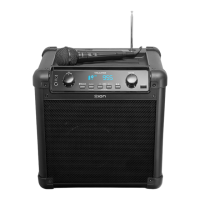
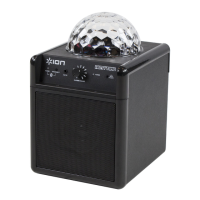
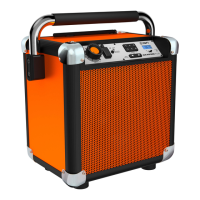
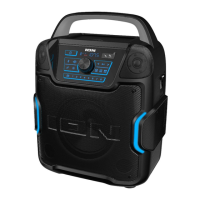
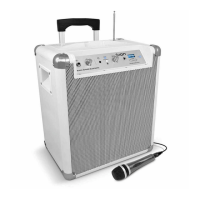
ION Audio Game Day™
Primetime User Guide 8
1
. Display
This screen shows information relevant to Game Day
TM
Primetime’s current operation:
• S
ource Icons (FM, AUX, USB): These icons will indicate whether Game Day
TM
Primetime is in FM, Aux, or USB playback modes.
• B
luetooth Icon ( ): The Bluetooth icon will display when a device is paired to Game
Day
TM
Primetime. See Operation > Bluetooth® Connecting with Game Day
TM
P
rimetime to learn how to connect a Bluetooth device.
• S
tereo-Link
TM
Icon ( ): The Stereo-Link
TM
icon will display when Game Day
TM
Primetime is linked to another speaker. The Stereo-Link
TM
icon will be o when a
single speaker is used. See O
peration > Stereo-Link
TM
: Syncing Two Speakers below
for instructions on how to link two speakers.
• R
adio Station: The centered numerals indicate the current radio station that is
selected. This area will also show the volume and the current repeat mode when
either are changed. See O
peration > Using the Radio for more information.
• L
ightning Bolt Icon ( ): The lightning bolt icon will display when Game Day
TM
Primetime is connected to a power outlet and charging.
• B
attery Indicator ( ): The battery icon displays the battery life percentage. When
fully charged, the battery icon will be completely filled.
• B
OOM Icon: The BOOM icon will display when the Boom Button
TM
is pressed. The
icon will be o when the function is deactivated.
2
. Power Button
Press and hold this button to turn Game Day
TM
Primetime on and o.
3
. Bluetooth Button
Press this button to enter Bluetooth pairing mode. When connected to a Bluetooth device,
double-press this button to disconnect a paired device and re-enter pairing mode, or
single-press to disconnect a paired device and enter Aux mode. See O
peration >
B
luetooth® Connecting with Game Day
TM
Primetime to learn how to connect a Bluetooth
device.
Press and hold this button to enable or disable voice prompts.
4
. Source Button
Press this button to cycle between FM, USB, and Aux modes.


 To Next Page