ION Audio Uber™
Boom User Guide 7
5
. Lights Button
Press this button to cycle through the ten light modes. See O
peration > Light Modes for
more information.
Press and hold this button to turn the lights o.
Double-press this button to activate the Bass Boost feature and enhance the speaker’s
bass frequency response.
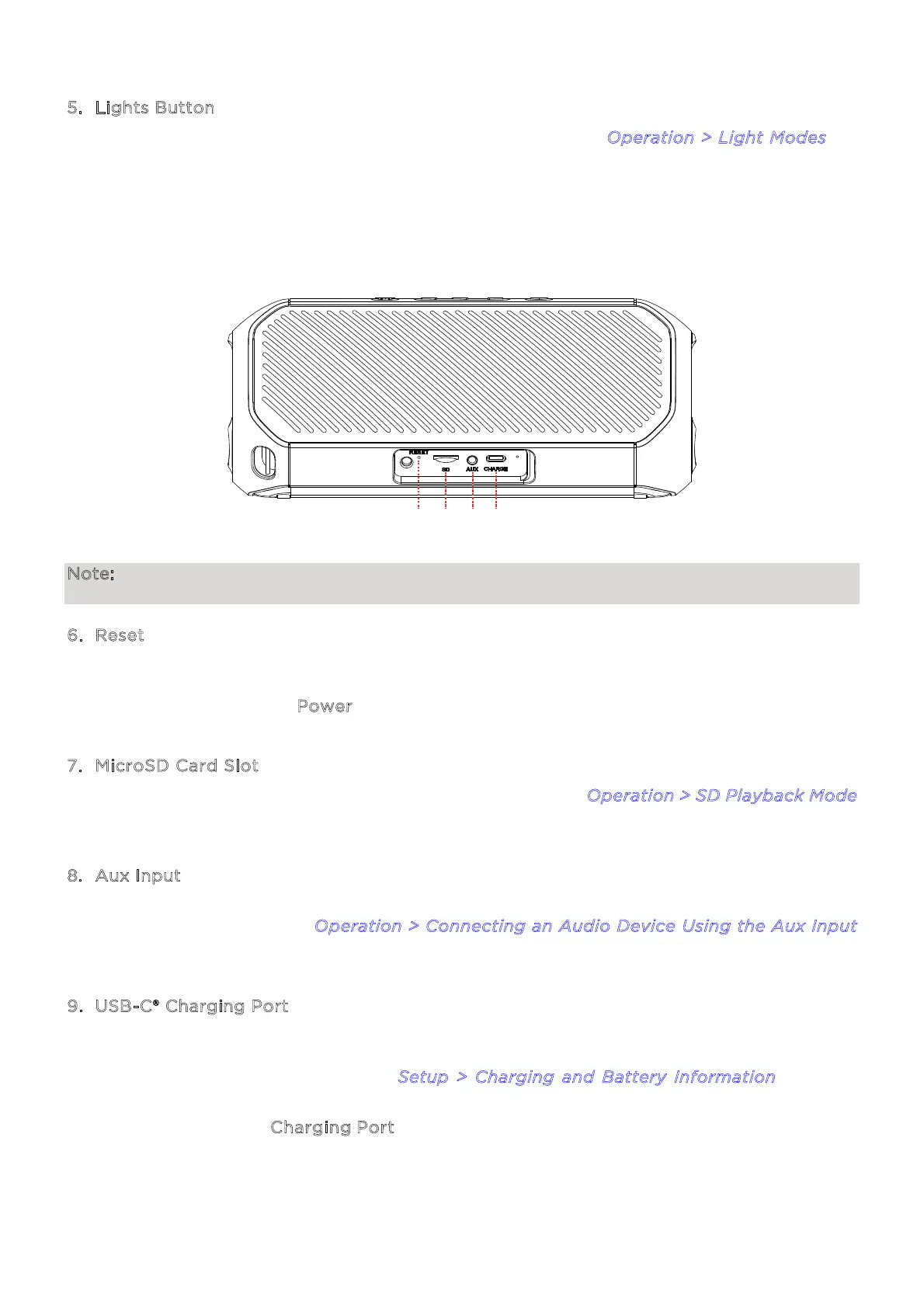
Note: To access the connection ports, pull the tab on the protective rubber panel to release it
and access the ports.
6
. Reset
If Uber
TM
Boom is behaving abnormally, insert a paper clip into this hole and gently push
the reset button until the unit resets. Try this only after you have first attempted to restart
Uber
TM
Boom using the Power button.
7
. MicroSD Card Slot
Insert a microSD card here to play stored audio files. See O
peration > SD Playback Mode
for more information.
8
. Aux Input
Connect an MP3 or other audio player to Uber
TM
Boom here using a 1/8” (3.5 mm) auxiliary
cable (not included). See O
peration > Connecting an Audio Device Using the Aux Input
for more information.
9
. USB-C® Charging Port
Connect the USB-C® end of the included cable to Uber
TM
Boom here, then connect the USB-
A end to a 5V, 2A USB power adapter (sold separately) and plug it into a power outlet, or
your computer (powered on). See S
etup > Charging and Battery Information for more
information.
The LED next to the C
harging Port will change color based on the charging status. When
plugged in and charging, the LED will be red. When fully charged, the LED will turn o.
When the unit is powered on and using battery, the LED will be blue.
6 7 8
9


 To Next Page