27
6. Wi-Fi Operation
6.1. Wi-Fi Connection
6.1.1. For a Windows/Mac Operation System
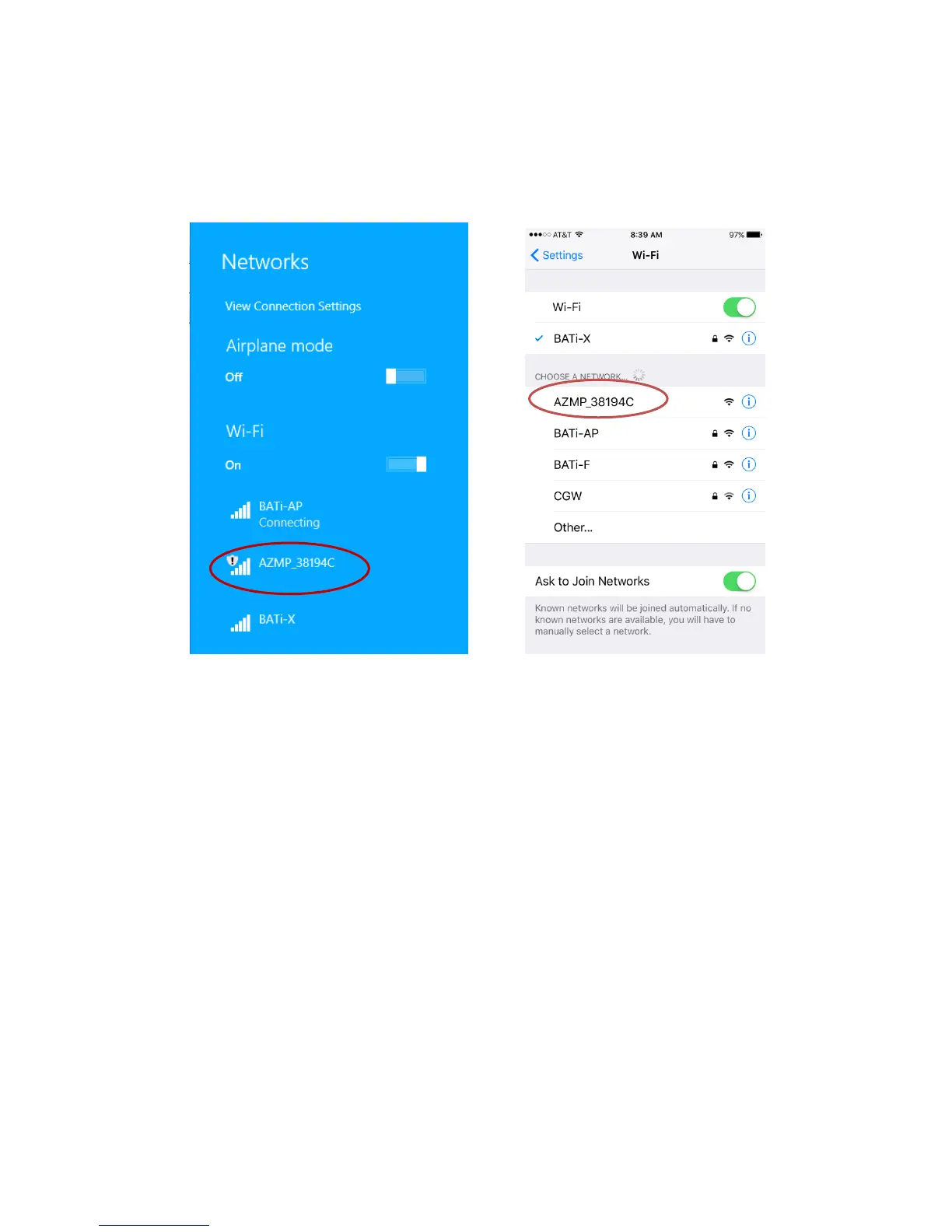
Open the Wi-Fi connection panel on your device, Find a Wi-Fi SSID called “AZMP_XXXXXX”,
as shown in Figure 14(a), then connect.
(a) (b)
Figure 14. Wi-Fi connection panel (a) PC and Mac, (b) iOS
6.1.2. Tablet/SmartPhone with iOS
Connect the iOS Tablet/SmartPhone to the AZMP_XXXXXX wireless network, as shown in
Figure 14(b).
6.1.3. Tablet/SmartPhone with Other OS
Open the Wi-Fi connection panel on your device, Find a Wi-Fi SSID called “AZMP_XXXXXX”,
then connect.
6.2. Connect the Mount
6.2.1. Windows
After connecting a computer to AZMP Wi-Fi network, launch the iOptron Commander. Select
iOptron StarFi/Built-in Wi-Fi to connect the mount to your computer via Wi-Fi/Ethernet connection
(Figure 15). Check the Mount Panel, as shown in Figure 15, to open iOptron Commander Mount Panel
(Figure 16).



 To Next Page