29
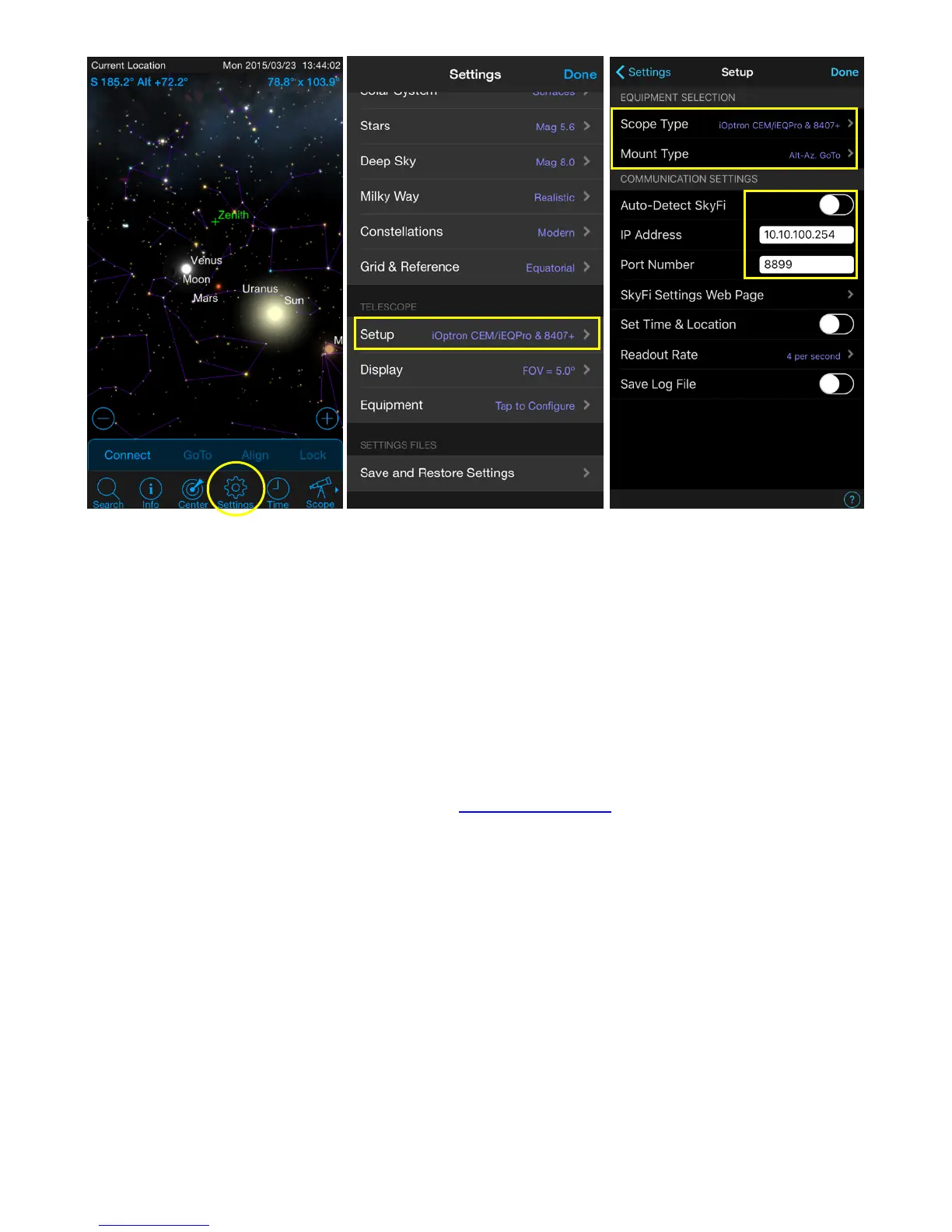
Figure 17 Using Sky Safari on a SmartPhone/Tablet
This procedure only needs to be performed once unless you have changed your AZMP Wi-Fi
settings.
Then click on the Scope icon and tap on Connect to connect the mount. Now you can perform
GOTO and Slew from your SmartPhone/Tablet.
6.3. Wi-Fi Configuration
The AZMP Wi-Fi is shipped with no password protection. You can change the SSID and enable
password protection so only you can make the connection.
To change the Wi-Fi settings:
Connect the computer/tablet/SmartPhone to AZMP Wi-Fi;
Open the internet browser and type in http://10.10.100.254
;
A login window will open. Enter “admin” as both User Name and Password;
Go to AP Settings;
Now you can change the SSID name from AZMP_XXXXXX to Your Name, enable WPA2
encryption, etc.;
You may also go to account to change login name and password;
Restart the mount.
Note:
1. Please keep the Wi-Fi at AP (access point) mode, unless you know how to setup the ST
mode.
2. If ever you forgot your password, use the hand controller “Restore to Factory” to reset the
WI-FI adapter to factory default settings.



 To Next Page