802.11n lndoor Wireless Access Point
13
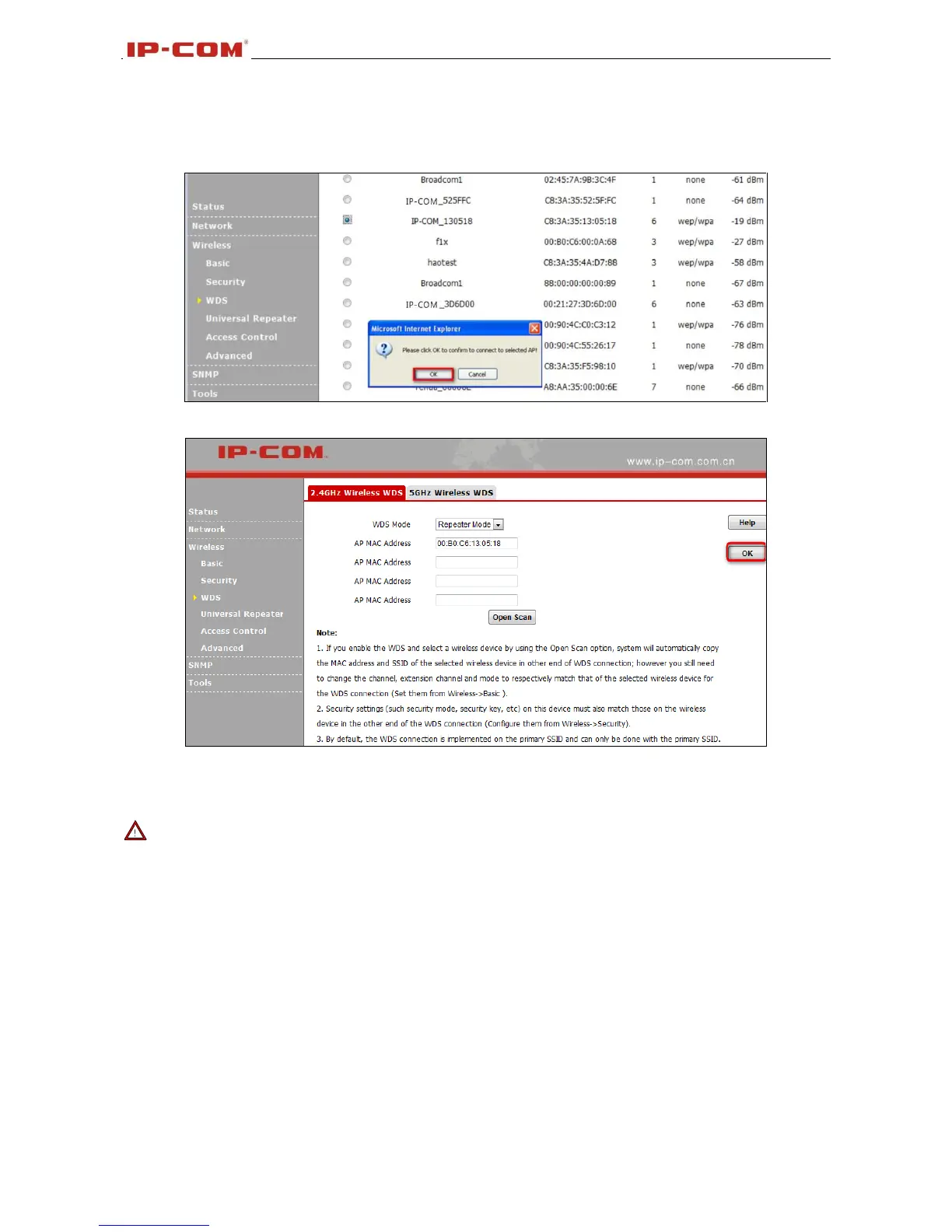
2.You can also scan the remote AP.
1)Click Open Scan to select the remote AP and click OK to add the corresponding MAC address
automatically.
2) Click OK to save your settings.
Then follow the steps mentioned above to configure the W75AP2. After the two APs have added each
other, they can be bridged successfully.
Note -----------------------------------------------------------------------------------------------------------------------------
1. In WDS mode, the two APs should support WDS and you should keep their SSIDs, channels, security
modes and keys the same. As for IP address, they should not be the same but on the same network
segment;
2. Once the security mode has been changed, please reboot the device.
3. If one of the APs is in Bridge Mode, the remote one must be in Repeater Mode.
4. In Bridge mode, clients won’t be able to access the device’s primary SSID.
-----------------------------------------------------------------------------------------------------------------------------------------
3.4.4 Universal Repeater
Select Universal Repeater and enable scan to automatically populate SSID and channel of the AP to
connect or manually enter the AP's SSID, channel and security key.



 To Next Page