38
RECORDING
Basic operation
RECORDING
37
Basic operation
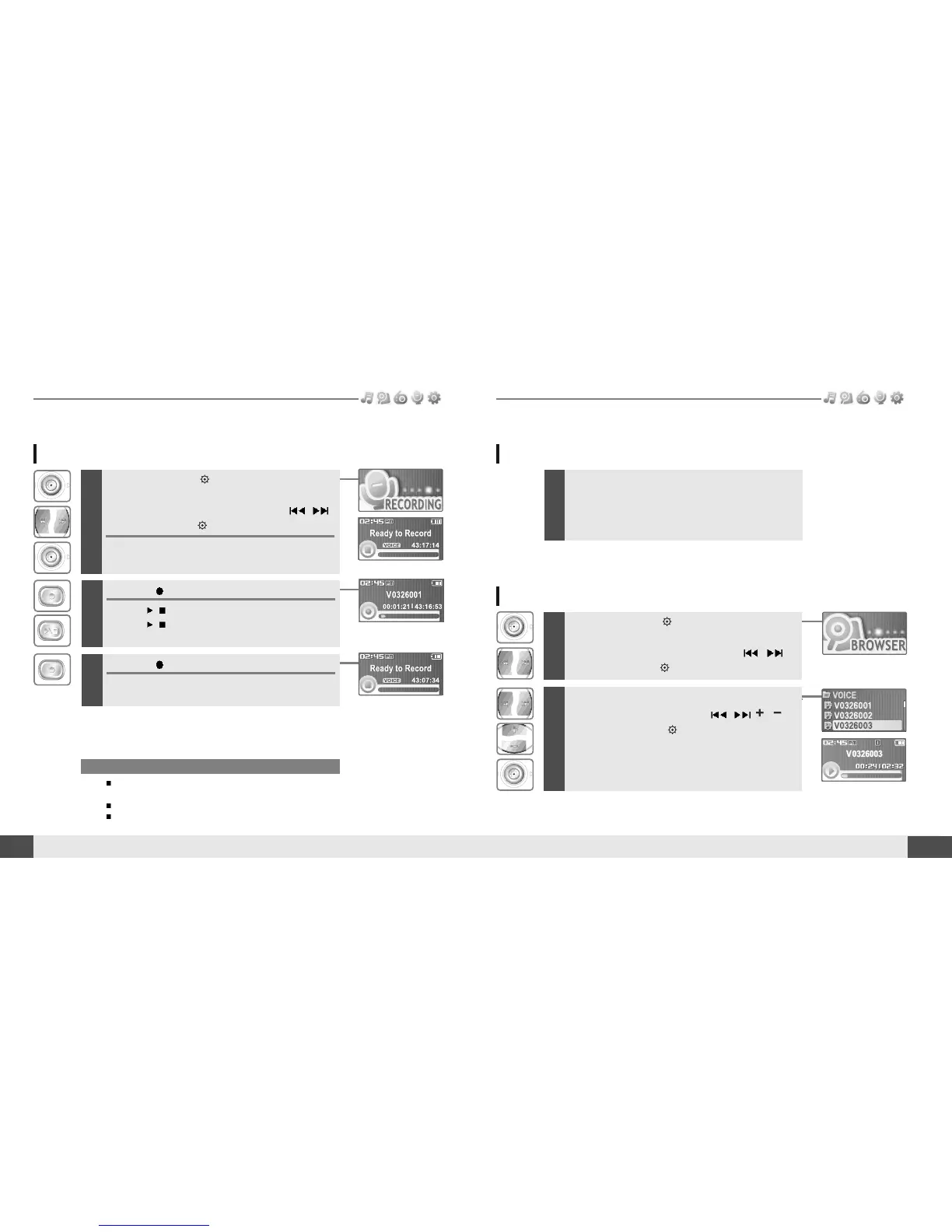
Press and hold the button to display
function mode screen.
Select the [RECORDING] by using the
,
button, then press button.
The recording standby screen is displayed.
Recording voice
1
Note
The recorded file is saved as VMMDDXXX.MP3 in the VOICE folder.
(V:Voice, MM:Month, DD:day, XXX:sequential number)
Volume can not be controlled while recording.
You can adjust recording quality at the SETTINGS-RECORDING-
VOICE SETTING.(Refer to page 50)
2
Press the button to begin recording.
Press
/
button to pause the recording process.
Press
/
button again to restart recording.
3
Press the button to stop recording.
The recorded file is saved and then the recording
standby screen is displayed.
Note for recording
The recording will be stop if
- the amount of recorded data exceeds the
capacity.
- the battery is low.
1
Press and hold the button to display
function mode screen.
Select the [BROWSER] by using the
,
button, then press button.
2
Select a recorded file in the RECORD or
VOICE folder by using the
, , ,
button, then press button.
The selected file will begin playing back.
To play a recorded file


 To Next Page