12
Connecting to the PC
Connection/Installation
Getting started
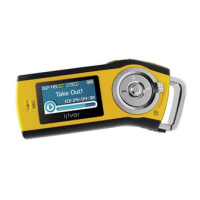
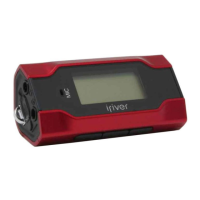
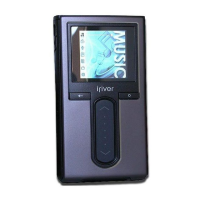
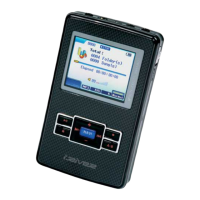
Locating the controls
11
Getting started
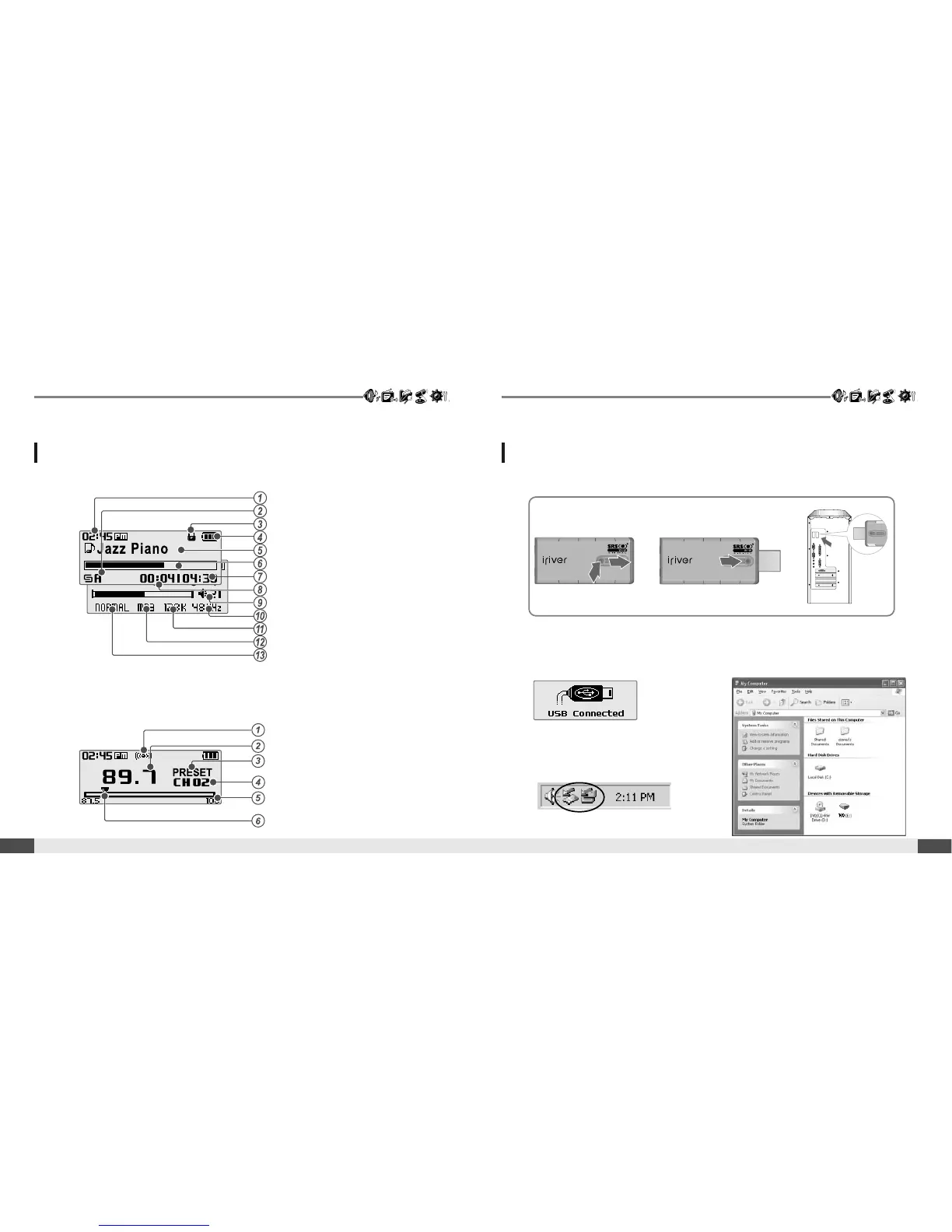
Time
Play mode
Hold
Battery indicator
Title name
Progress bar
Total playing time of selected song
Playing time
Volume level
Sampling rate
Bit rate
File Type
EQ
Stereo indicator
Frequency
Preset indicator
Channel Number
Frequency Range
Frequency Bar
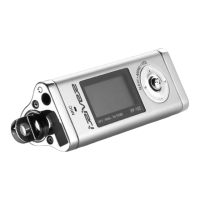
1. Push the USB lever and pull out the USB connection port as below picture and
connect the player to the PC.
3. Windows Tray will display a "Device
Attached" icon.
4. Once installed, open Windows Explorer
andanadditionaldeviceshouldbe
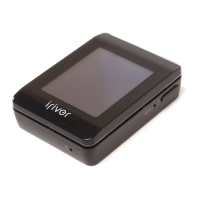
listed called “ T20”.
LCD Screen display
1. MUSIC Mode
2. * FM RADIO Mode
2. Turn on the player, “USB Connect”
icon will appear on the LCD screen of
the player.
* Only for models including FM Radio function



 To Next Page