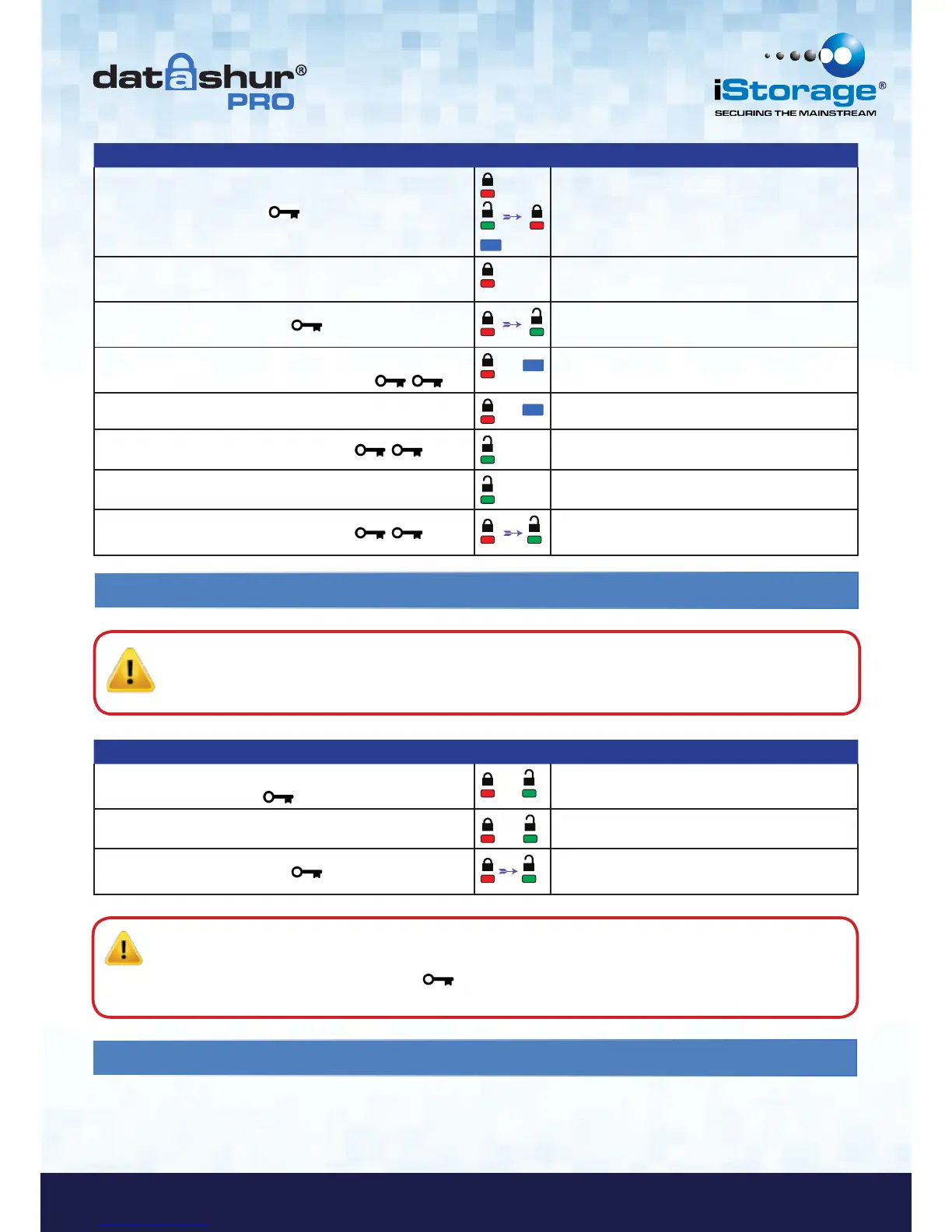
Instructions LED LED State
1. Press KEY button once
Red, Green & Blue LED’s will flash together once
and then the Red LED will continue to blink
(if Blue LED also blinks this indicates an Admin
PIN has been set up)
2. Within 10 seconds begin to enter your User PIN (default
PIN 11223344)
Red LED will continue to blink
3. Press the KEY button once
Red solid LED changing to Green solid LED
indicating successful User PIN entry
4. Press and hold down the number 1 button and press
the KEY button twice (double click) (1 & )
&
Red and Blue LED’s flicker together ready to
receive new Admin PIN
5. Within 10 seconds begin to enter your new Admin PIN
&
Red and Blue LED’s continue to flicker together
6. Press KEY button twice (double click)
Green LED blinks
7. Within 10 seconds begin to re-enter your new Admin PIN
Green LED continues to blink
8. Press KEY button twice (double click)
Red solid LED changing to Green solid LED
indicating successful Admin PIN entry
12. How to unlock the datAshur Pro as Admin
Instructions LED LED State
1. Press and hold down the number 1 button and press the
KEY button once (1 & )
&
Red and Green LED’s flicker together
2. Within 10 seconds begin to enter your Admin PIN
&
Red and Green LED’s continue to flicker together
3. Press the KEY button once
Red solid LED followed by a flickering Green
LED indicating successful Admin PIN entry
Caution: Entering the Admin PIN to access a locked drive will clear the User PIN. For security reasons, we
highly recommend that a new User PIN be created immediately once the drive has been unlocked
using the Admin PIN. Refer to section 13 on page 11.
Note: Once the datAshur Pro has been successfully unlocked, the Green LED will remain on for 30 seconds only,
during which time the datAshur Pro needs to be connected to a USB port. It can be locked down immediately by
pressing and holding down the KEY button for 3 seconds, or waiting for the 30 seconds to expire or by
clicking the ‘Safely Remove Hardware/Eject’ icon within your operating system.
13. How to create a New User PIN in Admin mode
Creating a new User PIN in Admin mode will become necessary if the datAshur Pro has been unlocked for any reason with
the Admin PIN, as this will automatically clear the User PIN. To create a new User PIN in Admin mode please follow the
instructions on the table below.













 To Next Page