#15
www.istorage-uk.com
19. How to set the Timeout Lock in Admin mode
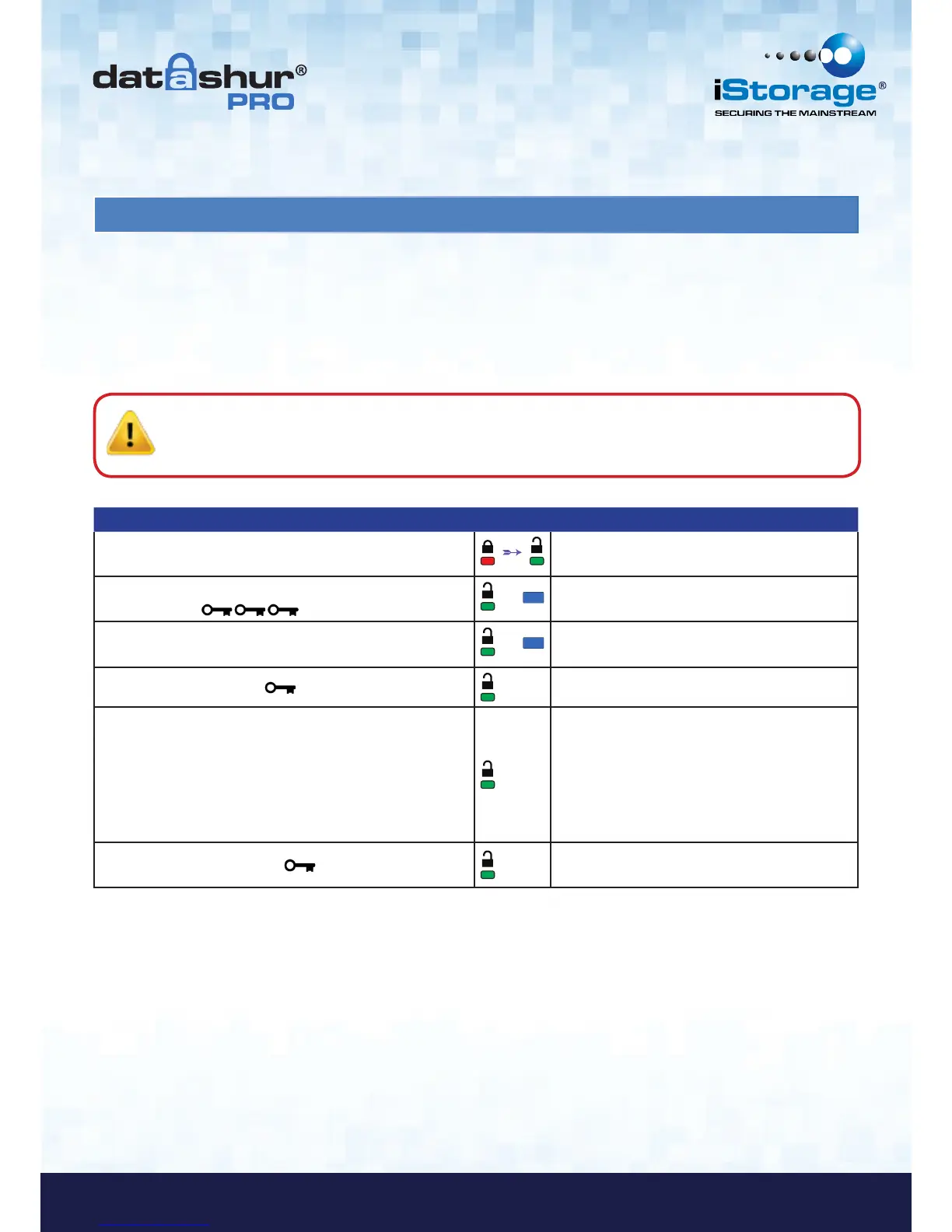
Instructions LED LED State
1. Unlock the datAshur Pro with Admin PIN
Red solid LED followed by a flickering Green
LED indicating successful Admin PIN entry
2. Press the KEY button 3 times
(treble click)
&
Green and Blue LED’s flicker together
awaiting new instructions in OPTIONS mode.
3. Within 10 seconds begin to press button number 8
(Tuv) followed by the number 5 (jkL) button - (85)
&
Green and Blue LED’s continue to flicker
together
4. Press KEY button once
Blinking Green LED
5. Within 10 seconds begin to enter the length of User
Timeout in 2 digits:
00 = 0 minutes (default)
01 = 1 minute
99 = 99 minutes etc
Green LED continues to blink
6. Press the Key button once
Flickering Green LED - Admin can override
USER Lock Timeout
To protect against unauthorised access when the datAshur Pro is connected to a host and unattended, the datAshur Pro can
be set to automatically lock after a pre-set amount of time.
In its default state, the datAshur Pro Timeout Lock feature is turned off. The Timeout Lock feature can be set to
activate (lock) anywhere between 1 and 99 minutes. Admin Timeout Lock settings will override User settings.
To set the Timeout Lock please follow steps in the table below.
Caution: Entering the Admin PIN to access a locked drive will clear the User PIN. For security reasons, we
highly recommend that a new User PIN be created immediately once the drive has been unlocked
using the Admin PIN. Refer to section 13 on page 11.













 To Next Page